
Sign in with Email
Learn how to sign in to GenZform using a magic link or verification code sent to your email. Secure, passwordless authentication.
Sign in with Email
If you prefer not to use Google sign-in, you can sign in using your email. GenZform sends you both a magic link and a 6-digit verification code — use whichever is more convenient.
Magic links and verification codes are one-time use and expire after 15 minutes for security.
How to Sign in with Email
Go to the sign in page
Navigate to genzform.com/auth/signin
Enter your email address
Enter your email address in the Email field.
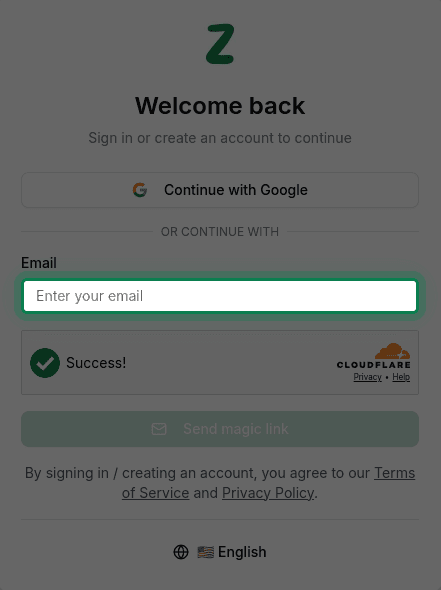
Complete the verification challenge
Complete the Cloudflare Turnstile verification to prove you're human.
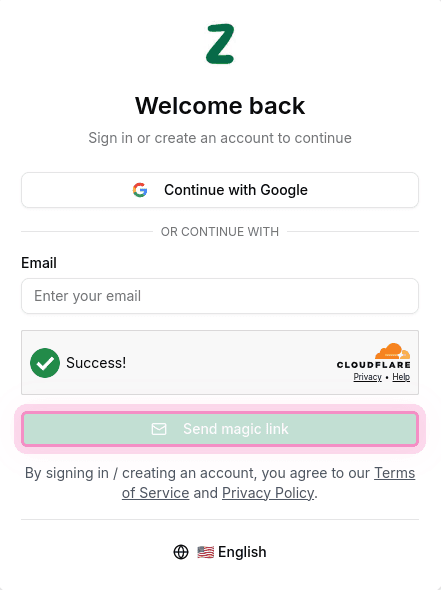
Click Send magic link
Click the Send magic link button. GenZform will send an email containing both a magic link and a verification code.
Sign in using the magic link or code
You have two options:
- Option A: Click the magic link in your email to sign in instantly
- Option B: Enter the 6-digit code shown in the verification screen
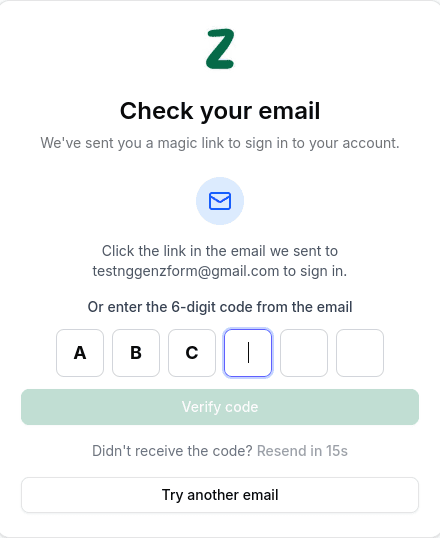
If using the code, type the 6 characters into the input boxes and click Verify Code. You can also paste the code directly.
Access your dashboard
You'll be automatically redirected to your dashboard.
Resending the Code
If you didn't receive the email, wait for the countdown timer to finish, then click Resend. You can also click Try another email to start over with a different email address.
Magic links and codes expire after 15 minutes. If yours has expired, simply request a new one.
Troubleshooting
I didn't receive the email
- Check your spam or junk folder
- Make sure you entered the correct email address
- Wait a few minutes — emails can sometimes be delayed
- Try requesting a new code by clicking Resend
The magic link doesn't work
Magic links expire after 15 minutes. Request a new one if needed. Make sure you're clicking the most recent link — older links become invalid. You can also use the 6-digit code instead.
The verification code is not accepted
Make sure you're entering the code from the most recent email. Codes are case-insensitive. If it still doesn't work, click Resend to get a new code.
I want to use a different email address
Click Try another email on the verification screen to go back and enter a different email address.
Need More Help?
If you're still having trouble signing in with email, please contact our support team. We're here to help!