
Model Context Protocol (MCP) Integration
Connect GenZform to AI platforms using the Model Context Protocol (MCP) for AI-powered form management.
The Model Context Protocol (MCP) is an open standard that enables AI applications to securely connect to external data sources and tools. GenZform supports MCP integration, allowing you to interact with your forms directly from any MCP-compatible AI platform.
Pro Plan Required: MCP integration is only available for users on the
Pro plan
or higher. Free plan users cannot connect to the GenZform MCP server.
Upgrade to Pro
to unlock this feature.
MCP is a universal protocol supported by various AI platforms including Claude.ai, and other AI assistants. This guide uses Claude.ai as the primary example, but the same URL and authentication flow work with any MCP-compatible platform.
GenZform MCP Server URL
https://genzform.com/api/mcpUse this URL to connect GenZform to any MCP-compatible AI platform.
What You Can Do with MCP Integration
With the GenZform MCP server, you can:
- Create forms instantly - Ask your AI assistant to create surveys, quizzes, or forms
- View form responses - Check submission data directly in your conversation
- List your forms - Get an overview of all your forms and their details
- Update forms - Modify existing forms using natural language
- Manage form settings - Update themes, templates, and configurations
- Analyze responses - Get insights and analytics from your form data
The MCP protocol enables AI assistants to directly access your GenZform account and perform actions on your behalf, making form management as simple as having a conversation.
Connecting to Claude.ai
This section demonstrates how to connect GenZform's MCP server to Claude.ai. The process is similar for other MCP-compatible platforms.
Claude Paid Plan Required: Custom MCP connectors in Claude.ai are only available for paid plans (Pro, Max, Team, or Enterprise). Free plan users can browse the directory but cannot add custom connectors.
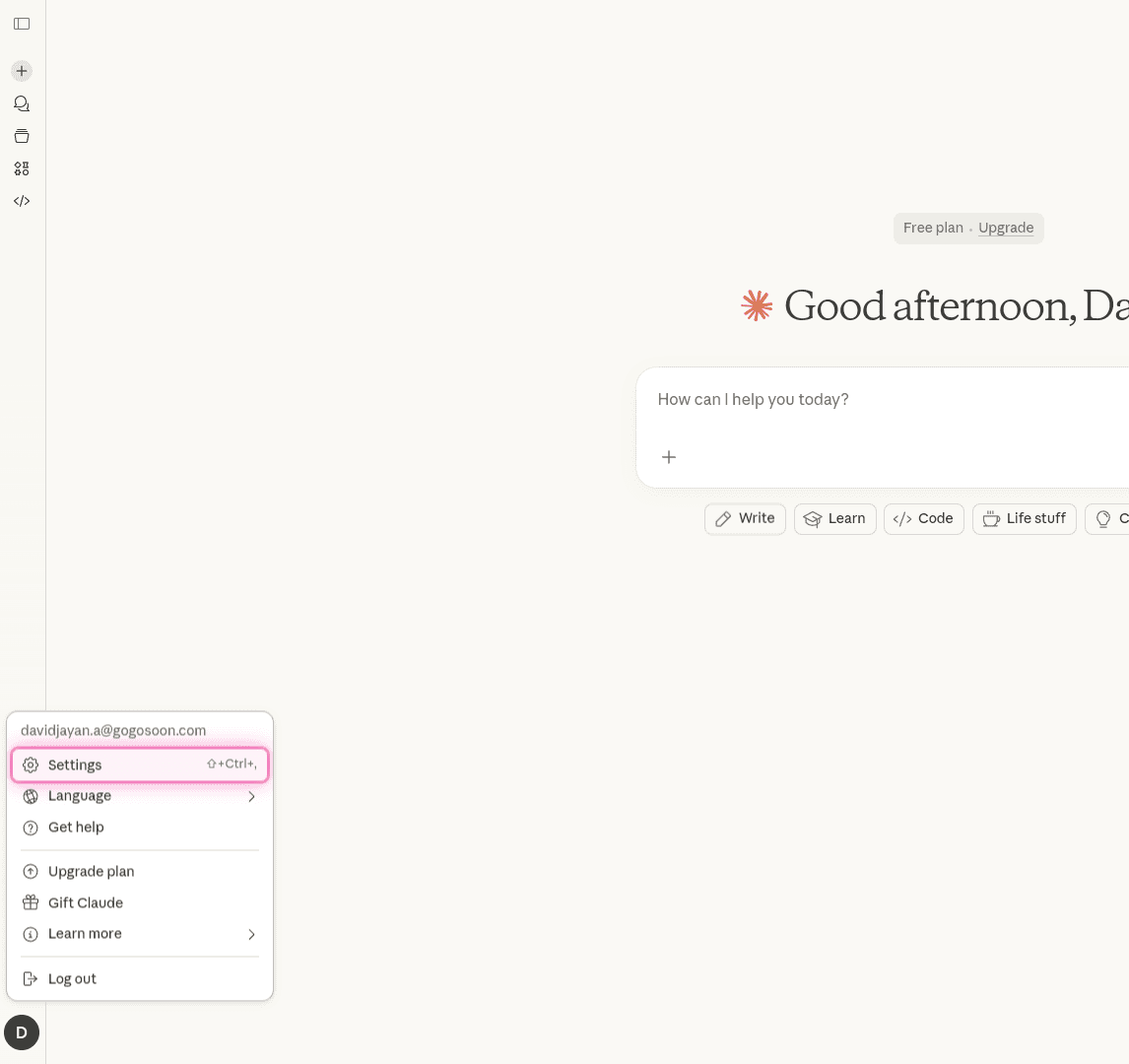
Open Claude.ai Settings
Log in to claude.ai and click on your profile button (initials) in the bottom left corner.
Select Settings from the menu (you can also press Shift+Ctrl+, as a shortcut).
Navigate to Connectors
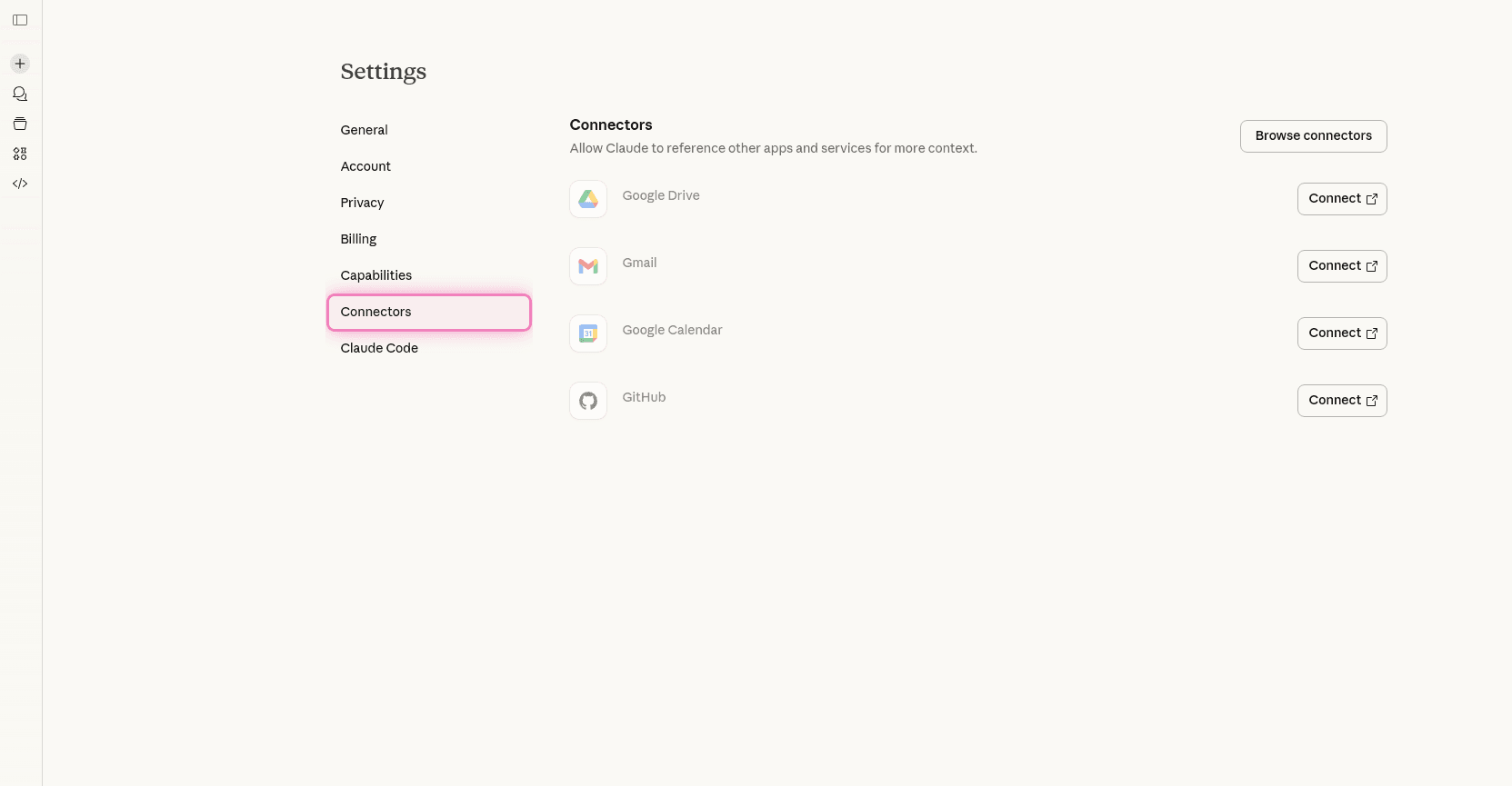
In the Settings sidebar, click on Connectors.
You'll see a list of your connected tools. Look for the Browse connectors button at the top right, but we'll use the custom connector option instead.
Add Custom Connector
On the Connectors page, scroll down to find the "Add custom connector" button.
Note: The "Add custom connector" button is only visible to users with paid Claude plans (Pro, Max, Team, or Enterprise). If you don't see this button, you'll need to upgrade your plan.
Click "Add custom connector" to open the connector setup dialog.
Enter GenZform MCP Server URL
In the connector setup dialog, enter the following information:
- Name:
GenZform(or any name you prefer) - URL:
https://genzform.com/api/mcp
Make sure to enter the URL exactly as shown: https://genzform.com/api/mcp
Click Connect to proceed to authentication.
Authenticate Your GenZform Account
A new window will open asking you to authorize the AI platform to access your GenZform account.
Review the permissions requested:
- View your forms and their settings
- Create and modify forms
- View form responses and submissions
- Access your account information
Click Allow or Authorize to grant access.
Confirm Connection
After authorization, you'll be redirected back to Claude. The GenZform connector will now appear in your connected tools list.
To use it in a conversation, open the Search and tools menu in your chat interface and enable the GenZform connector.
Connecting to Other MCP-Compatible Platforms
The GenZform MCP server URL (https://genzform.com/api/mcp) works with any MCP-compatible AI platform. The connection process typically involves:
- Finding the MCP/Connectors settings in your AI platform
- Adding a custom MCP server or connector
- Entering the GenZform MCP URL:
https://genzform.com/api/mcp - Authenticating with your GenZform account
- Enabling the connector in your conversations
Refer to your AI platform's documentation for specific instructions on adding custom MCP servers.
Using GenZform with AI Assistants
Once connected, you can interact with GenZform naturally in your AI conversations:
Create a Form
Create a customer feedback survey with questions about product satisfaction and suggestions for improvementView Form Responses
Show me the latest 10 responses from my customer feedback formList Your Forms
What forms do I have in my GenZform account?Update a Form
Change the primary color of my customer feedback form to blueAnalyze Responses
Analyze the responses from my employee survey and give me key insightsExample Conversations
Quick Survey Creation
You: Create a 5-question employee satisfaction survey
AI Assistant: I'll create an employee satisfaction survey for you. Let me access your GenZform account and build this form...
[AI creates the form and provides you with the form URL and preview]
Response Analysis
You: Show me all responses from my contact form from the last week
AI Assistant: I'll retrieve the responses from your contact form...
[AI displays the responses with analysis and insights]
Bulk Form Management
You: List all my forms and tell me which ones have the most submissions
AI Assistant: Let me check your forms...
[AI provides a summary of all forms with submission counts and engagement metrics]
Security and Permissions
Important: Only connect to the GenZform MCP server if you trust the AI platform you're using. Understand what permissions you're granting before authorizing access.
When you connect the GenZform MCP server, the AI platform gains the ability to:
- Read your form data, responses, and account information
- Create new forms using AI
- Update existing forms (content, theme, settings)
- Access user submissions and analytics
Revoking Access
You can revoke MCP access at any time:
For Claude.ai:
- Go to Settings > Connectors
- Find GenZform in your connected tools
- Click Disconnect
For other platforms: Refer to your AI platform's documentation for disconnecting custom connectors or servers.
Available MCP Tools
The GenZform MCP server provides the following tools to AI assistants:
| Tool | Description |
|---|---|
create_form | Create a new form with AI-generated content |
list_forms | List all forms in your account with pagination |
view_form_response | View responses for a specific form |
update_form | Update form content, theme, or settings |
AI assistants automatically determine which tools to use based on your requests. You don't need to know the technical tool names.
Troubleshooting
Cannot find "Add custom connector" option
Some AI platforms require paid subscriptions to add custom MCP servers. Check your platform's documentation for MCP support requirements.
Authentication fails
- Verify you're using the correct URL:
https://genzform.com/api/mcp - Make sure you're logged into your GenZform account
- Try disconnecting and reconnecting
- Clear your browser cache and try again
AI cannot access my forms
- Ensure you granted all required permissions during authentication
- Check that your GenZform account has MCP access enabled
- Try disconnecting and reconnecting the MCP server
- Verify the MCP server is enabled in your current conversation
"Server unavailable" error
- Check that https://genzform.com is accessible
- Verify your internet connection
- Try again in a few minutes (temporary server maintenance)
- Contact GenZform support if the issue persists
Frequently Asked Questions
Do I need a GenZform paid plan to use MCP?
Yes, MCP integration is only available for users on the
Pro plan
or higher. Free plan users cannot connect to the GenZform MCP server.
Upgrade to Pro
to unlock this feature.
Which AI platforms support MCP?
MCP is an open standard supported by various AI platforms including Claude.ai, and growing. Check your AI platform's documentation for MCP support.
Can I use the same MCP connection across multiple platforms?
Yes! Once you authorize an AI platform to access your GenZform account via MCP, you can connect additional platforms using the same MCP URL. Each platform will require its own authorization.
Is my data secure with MCP?
Yes. All communication between AI platforms and GenZform uses HTTPS encryption. AI platforms can only access what you explicitly authorize during the connection process.
Can I limit what the AI can do with my forms?
Permission scopes are determined during the authorization process. You can always revoke access by disconnecting the MCP server from your AI platform's settings.
Will this work on mobile devices?
Yes! Once you connect the GenZform MCP server on your desktop, it will automatically be available on mobile apps for supported AI platforms (like Claude for iOS and Android).
Technical Details
MCP Specification
GenZform's MCP server follows the Model Context Protocol specification, an open standard for connecting AI systems to external data sources.
Authentication
The MCP server uses OAuth 2.1 for secure authentication, ensuring that only authorized users can access their GenZform data through AI platforms.
Rate Limits
API rate limits apply based on your GenZform plan. If you exceed rate limits, the AI will receive a temporary error and may retry automatically.
Related
Need Help?
If you encounter issues connecting GenZform's MCP server to your AI platform or have questions about using the integration, please contact our support team. We're here to help!