
Enable reCAPTCHA Spam Protection
Learn how to protect your GenZform forms from spam and bot submissions using Google reCAPTCHA.
reCAPTCHA is Google's spam protection service that helps prevent automated bots from submitting fake responses to your forms. GenZform uses reCAPTCHA v2, which requires users to complete a checkbox verification before submitting the form.
reCAPTCHA v2 shows a checkbox that users must click before submitting. This provides strong protection against automated spam.
How to Enable reCAPTCHA
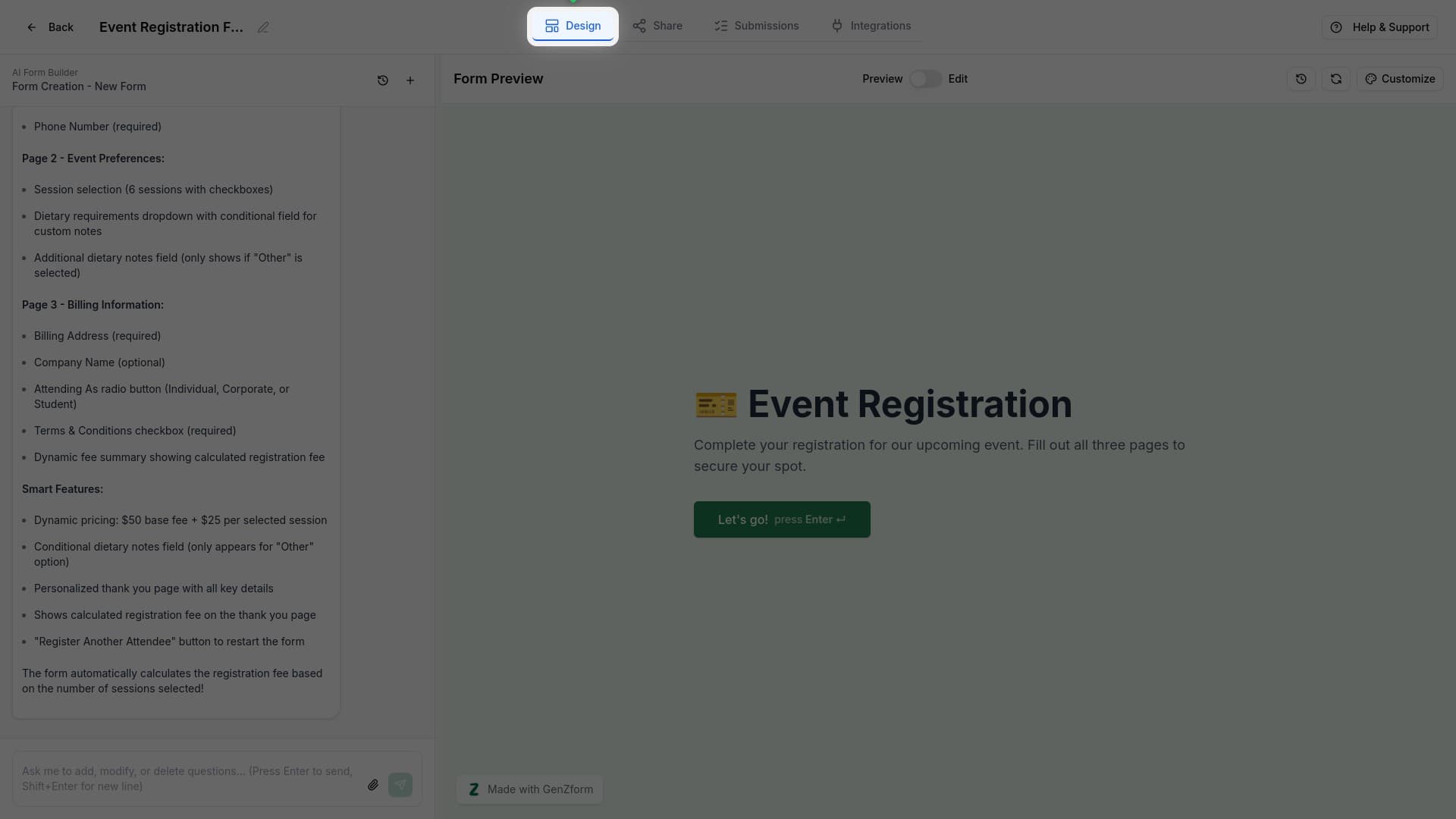
Open the Design tab
Make sure you're on the Design tab in the form editor.
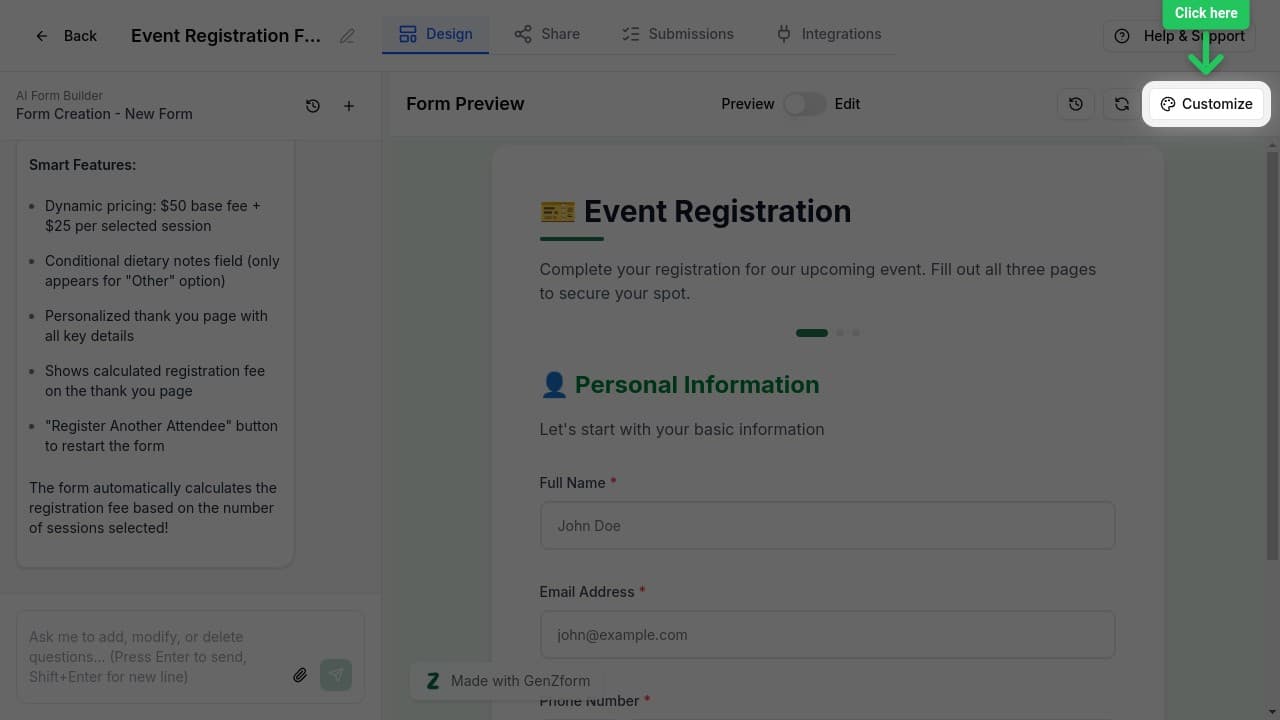
Click Customize
Click the Customize button to open the styling panel.
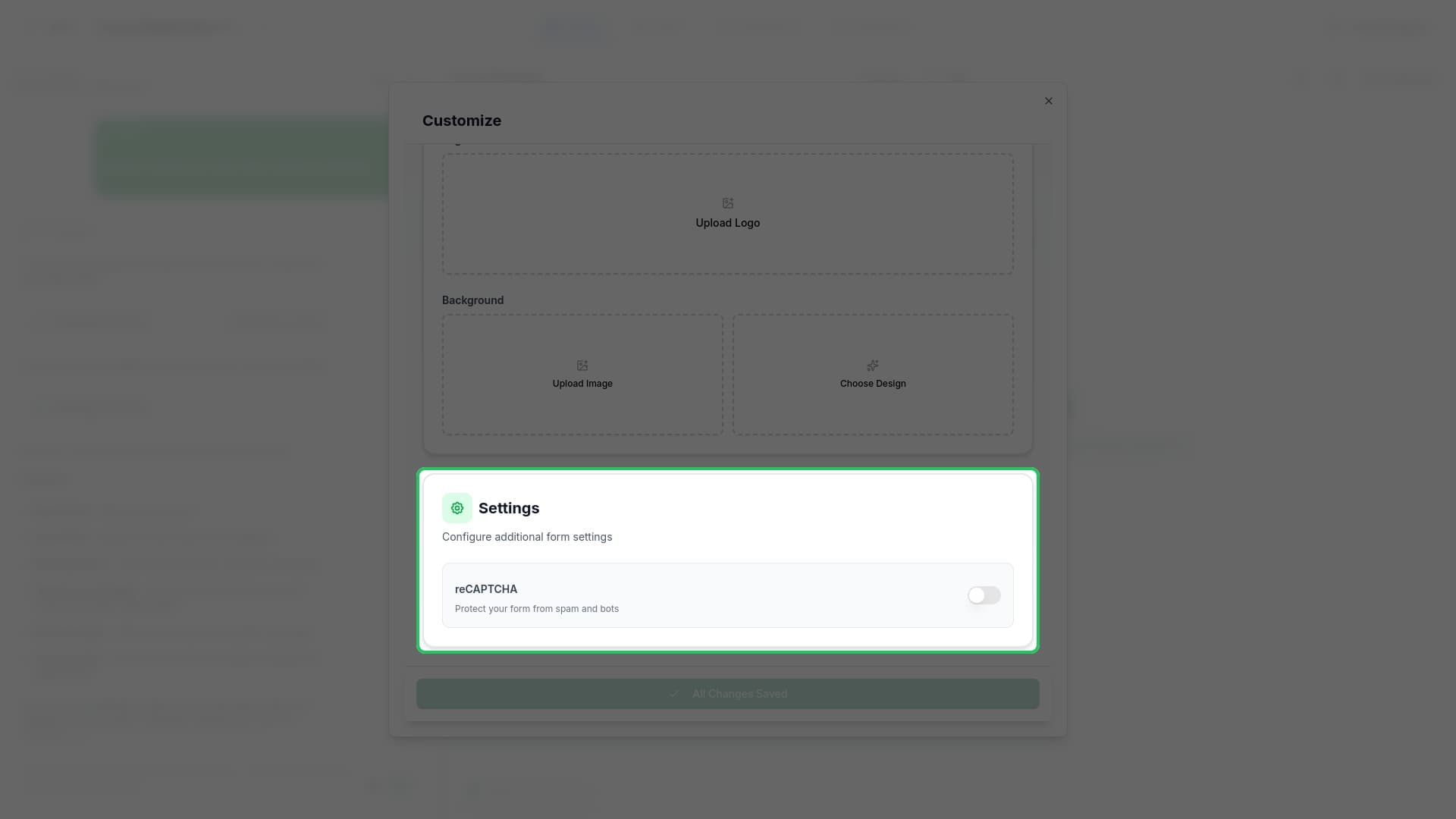
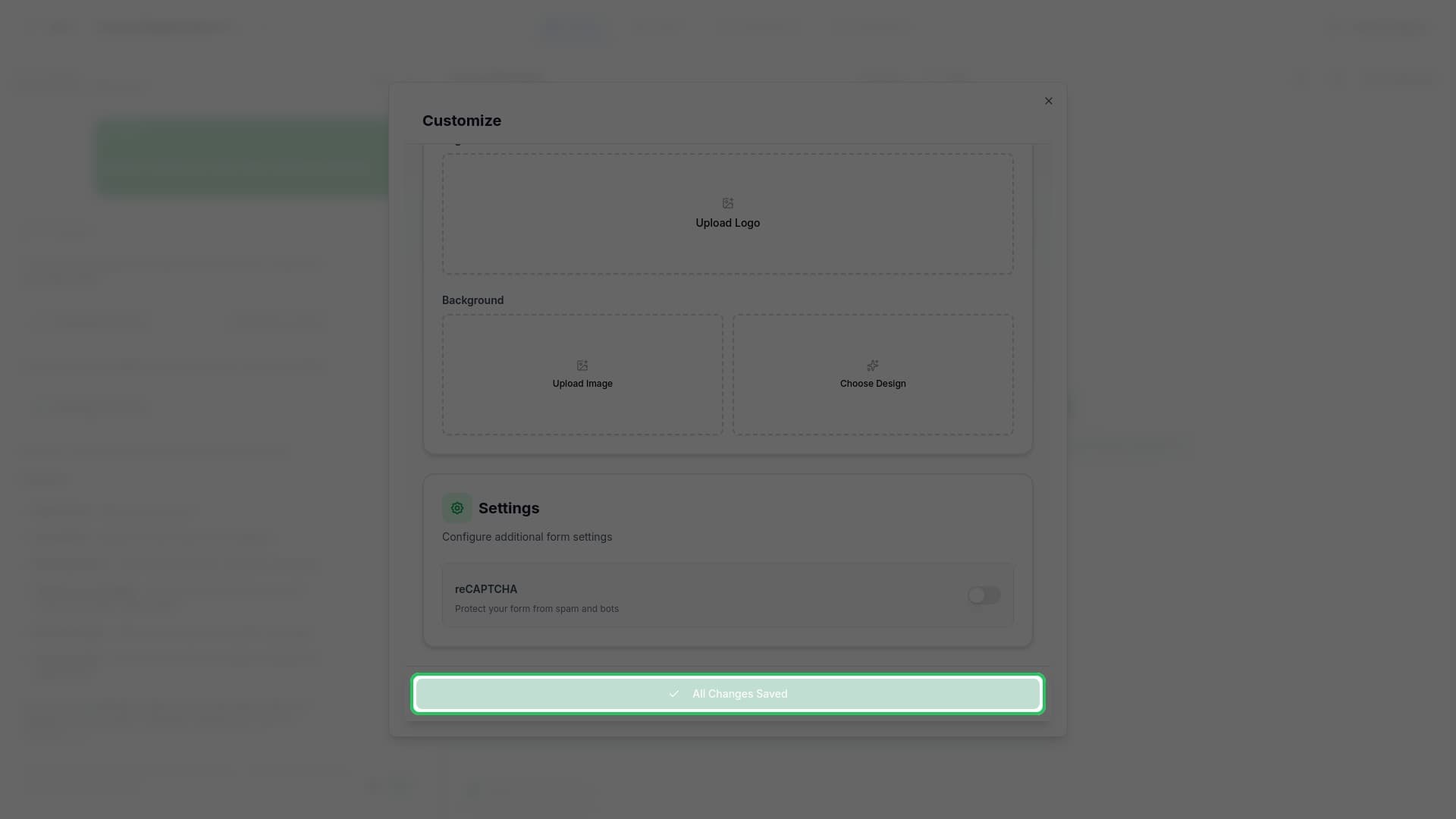
Find the Settings section
Scroll down in the customize panel until you find the Settings section.
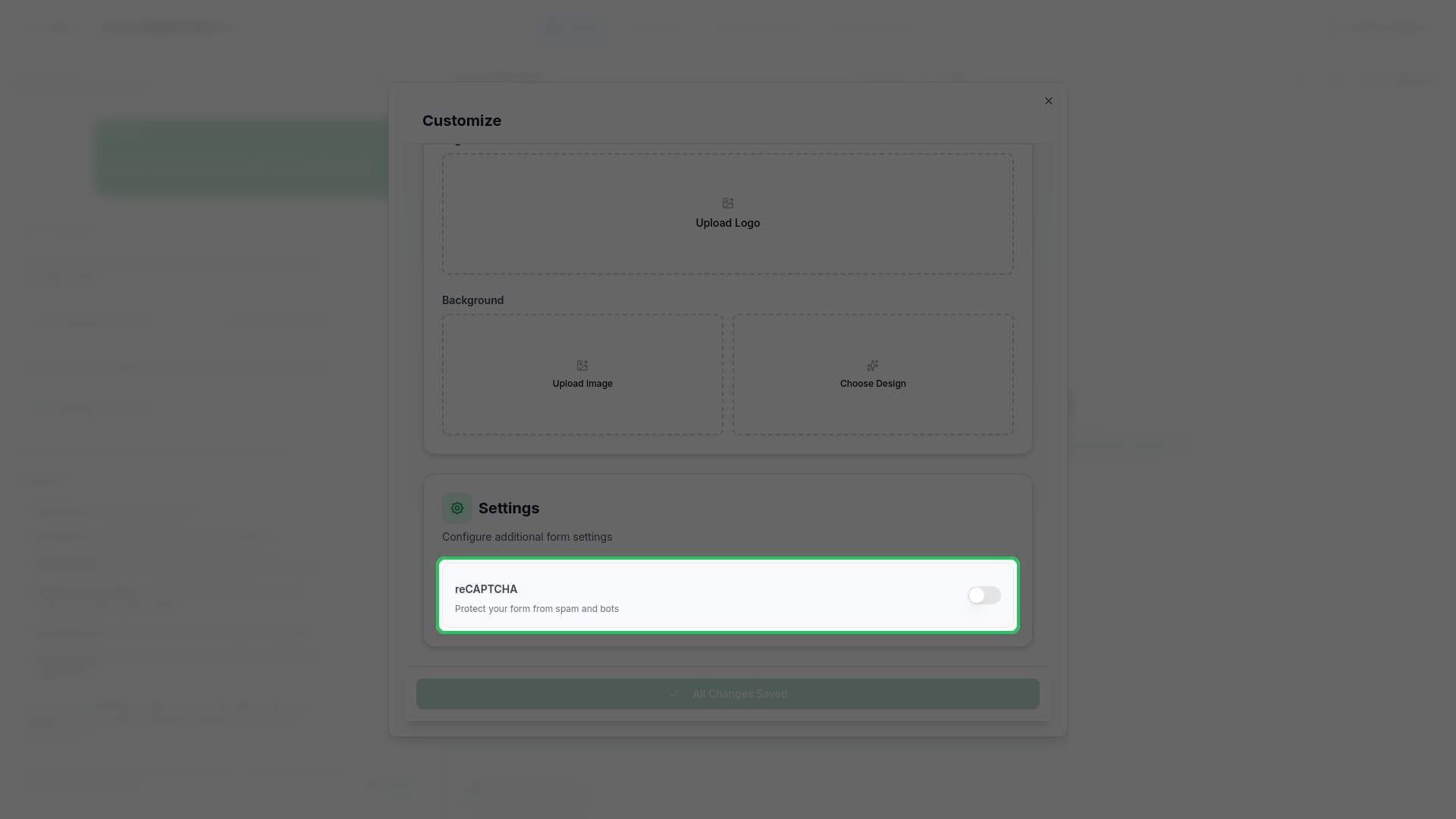
Enable reCAPTCHA
Toggle the reCAPTCHA switch to enable spam protection. The toggle turns blue when enabled.
Save your changes
Click Save Changes at the bottom of the panel to apply the reCAPTCHA protection.
How reCAPTCHA Works
reCAPTCHA v2 verifies that users are human through a simple checkbox interaction:
- Checkbox appears - A reCAPTCHA checkbox is displayed before the submit button on the last page
- User interaction - User clicks the "I'm not a robot" checkbox
- Verification - Google verifies the user through behavior analysis
- Challenge (if needed) - If Google is uncertain, it may show an image challenge
- Validation - Form can only be submitted after successful verification
What Respondents Experience
- Visible checkbox - "I'm not a robot" checkbox before submit button
- Quick verification - Usually just a single click is needed
- Optional challenge - May occasionally show image selection puzzles
- Clear feedback - Users know when verification is complete
When to Use reCAPTCHA
Enable reCAPTCHA when:
- Your form receives spam submissions
- You're collecting leads or contact information
- Your form is publicly accessible
- You want to ensure data quality
Consider skipping reCAPTCHA when:
- Your form is internal (employees only)
- You're running quick polls with trusted audiences
- Maximum accessibility is required
Privacy Considerations
reCAPTCHA sends some user data to Google for analysis. This includes:
- Browser and device information
- Interaction data (mouse movements, clicks)
- Cookie information
If you have strict privacy requirements, consider whether this aligns with your data handling policies.
Frequently Asked Questions
Will reCAPTCHA block legitimate submissions?
It's rare, but possible. reCAPTCHA v2 requires user interaction (checkbox click) and may occasionally show image challenges. Most legitimate users can complete this easily. If users report issues, you can disable reCAPTCHA and review submissions manually.
Do I need my own reCAPTCHA API key?
No, GenZform handles reCAPTCHA integration for you. Just enable the toggle and you're protected.
Can I see which submissions were flagged?
Currently, blocked submissions are silently rejected. You'll only see legitimate submissions that pass the reCAPTCHA check in your Submissions tab.
Does reCAPTCHA work on embedded forms?
Yes, reCAPTCHA protection works on all forms regardless of how they're shared - direct link, embedded, or popup.