
Form Settings Overview
Learn about the settings available for your GenZform forms, including spam protection and customization options.
Form settings help you control how your form behaves and protects against unwanted submissions. Access settings through the Customize button in the Design tab.
AI-generated changes are saved automatically. When you manually edit settings, an Unsaved Changes banner will appear — click Save Changes to apply or Discard to revert.
Accessing Form Settings
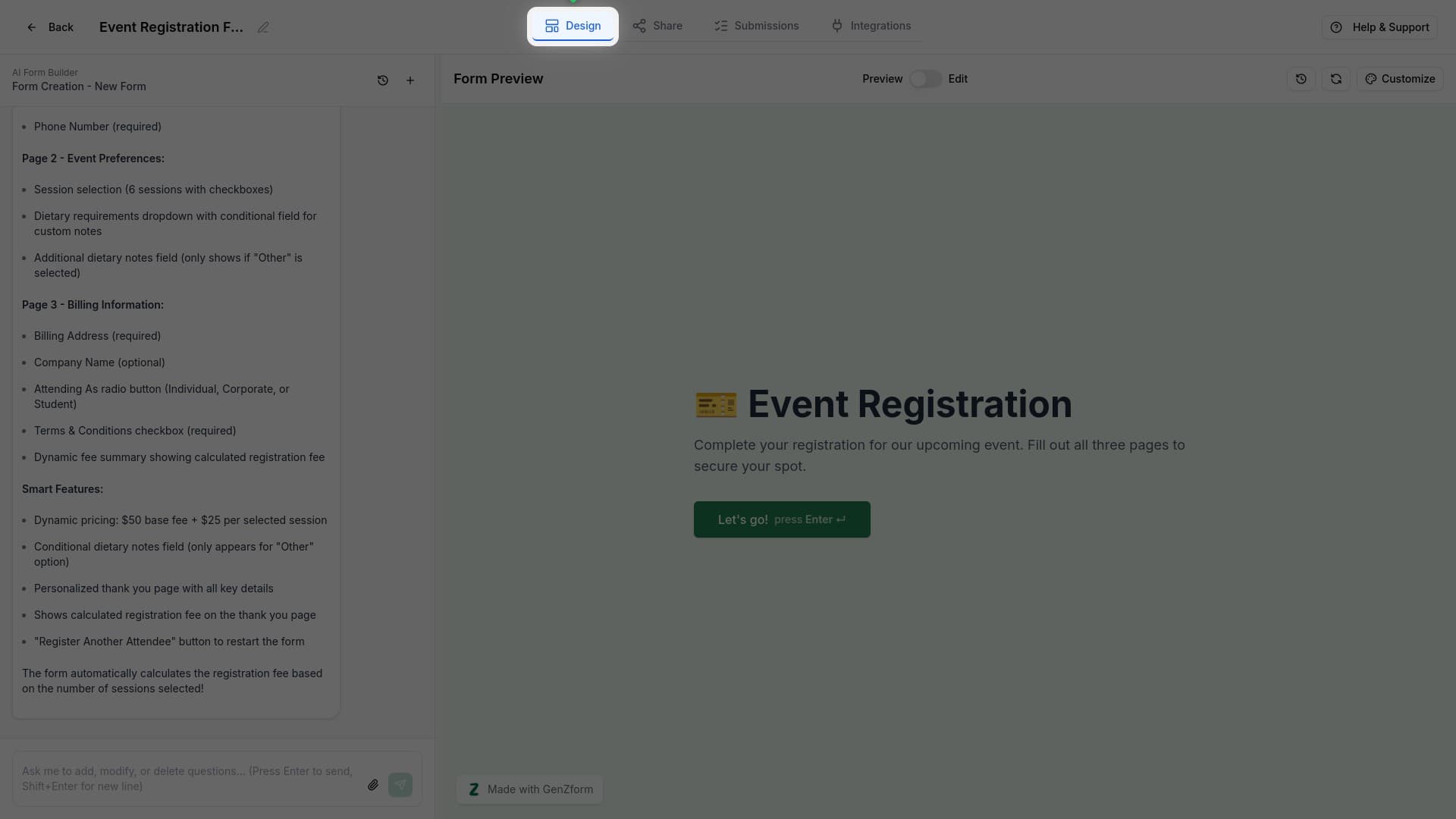
Open the Design tab
Make sure you're on the Design tab in the form editor.
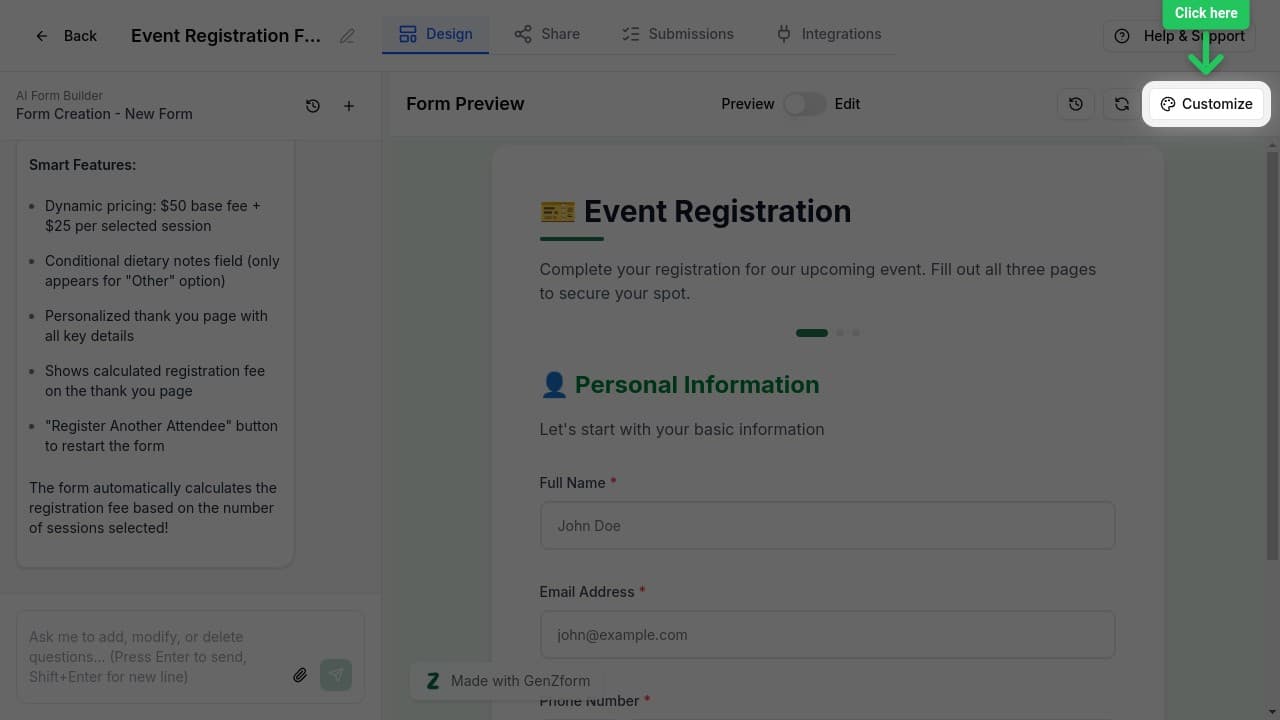
Click Customize
Click the Customize button above the form preview panel.
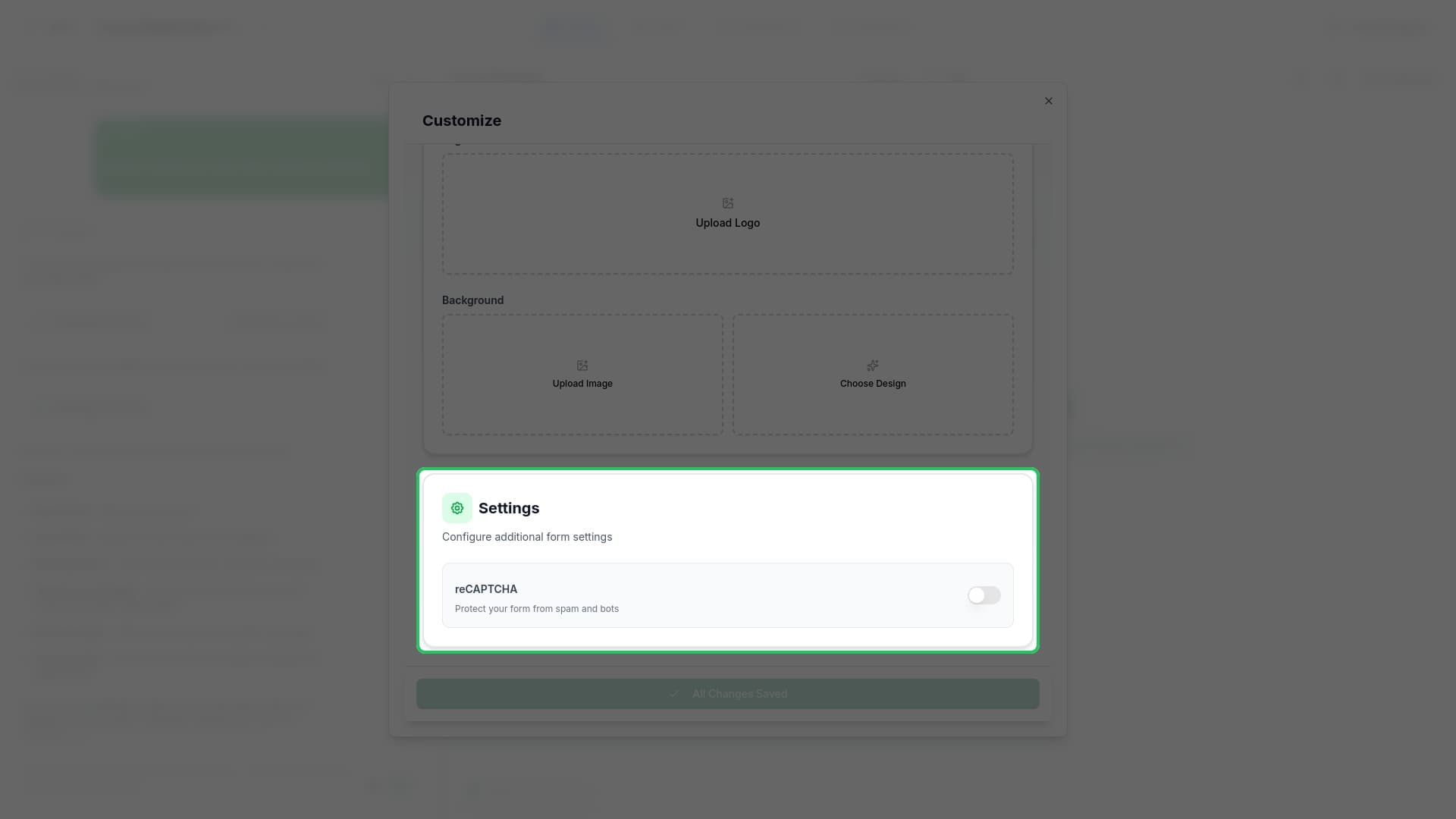
Find the Settings section
Scroll down in the customize panel to find the Settings section. Here you'll find all available form settings.
Available Settings
reCAPTCHA Spam Protection
Protect your form from spam submissions with Google reCAPTCHA v3. When enabled, reCAPTCHA works invisibly in the background - your respondents won't see any checkbox or challenge.
How it works:
- reCAPTCHA analyzes user behavior to detect bots
- Suspicious submissions are automatically blocked
- Legitimate users won't notice any difference
Learn more about enabling reCAPTCHA.
Form Customization vs Settings
GenZform separates customization (visual styling) from settings (form behavior):
| Customization | Settings |
|---|---|
| Colors and themes | Spam protection |
| Logo and branding | Field validation |
| Background images | Required fields |
| Template selection | Conditional logic |
Most visual customizations are handled through the customize panel, while field-level settings are configured directly on each field using the AI chat.
Changing Settings via AI Chat
Many form settings can be adjusted using natural language in the AI chat. Simply describe what you want:
Example prompts:
- "Enable spam protection on this form"
- "Make the email field required"
- "Add validation to ensure phone numbers are valid"
- "Require at least one checkbox to be selected"
Frequently Asked Questions
How do I make a field required?
Use the AI chat to set field requirements. Say something like "Make the email field required" and the AI will update your form.
Can I set a submission limit?
Currently, there's no built-in submission limit feature. Your form can collect unlimited responses on the free plan.
Where are my form settings saved?
All settings are saved with your form automatically when you click Save Changes. They persist across sessions and are applied to all submissions.