
Google Sheets Integration
Learn how to automatically sync your GenZform submissions to a Google Sheets spreadsheet in real-time.
Connect your forms to Google Sheets to automatically send every submission to a spreadsheet. Each response creates a new row with all the form data, so you can track, analyze, and share results without any manual work.
Google Sheets integration is available on all plans. You can connect multiple Google accounts and send data to different spreadsheets per form.
How It Works
When someone submits your form, GenZform automatically:
- Creates a new row in your connected Google Sheet
- Adds all form field values as columns
- Includes a Response ID and timestamp with each entry
- Automatically adds new columns if you add questions to your form later
The spreadsheet header row is formatted and frozen so your data stays organized as responses come in.
How to Connect Google Sheets
Open the Integrations tab
Open your form in the editor and click the Integrations tab in the top navigation bar.

Find the Google Sheets card
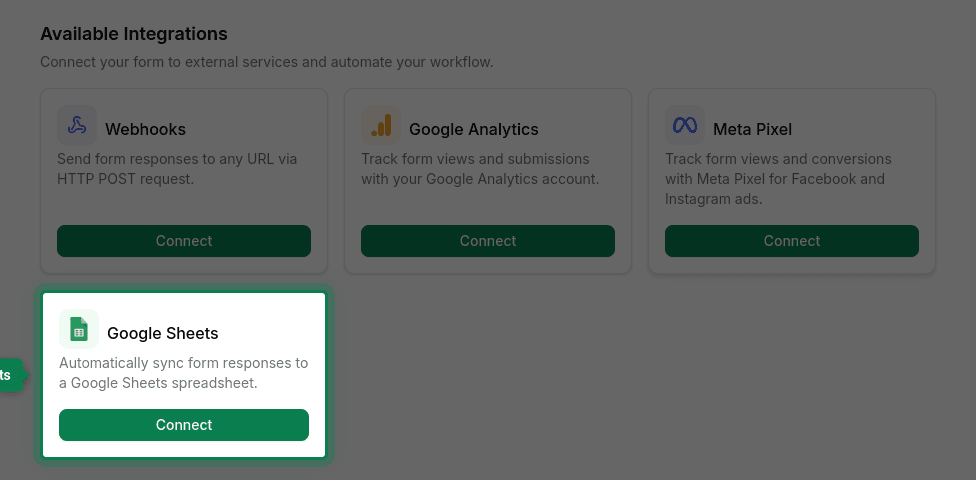
On the Integrations page, find the Google Sheets card and click Connect.
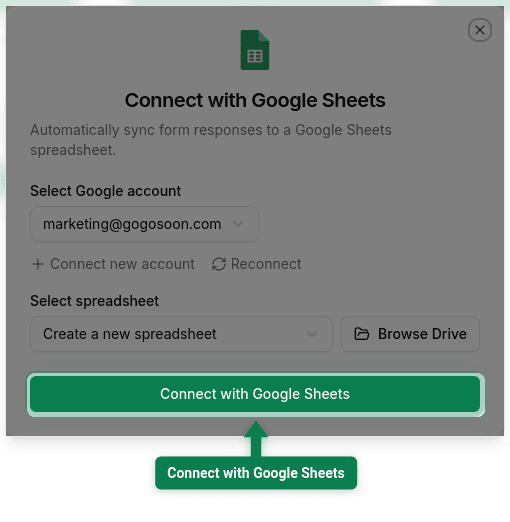
Connect your Google account
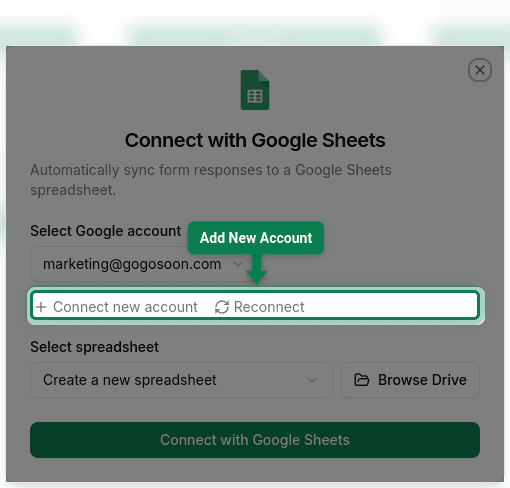
If this is your first time, click Connect new account to sign in with your Google account. A popup will appear asking you to grant GenZform access to create and edit spreadsheets.
If you've already connected an account, select it from the dropdown.
Choose your spreadsheet
You have two options:
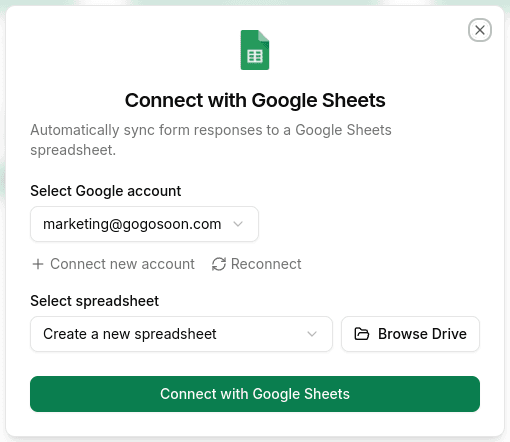
- Create a new spreadsheet (default) — GenZform will automatically create a new spreadsheet named after your form when the first response comes in.
- Use an existing spreadsheet — Click Browse Drive to select a spreadsheet from your Google Drive.
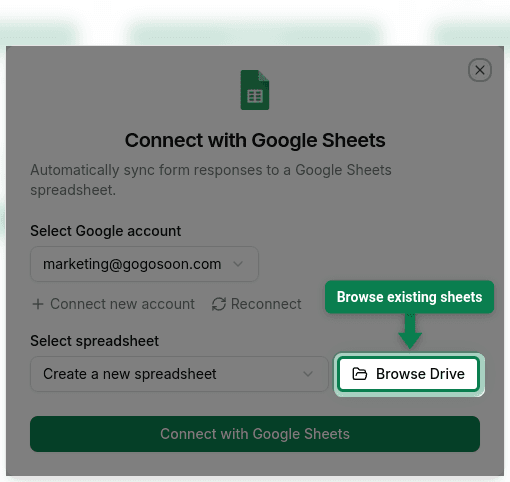
Browse Drive for existing spreadsheets (optional)
If you want to use an existing spreadsheet, click Browse Drive to open the Google Drive file picker. Select your spreadsheet, then choose which worksheet to use or create a new one.
Save the integration
Click the Connect with Google Sheets button to save your integration. Your form is now connected!
Managing Your Integration
Once connected, your Google Sheets integration appears in the My Connections section at the top of the Integrations page. From there you can:
- Toggle on/off — Use the switch to temporarily pause or resume syncing without removing the integration.
- View your spreadsheet — Click the spreadsheet name link to open it directly in Google Sheets.
- Delete — Remove the integration entirely using the trash icon.
Spreadsheet Format
When responses start coming in, your spreadsheet will be structured like this:
| Response ID | Submitted At | Name | Rating | Feedback | |
|---|---|---|---|---|---|
| resp_001 | 2024-01-15 10:30 | John Doe | [email protected] | 8 | Great service! |
| resp_002 | 2024-01-15 11:45 | Jane Smith | [email protected] | 6 | Could be faster |
Header formatting:
- Headers are bold with a gray background
- The header row is frozen so it stays visible when scrolling
- New columns are automatically added when you add new form fields
Multiple Accounts and Spreadsheets
You can:
- Connect multiple Google accounts to GenZform
- Send different forms to different spreadsheets
- Send the same form to multiple spreadsheets by adding the integration more than once
Frequently Asked Questions
What happens if I add new questions to my form?
GenZform automatically detects new form fields and adds new columns to your spreadsheet. Existing data is not affected — new columns appear to the right of existing ones.
Can I choose which worksheet to use?
Yes! When connecting to an existing spreadsheet, you can select any worksheet or create a new one. If you choose "Create a new spreadsheet," GenZform creates a "Form Responses" worksheet automatically.
What if my Google token expires?
GenZform automatically refreshes your Google access token. If there's ever an issue, click Reconnect in the integration dialog to re-authorize your account.
Can I send responses to multiple spreadsheets?
Yes. You can add the Google Sheets integration multiple times for the same form, each pointing to a different spreadsheet or worksheet.
Is there a limit on how many responses can be synced?
There is no limit from GenZform. Google Sheets supports up to 10 million cells per spreadsheet. For very high-volume forms, consider using a new worksheet periodically.
What data is included in each row?
Each row includes a unique Response ID, the submission timestamp, and all form field values. File uploads include the file URL.