
Create a Quiz
Learn how to create interactive quizzes with GenZform including knowledge tests, personality quizzes, and assessments.
GenZform makes it easy to create engaging quizzes with automatic scoring, answer feedback, and personalized results. Whether you're building a knowledge test, personality quiz, or assessment, the AI helps you create it in minutes.
Types of Quizzes
| Quiz Type | Description | Example |
|---|---|---|
| Knowledge Test | Right/wrong answers with scoring | Trivia, certification tests |
| Personality Quiz | Weighted answers that map to outcomes | "What type are you?" |
| Assessment | Scored evaluation with feedback | Skills assessment, readiness check |
| Survey Quiz | Mix of scored and survey questions | Feedback with knowledge check |
How to Create a Quiz
Ask the AI in the chat panel:
Example prompts:
- "Create a 10-question trivia quiz about geography"
- "Build a personality quiz: Which superhero are you?"
- "Make a product knowledge quiz for our sales team"
- "Create an assessment quiz with difficulty levels"
Describe your quiz
Tell the AI what kind of quiz you want:
"Create a 10-question quiz about world history with multiple choice answers"
Set correct answers
The AI will set up correct answers automatically, or you can specify:
"Set the correct answer for question 1 to 'Paris'"
Add explanations (optional)
Make your quiz educational by adding explanations:
"Add explanations for why each answer is correct or incorrect"
Configure scoring
Set up how the quiz is scored:
"Show the score as a percentage at the end"
Customize the results page
Create personalized results based on scores:
"Show different messages for scores above 80% vs below"
Quiz Features
- Automatic scoring - Answers are checked and scored instantly
- Answer feedback - Show if answers are correct/incorrect
- Explanations - Explain why answers are right or wrong
- Results page - Display final score and personalized feedback
- Retake option - Allow users to take the quiz again
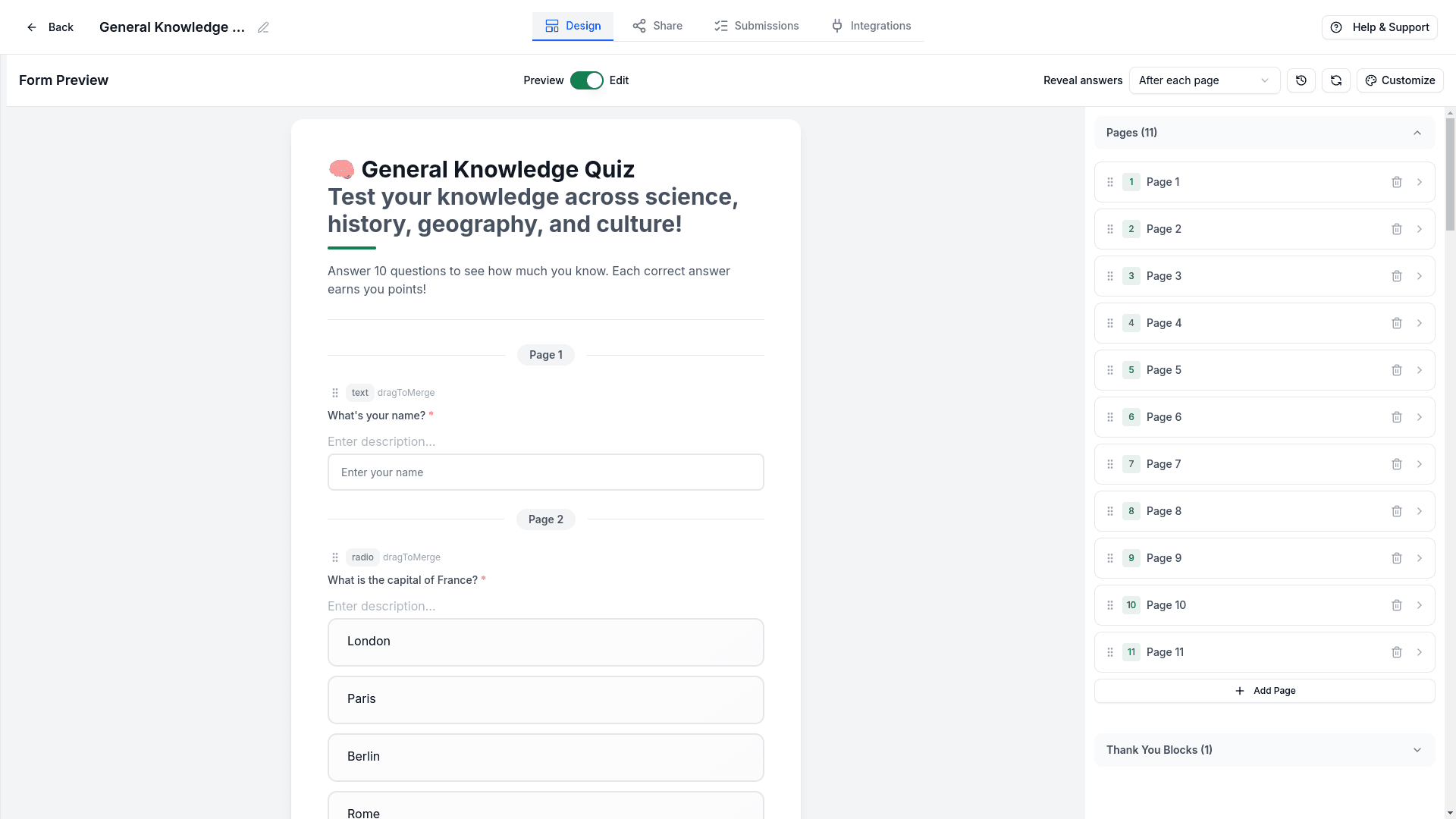
Reveal Answers Mode
Control when quiz answers are revealed to respondents using the Reveal answers dropdown:
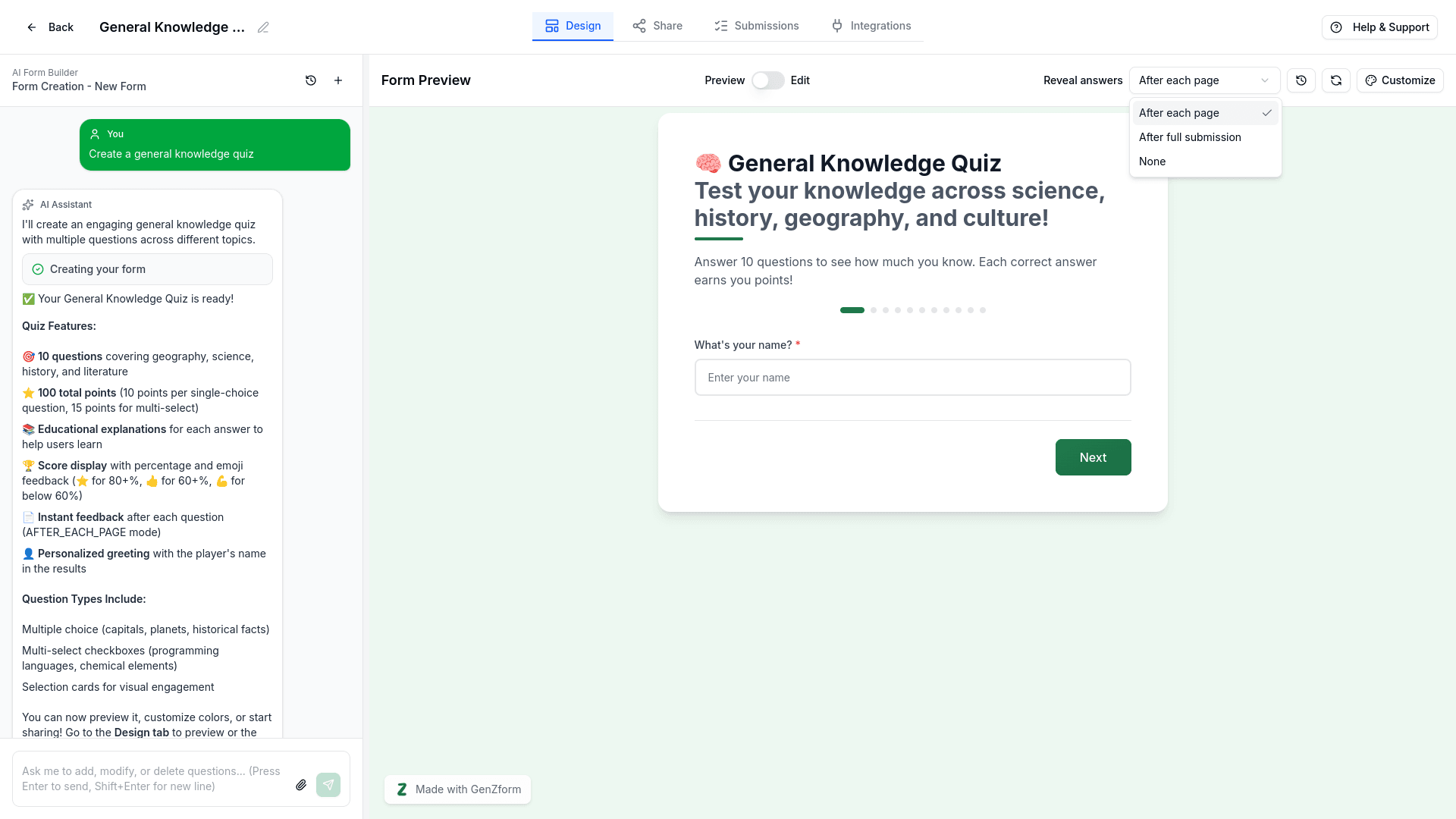
| Mode | Description |
|---|---|
| After each page | Show answer feedback after completing each page |
| After full submission | Show all answers only after the entire quiz is submitted |
| None | Don't reveal answers (useful for assessments) |
Customization Options
Immediate Feedback
"Show if each answer is correct immediately after answering"End-of-Quiz Feedback
"Show all results at the end of the quiz"Timed Quiz
"Add a 30-second timer per question"Randomize Questions
"Randomize the order of questions"Pass/Fail Threshold
"Set passing score to 70%"Frequently Asked Questions
Can I mix quiz questions with regular form fields?
Yes! You can combine quiz questions with form fields like name and email to capture leads along with quiz results.
Can I show different results based on score?
Yes! Use conditional logic to show different result pages: "If score > 80%, show 'Expert' message."
How do I see quiz results?
Quiz responses and scores are available in the Submissions tab, just like regular form responses.