
Input Fields Overview
Learn about all the input field types available in GenZform for collecting text, numbers, dates, and more.
Input fields are the building blocks of any form. GenZform offers a variety of input field types to collect different kinds of information from your respondents.
All input fields can be added by simply asking the AI. For example: "Add a phone number field" or "Include a date picker for the event date."
Available Input Fields
Basic Input Fields
| Field Type | Best For | Example Use |
|---|---|---|
| Text | Short answers, names | First name, company name |
| Email addresses | Contact email, work email | |
| Phone | Phone numbers | Mobile number, business phone |
| Number | Numeric values | Age, quantity, amount |
| Text Area | Long responses | Comments, feedback, descriptions |
Date & Time Fields
| Field Type | Best For | Example Use |
|---|---|---|
| Date | Dates | Birth date, event date |
| Time | Times | Appointment time, preferred time |
| Date & Time | Both date and time | Meeting schedule, deadline |
Selection Fields
| Field Type | Best For | Example Use |
|---|---|---|
| Dropdown | Single choice from list | Country, department |
| Radio | Single choice (visible options) | Yes/No, gender |
| Checkboxes | Multiple choices | Interests, preferences |
| Selection Cards | Visual single/multi choice | Plan selection, product choice |
Advanced Fields
| Field Type | Best For | Example Use |
|---|---|---|
| Rating | Star ratings | Product review, satisfaction |
| Rating Scale | Numeric scale (1-10) | NPS score, likelihood |
| Slider | Range selection | Budget range, priority level |
| File Upload | Document/image uploads | Resume, profile photo |
| Country Select | Country selection | Shipping country, nationality |
| Content Box | Display content (non-input) | Instructions, terms |
How to Add Input Fields
Open your form in the editor
Navigate to your form in the dashboard and click to open it in the editor.
Use AI chat to add fields
In the AI chat panel on the left, describe the field you want to add:
Example prompts:
- "Add a text field for the user's name"
- "Add an email field that's required"
- "Include a phone number field with country code"
- "Add a date picker for the appointment date"
Review and customize
The AI will add the field to your form. You can continue chatting to modify:
- Make it required or optional
- Add placeholder text
- Set validation rules
- Change the label
Manual Editing
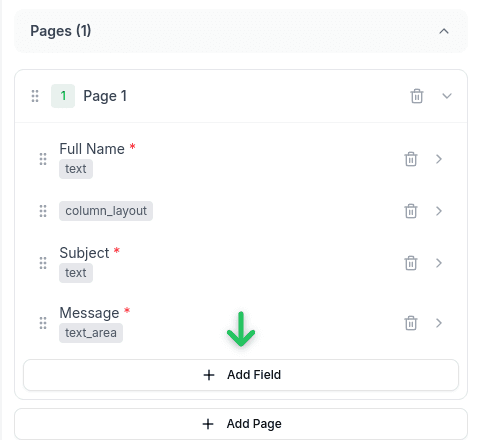
You can also edit fields directly using the manual editor. Toggle Edit mode to see all fields and pages:
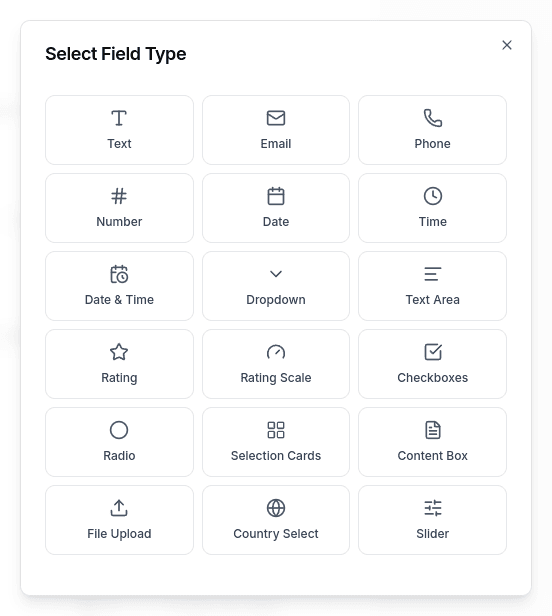
Click Add Field to open the field type selector with all available field types:
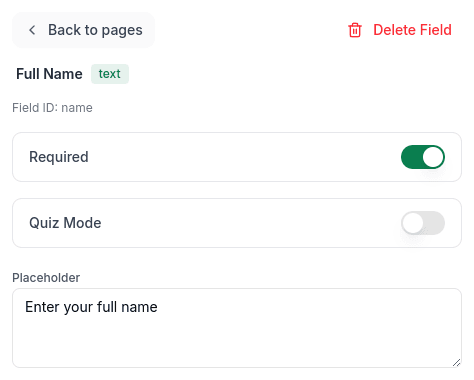
Click on any field to open its properties panel where you can configure:
Field Type Reference
Below are all the field types available in GenZform:
Basic Input Fields
| Field Type | Description | More Info |
|---|---|---|
| Text Field | Single-line text input for short answers like names or titles. | Learn more |
| Email Field | Email input with automatic format validation. | Learn more |
| Phone Field | Phone number input with international format support. | Learn more |
| Number Field | Numeric input for quantities, ages, or amounts. | Learn more |
| Text Area | Multi-line text input for longer responses. | Learn more |
Date & Time Fields
| Field Type | Description | More Info |
|---|---|---|
| Date Field | Date picker for selecting dates. | Learn more |
| Time Field | Time picker for selecting times. | Learn more |
| Date & Time Field | Combined date and time picker. | Learn more |
Selection Fields
| Field Type | Description | More Info |
|---|---|---|
| Dropdown | Single selection from a dropdown list. | Learn more |
| Radio Buttons | Single selection with visible options. | Learn more |
| Checkboxes | Multiple selection from a list of options. | Learn more |
| Selection Cards | Visual cards for single or multiple selection. | Learn more |
Advanced Fields
| Field Type | Description | More Info |
|---|---|---|
| Rating | Star rating for reviews and feedback. | Learn more |
| Rating Scale | Numeric scale (e.g., 1-10) for NPS or satisfaction scores. | Learn more |
| Slider | Draggable slider for range selection. | Learn more |
| File Upload | File upload for documents, images, or other files. | Learn more |
| Country Select | Dropdown with all countries pre-populated. | Learn more |
| Content Box | Display-only content for instructions or information. | Learn more |
Field Properties
Every input field has these common properties:
- Label - The text shown above the field
- Placeholder - Hint text shown inside the field
- Required - Whether the field must be filled
- Description - Additional instructions below the field
Learn More
Text Field
Single-line text input for short answers.
Email Field
Email addresses with automatic validation.
Phone Number
Phone numbers with international support.
Number Field
Numeric values with optional min/max limits.
Frequently Asked Questions
Can I make an input field required?
Yes! Just ask the AI: "Make the email field required" or specify it when adding: "Add a required text field for name."
How do I add placeholder text?
Ask the AI: "Add placeholder text 'Enter your email' to the email field" or "Set the placeholder for the name field to 'John Doe'."
Can I limit what users can enter?
Yes, you can add validation rules. Ask the AI: "Limit the text field to 100 characters" or "Only allow numbers between 1 and 100."