
Quiz Explanations
Learn how to add explanations to quiz answers in GenZform to make your quizzes educational.
Answer explanations turn simple quizzes into learning experiences. By adding an explanation to a question, you help users understand the material after they answer — whether they got it right or wrong.
Why Add Explanations?
Explanations provide:
- Learning opportunity - Teach users the reasoning behind the correct answer
- Engagement - Keep users interested in the content
- Value - Make quizzes more than just tests
- Retention - Help users remember the information
Quizzes with explanations have higher completion rates and users find them more valuable.
How to Add Explanations
Ask the AI in the chat panel:
Example prompts:
- "Add explanations for each quiz question"
- "Add an explanation for question 1 about why Paris is the correct answer"
- "Show a brief explanation after each answer"
Manual Editor
In Edit mode, select a question field to configure its answer explanation in the properties panel:
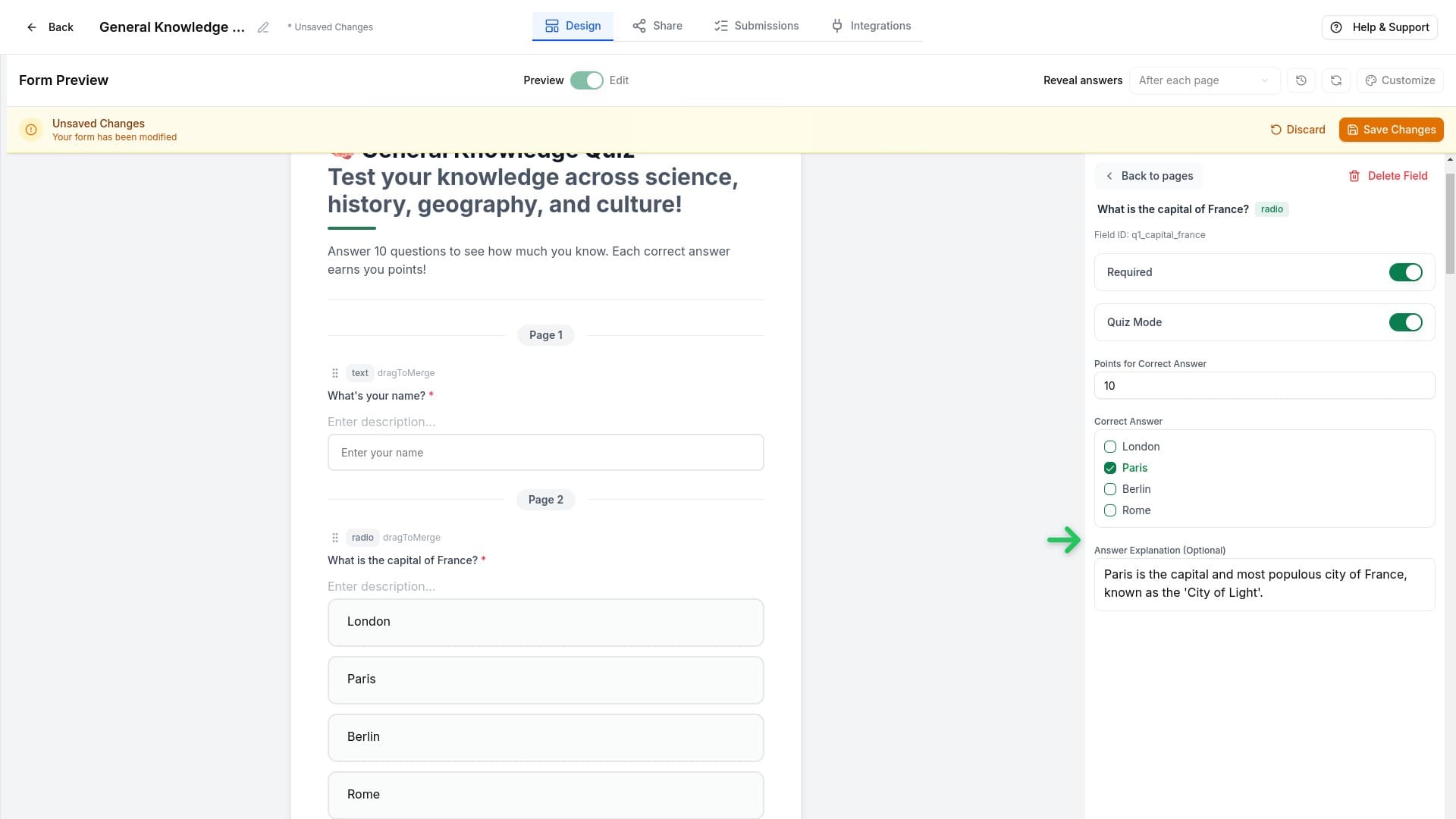
- Answer Explanation (Optional) - Add feedback text that appears after the user answers the question
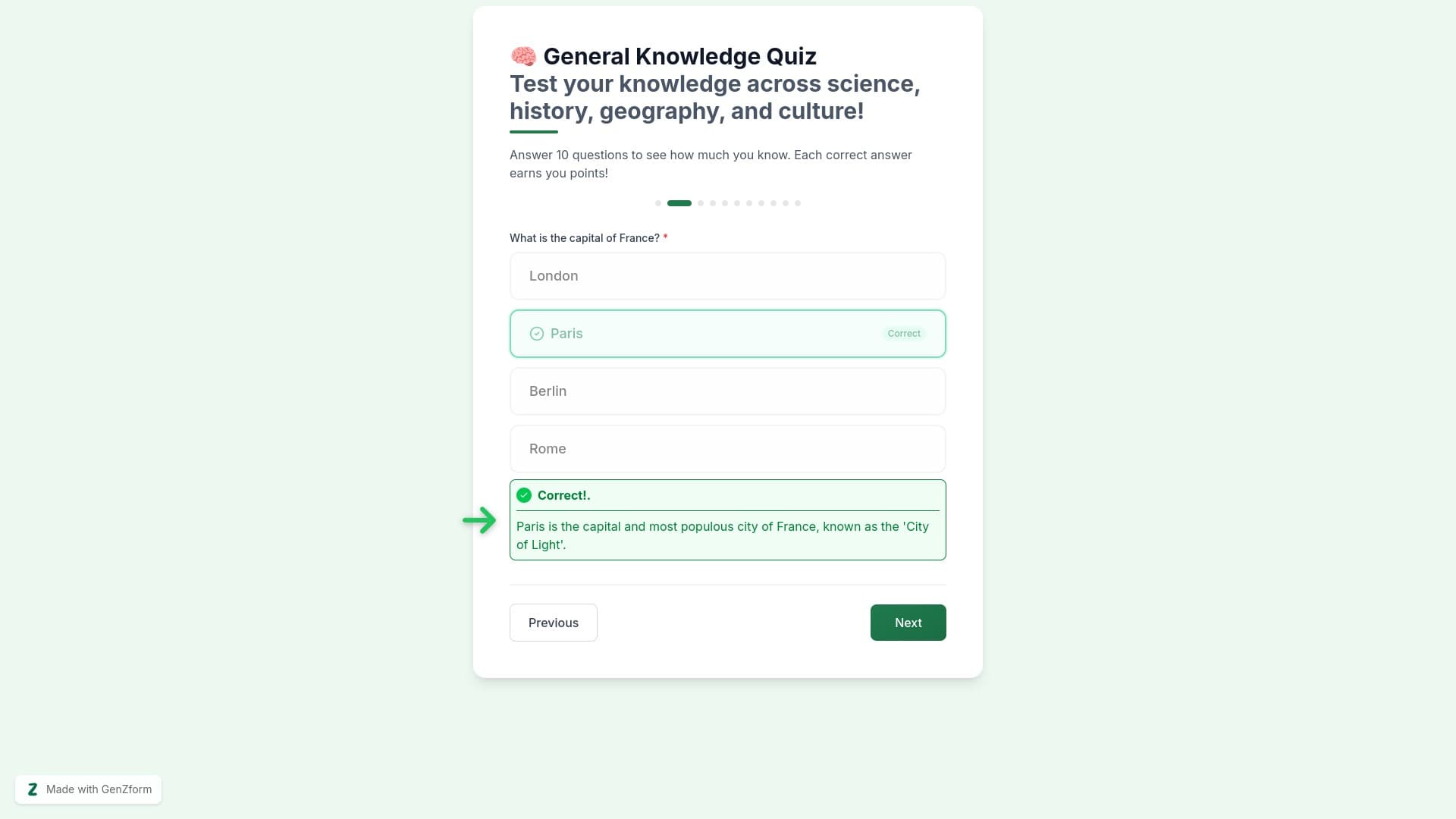
Each question has a single explanation field. The same explanation is shown regardless of whether the user answered correctly or incorrectly. Write your explanation to be helpful in both cases.
How Explanations Appear
When users answer a quiz question, the explanation displays directly below their answer along with visual feedback indicating whether they answered correctly or incorrectly:
Writing Good Explanations
Since the same explanation is shown for both correct and incorrect answers, write it in a way that is useful either way.
Example
Question: What is the capital of France?
Explanation: "Paris has been the capital of France since 987 AD.
It's home to famous landmarks like the Eiffel Tower and the Louvre."
This explanation works whether the user answered correctly (reinforces their knowledge) or incorrectly (teaches them the right answer with context).
Tips for Writing Explanations
- State the correct answer within the explanation so users who got it wrong can learn
- Add context — explain why the answer is correct, not just what it is
- Keep it concise — 1 to 3 sentences is ideal
- Be encouraging — frame explanations as learning moments
When Are Explanations Shown?
Explanations are shown based on the Reveal Answers Mode you configure for your quiz. This setting controls when answer feedback — including explanations — is displayed to respondents.
| Mode | When explanations appear |
|---|---|
| After each page | Explanations are shown after completing each page, before moving to the next |
| After full submission | All explanations are shown together after the entire quiz is submitted |
| None | Explanations are not shown to respondents |
To learn more about configuring this setting, see Reveal Answers Mode.
Frequently Asked Questions
Do I need explanations for every question?
No, explanations are optional per question. But adding them significantly improves the learning value of your quiz.
Can I add different explanations for correct and incorrect answers?
No, each question has a single explanation field. The same explanation is shown regardless of whether the user answered correctly or incorrectly. Write your explanation so it's helpful in both cases.
When are explanations shown to the user?
It depends on the Reveal Answers Mode setting: after each page, after full submission, or not at all. See Reveal Answers Mode for details.