
Generate QR Codes for Forms
Learn how to create and download QR codes for your GenZform forms to share in print materials, presentations, or physical locations.
QR codes make it easy to share your form in the physical world. Print them on business cards, flyers, posters, or display them at events for quick access.
When scanned, QR codes open your form directly on the respondent's phone browser - no app needed.
How to Generate a QR Code
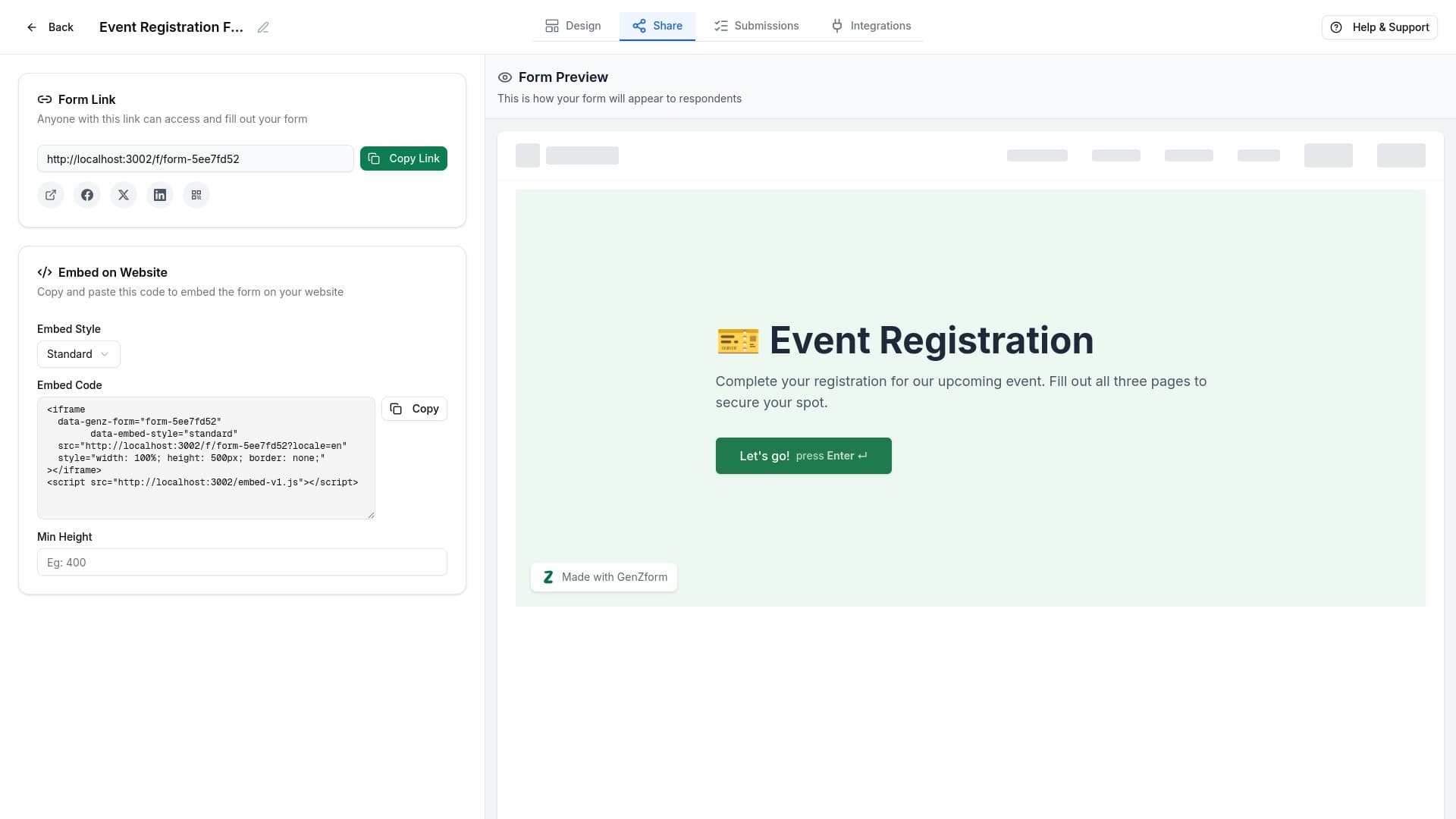
Open the Share tab
From the form editor, click the Share tab in the top navigation bar.
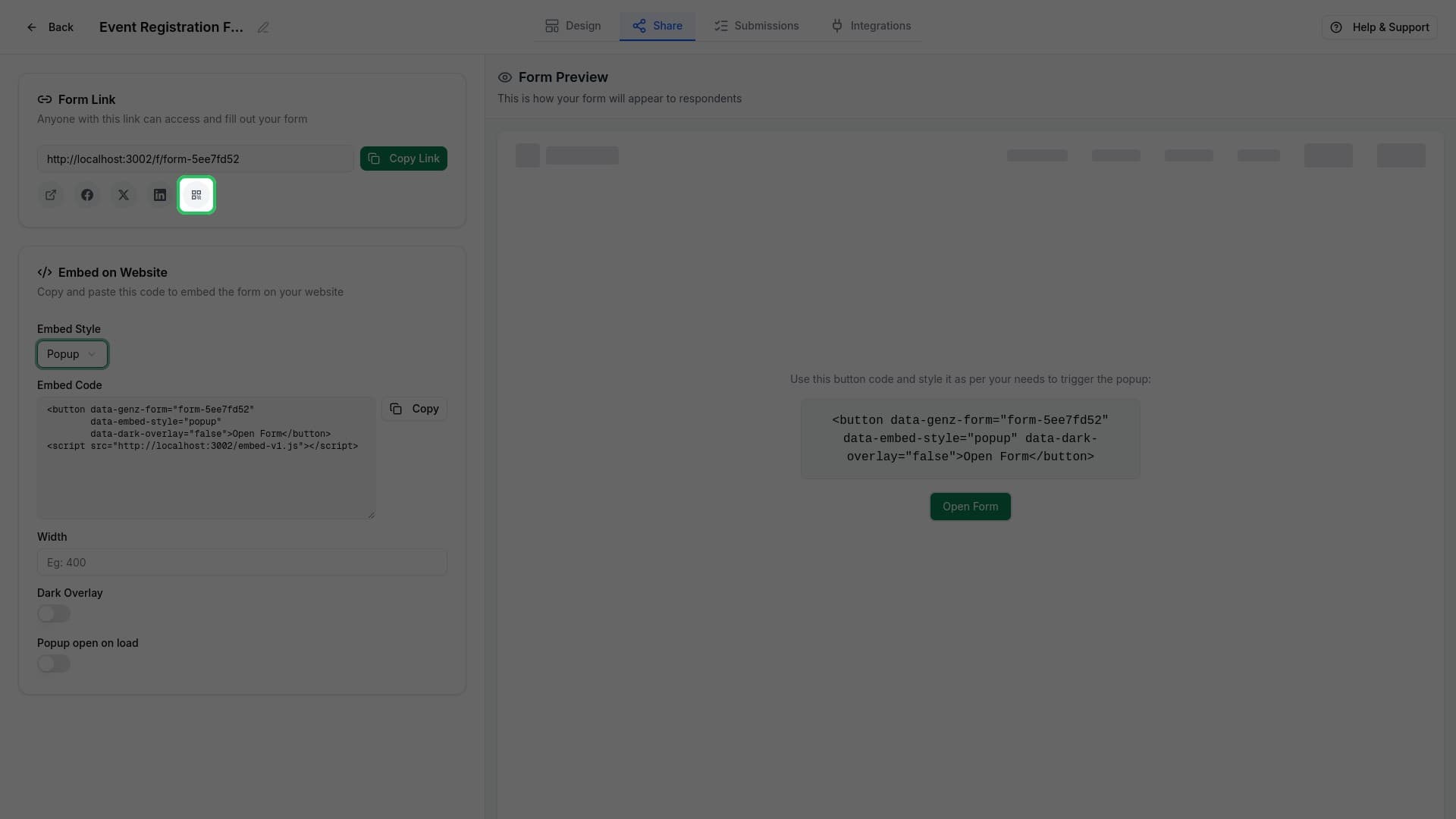
Click the QR code icon
In the Form Link section, find the social sharing icons below the URL. Click the QR code icon (the grid pattern).
Download your QR code
A modal appears with your QR code. Click Download QR Code to save it as a PNG image file.
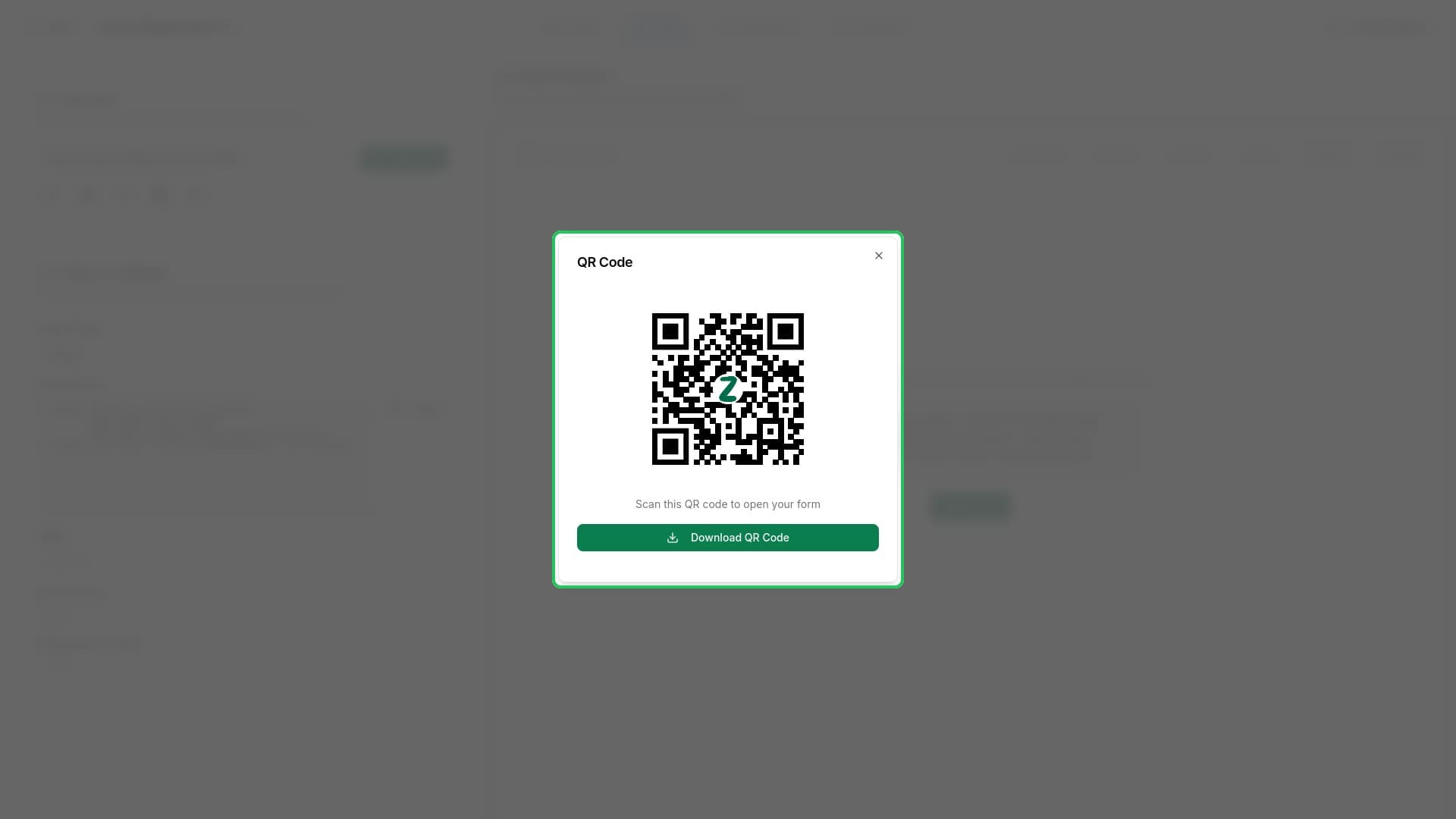
The downloaded file is named qr-code-[your-form-code].png and includes the GenZform logo in the center.
Using Your QR Code
Print Materials
- Business cards - Add to networking materials for contact forms
- Flyers and brochures - Include in marketing materials for signups
- Posters - Display at events or in stores for feedback collection
- Product packaging - Link to warranty registration or support forms
Digital Displays
- Presentations - Add to slides for live audience feedback
- Digital signage - Display on screens in waiting rooms or lobbies
- Email signatures - Include in professional email footers
- Social media - Share as an image post
Events
- Conference badges - Quick access to speaker feedback forms
- Table tents - Restaurant surveys or event registrations
- Booth displays - Trade show lead capture
QR Code Specifications
| Property | Value |
|---|---|
| Format | PNG |
| Size | 200 x 200 pixels |
| Style | Square pattern |
| Logo | GenZform logo centered |
| Background | White |
| Foreground | Black |
For large print materials, you may want to use an image editor to scale up the QR code. PNG format allows clean scaling.
Quick Access from Dashboard
You can also access the QR code from your dashboard:
- Go to your Dashboard
- Find your form card
- Click the three dots menu (⋯)
- Select Share
- Click the QR code icon in the modal
Frequently Asked Questions
What size should I print the QR code?
For reliable scanning, print at minimum 2cm x 2cm (0.8in x 0.8in). For scanning from farther distances (like posters), use larger sizes - about 2.5cm for every 25cm of scanning distance.
Can I customize the QR code design?
Currently, QR codes use a standard design with the GenZform logo. The black and white contrast ensures maximum scannability.
Will the QR code stop working if I edit my form?
No, the QR code links to your form's permanent URL. Any updates you make to the form will be reflected when someone scans the code.
Can I track scans from the QR code?
Form submissions from QR code scans appear in your Submissions tab like any other response. Currently, there's no separate tracking for QR vs direct link access.