
Create Your First Form
Learn how to create a professional form with GenZform's AI-powered form builder in under a minute. No coding required.
Creating a form with GenZform is fast and easy. Just describe what you need in plain language, and our AI builds a complete, professional form for you. No coding or design skills required.
Forms created with GenZform are mobile-responsive and optimized for conversions out of the box.
How to Create a Form
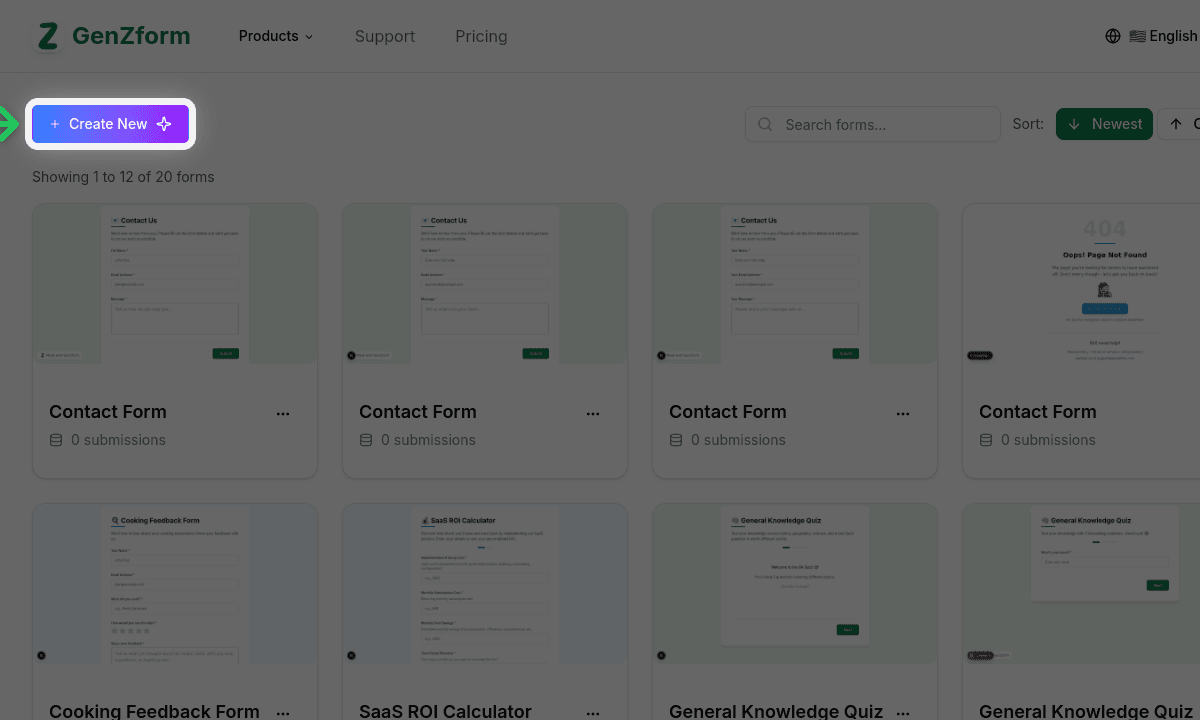
Go to your dashboard
After signing in, you'll land on your dashboard. Click the Create New button in the top left corner.
Select a form type (optional)
Choose what type of content you want to create: Forms, Calculators, Quiz, Polls, or Surveys. This helps the AI understand your intent better.
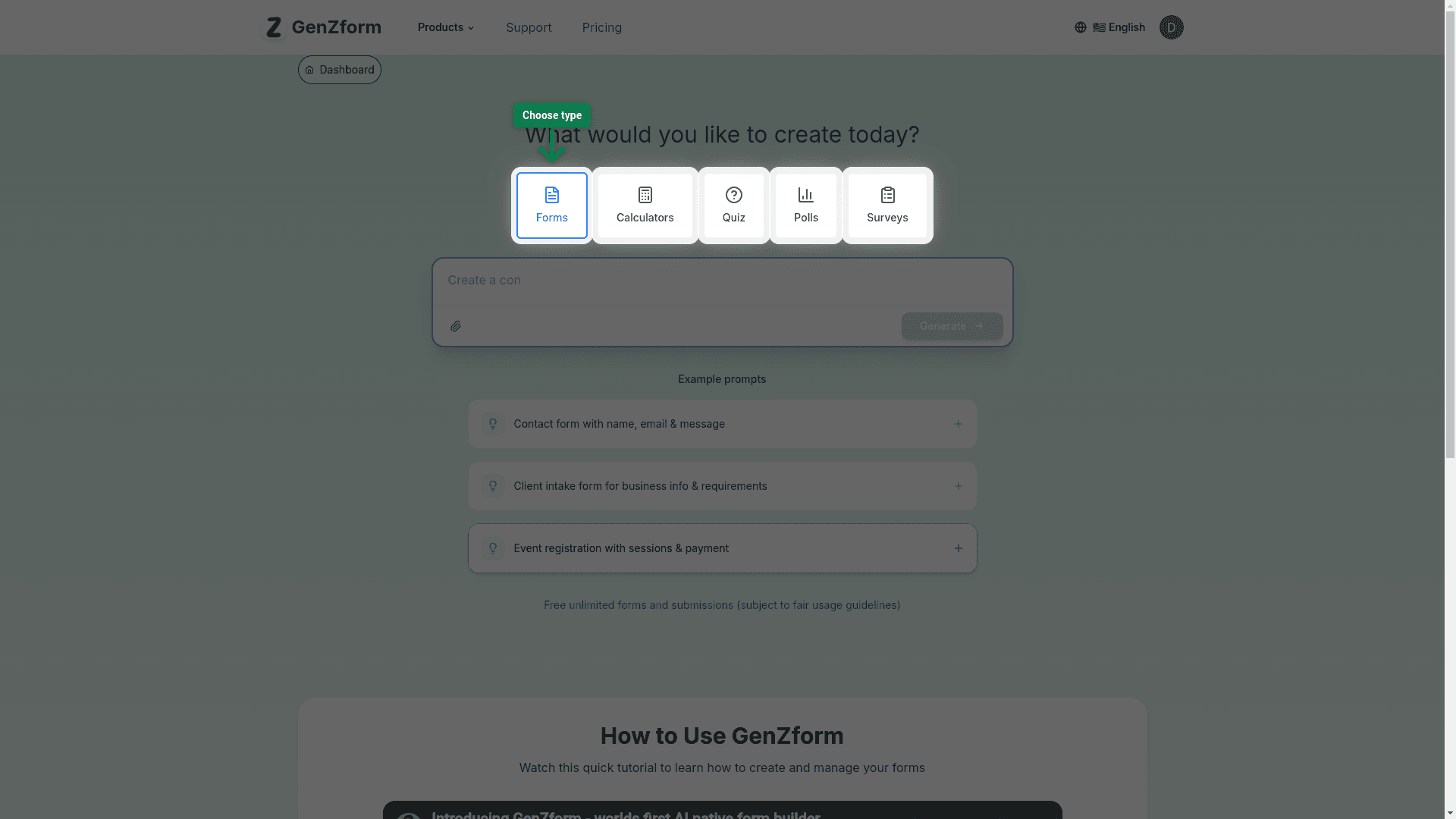
You can skip this step - the AI will automatically detect the best type based on your description.
Describe your form
Type a description of the form you want to create in the prompt field. Be specific about the fields and purpose.
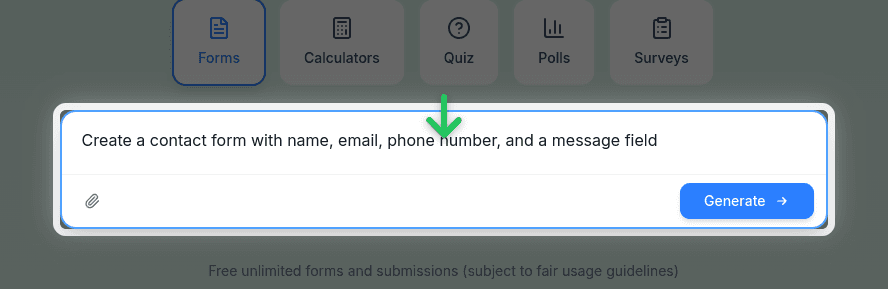
Example prompts:
- "Create a contact form with name, email, and message fields"
- "Build a customer feedback survey with rating scales"
- "Make a quiz about world geography with 10 questions"
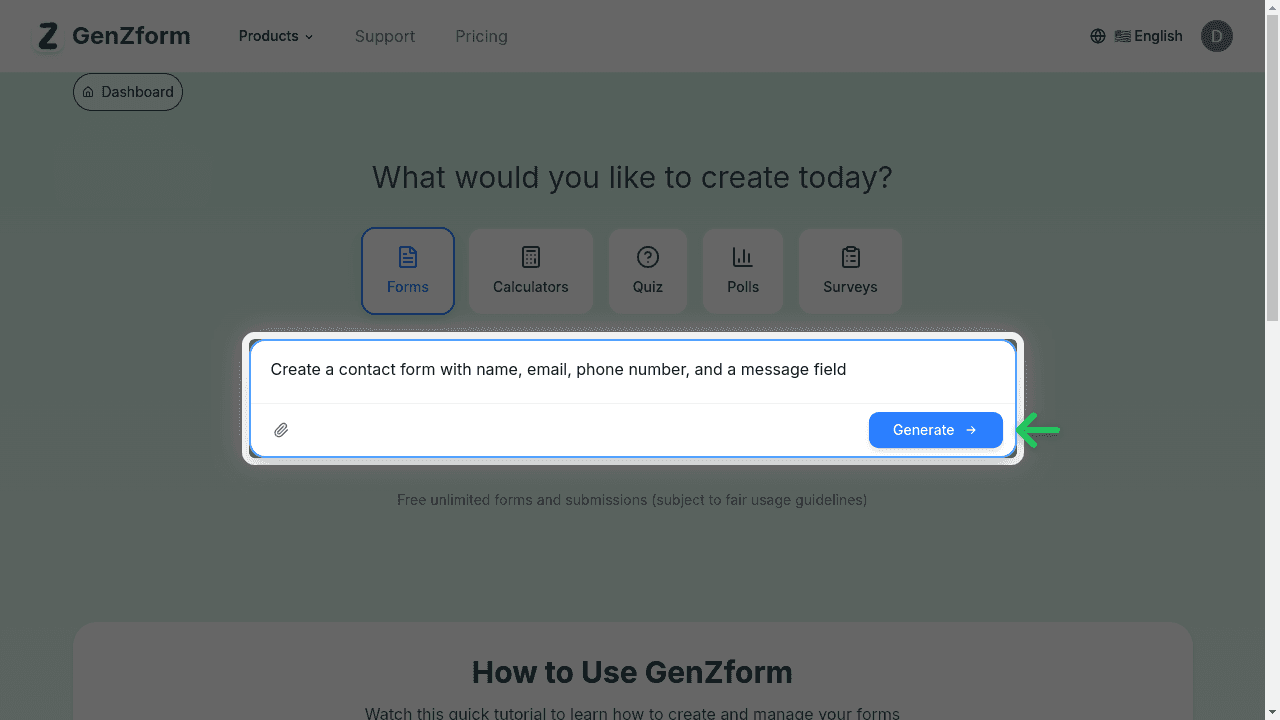
Click Generate
Click the Generate button to create your form. The AI will analyze your description and build a complete form.
Review your form in the editor
Your form is created and displayed in the editor. You'll see:
- AI Chat Panel (left) - Continue chatting to modify your form
- Form Preview (right) - See how your form looks to respondents
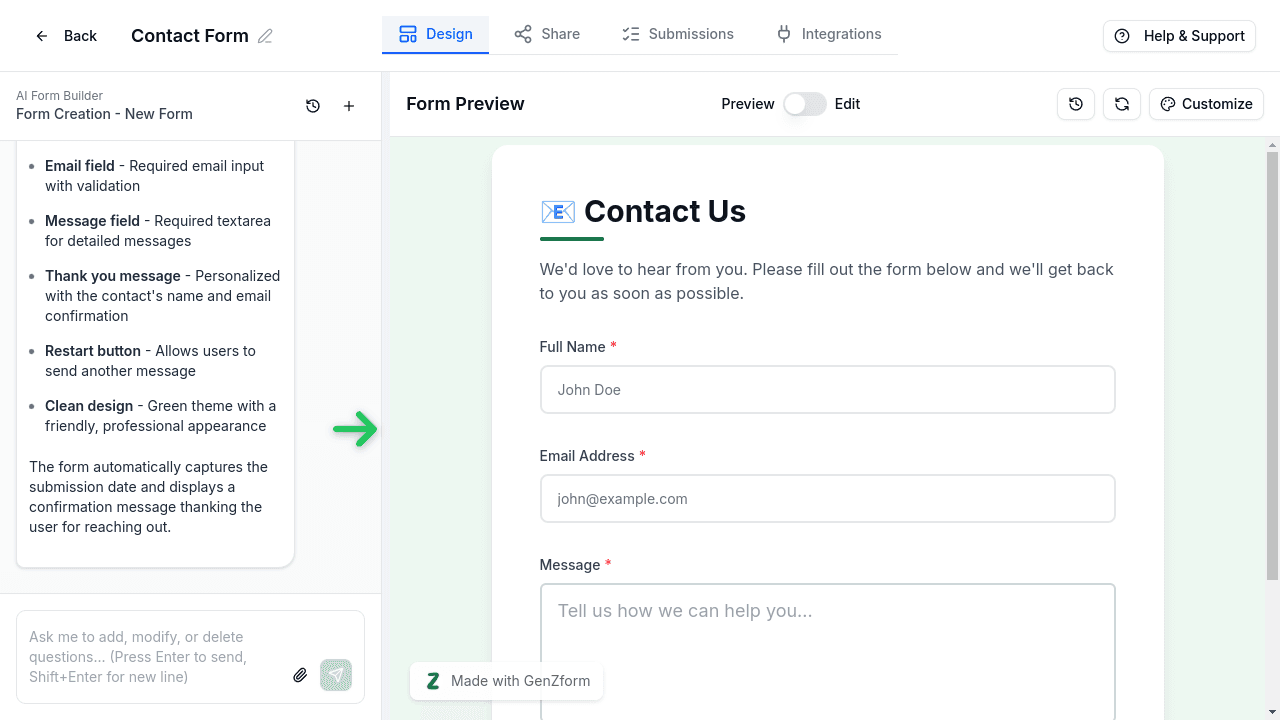
Customize with AI chat
Use the AI chat to make changes to your form. You can:
- Add or remove fields
- Change field labels and placeholders
- Add validation rules
- Modify the design and colors
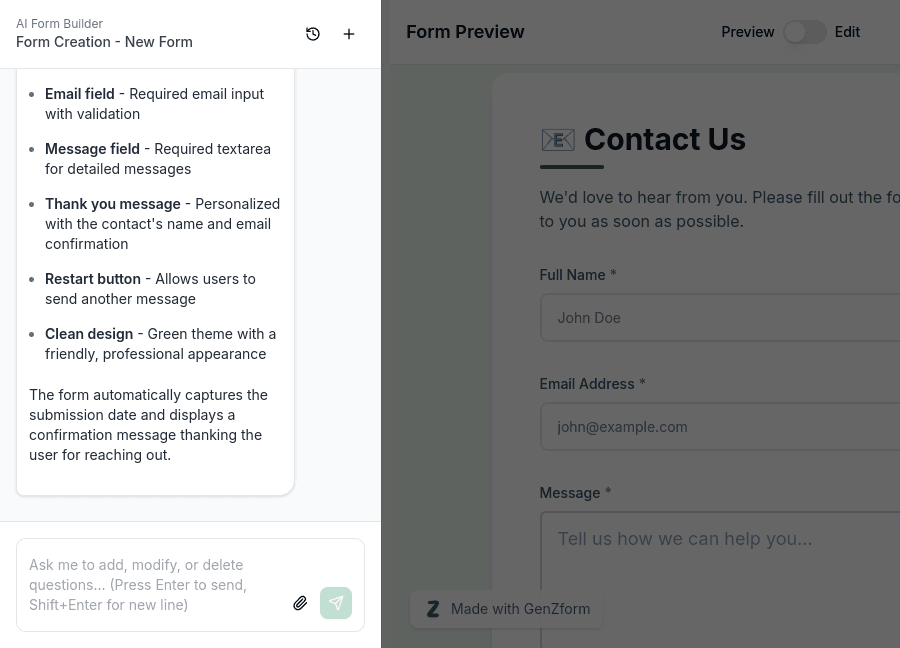
Example chat commands:
- "Add a phone number field"
- "Make the email field required"
Share your form
When you're happy with your form, click the Share tab to get your form link. Click Copy Link to copy it to your clipboard.
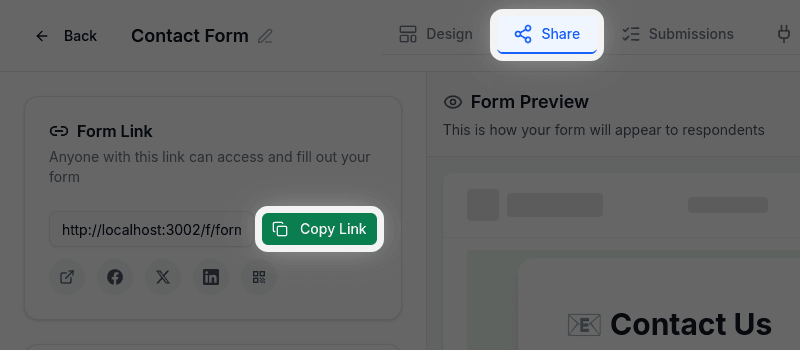
You can also:
- Share directly on social media
- Generate a QR code
- Get embed code for your website
What's Next?
After creating your form, you can:
- View submissions - Go to the Submissions tab to see responses
- Set up integrations - Connect to Google Sheets, webhooks, or Zapier
- Customize the design - Click the Customize button to change colors and styling
Troubleshooting
My form isn't generating
Make sure you've entered a description in the prompt field. Try being more specific about what fields you need. If the issue persists, refresh the page and try again.
Can I edit the form after it's created?
Yes! Use the AI chat panel to make any changes. Just describe what you want to modify and the AI will update your form instantly.
How do I change the form design?
Click the Customize button above the form preview to access design options. You can change colors, fonts, and layout settings.
Need More Help?
If you're still having trouble creating a form, please contact our support team. We're here to help!