
Add Your Logo to Forms
Learn how to upload and display your company logo on your forms to strengthen brand recognition.
Adding your logo to forms helps establish brand recognition and makes your forms look more professional. Your logo appears at the top of your form, giving respondents confidence they're filling out an official form from your organization.
Logo uploads are available on all plans. Your logo will appear at the top of your form across all templates.
How to Add Your Logo
Open your form in the editor
Go to your dashboard and click on the form you want to customize.
Open the Customize panel
Click the Customize button in the top right corner of the form preview panel.
Find the Branding section
Scroll down to the Branding section. You'll see the Logo upload area.
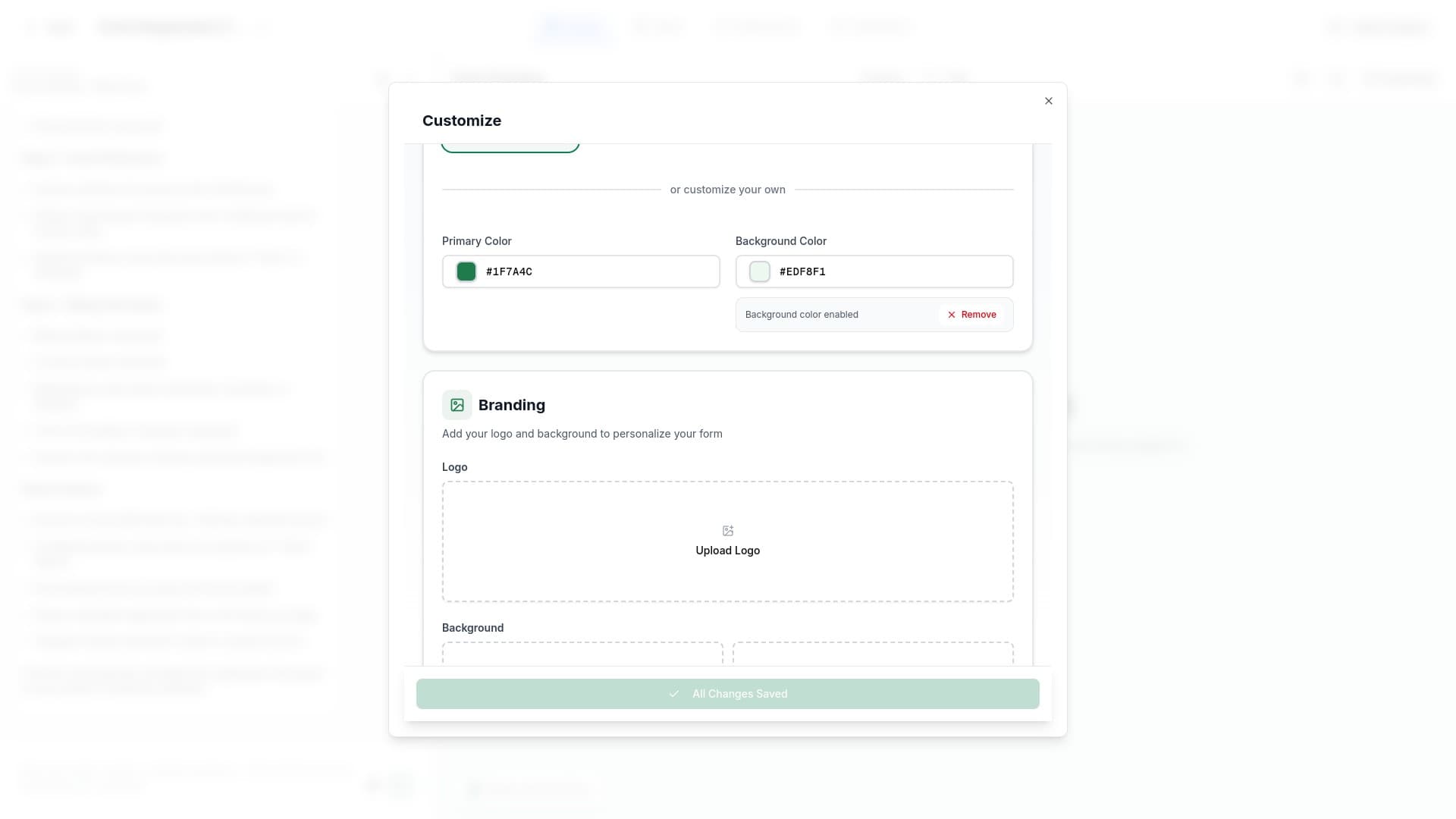
Upload your logo
Click the Upload Logo button and select your logo file from your computer. Supported formats include PNG, JPG, and SVG.
Preview and save
Your logo will appear in the upload area. The form preview updates automatically to show your logo at the top of the form.
Logo Best Practices
File Format
- PNG - Best for logos with transparency
- SVG - Scalable vector graphics for crisp display at any size
- JPG - Good for photographic logos without transparency
Size Recommendations
- Keep your logo file under 500KB for faster loading
- Recommended dimensions: 200-400 pixels wide
- Use a logo with a transparent background for best results
Design Tips
- Choose a logo that's legible at smaller sizes
- Avoid logos with too much detail that may not render well
- Consider how your logo looks against the form background color
- Test your form on mobile devices to ensure the logo displays correctly
Removing Your Logo
To remove your logo:
- Open the Customize panel
- Scroll to the Branding section
- Hover over your uploaded logo
- Click the Remove button
Logo FAQ
What file types are supported for logos?
GenZform supports PNG, JPG, and SVG file formats for logo uploads.
Is there a file size limit for logos?
While there's no strict limit, we recommend keeping logo files under 500KB for optimal performance and faster form loading.
Can I use different logos for different forms?
Yes! Each form can have its own logo. Upload a different logo in the Customize panel for each form.
Where does the logo appear on the form?
Your logo appears at the top of your form, above the form title. The exact positioning may vary slightly depending on the template you're using.
Need More Help?
If you need help adding your logo, please contact our support team. We're here to help!