
Switch Between Templates
Learn how to change your form's template after creation to give it a different look and feel.
Already created a form but want to try a different style? You can switch between templates at any time without losing your form content or settings.
Switching templates only changes how your form looks to respondents. Your questions, fields, and settings remain the same.
Available Templates
GenZform offers two professionally designed templates:
| Template | Style | Best For |
|---|---|---|
| Classic Template | Multi-field layout with all questions visible | Short forms (1-5 questions) |
| Focused Template | One question at a time, Typeform-style | Longer forms, surveys, higher engagement |
How to Switch Templates
Open your form in the editor
Go to your dashboard and click on the form you want to modify.
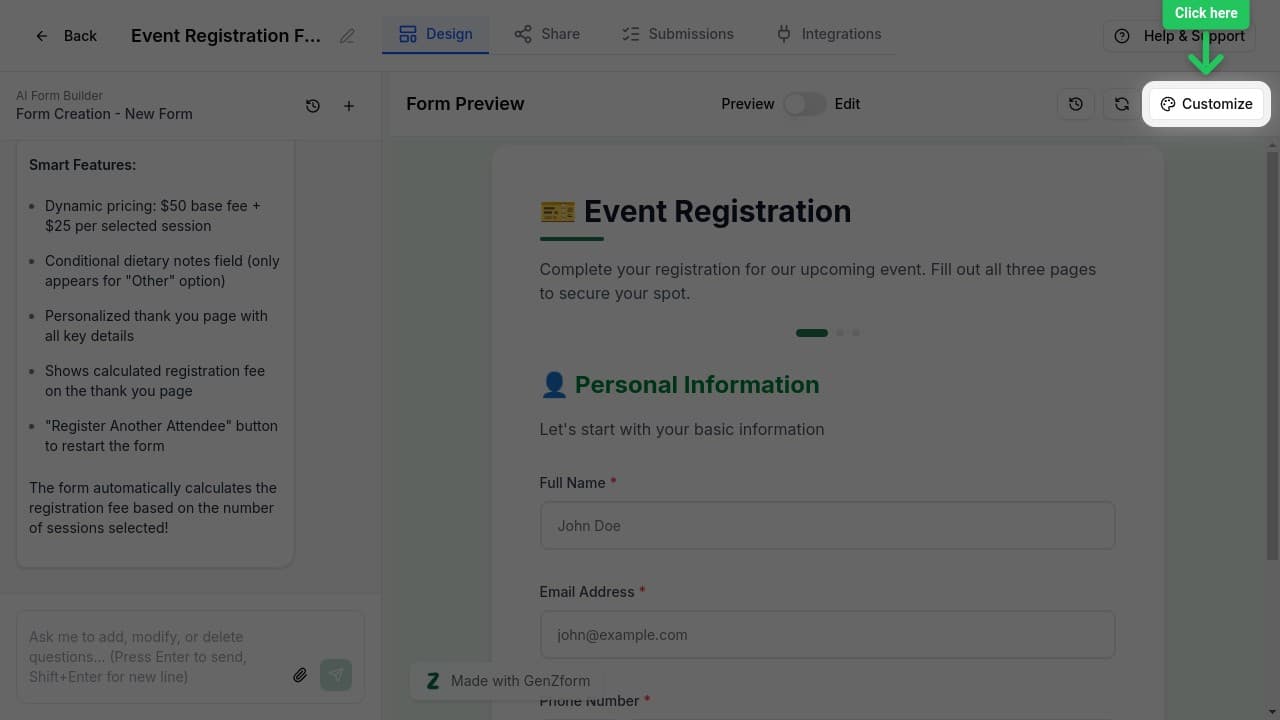
Click the Customize button
In the form editor, find the Customize button in the top right corner of the form preview panel.
Browse available templates
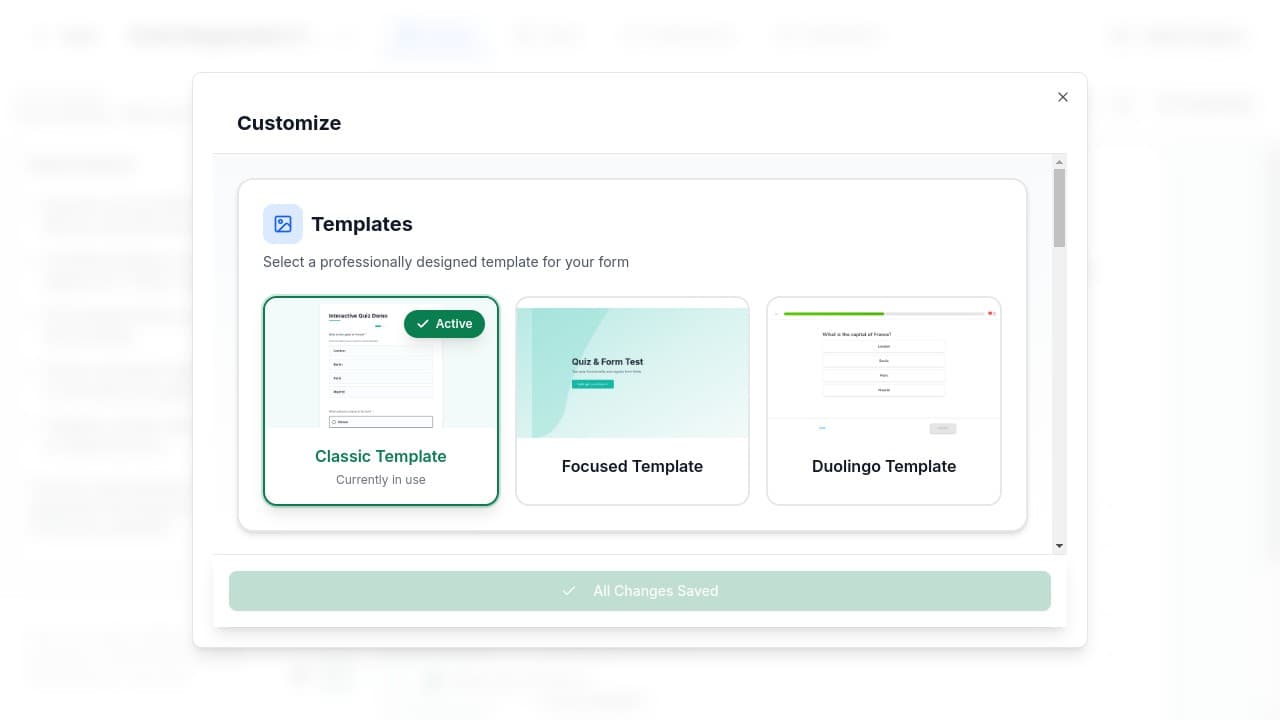
The Customize panel opens with the Templates section at the top. You'll see all available templates with preview thumbnails:
- Your current template shows an Active badge
- Other templates show a Use Template button on hover
Select a new template
Click on the template you want to use. The selected template will show a Selected badge and an "Unsaved changes" indicator appears.
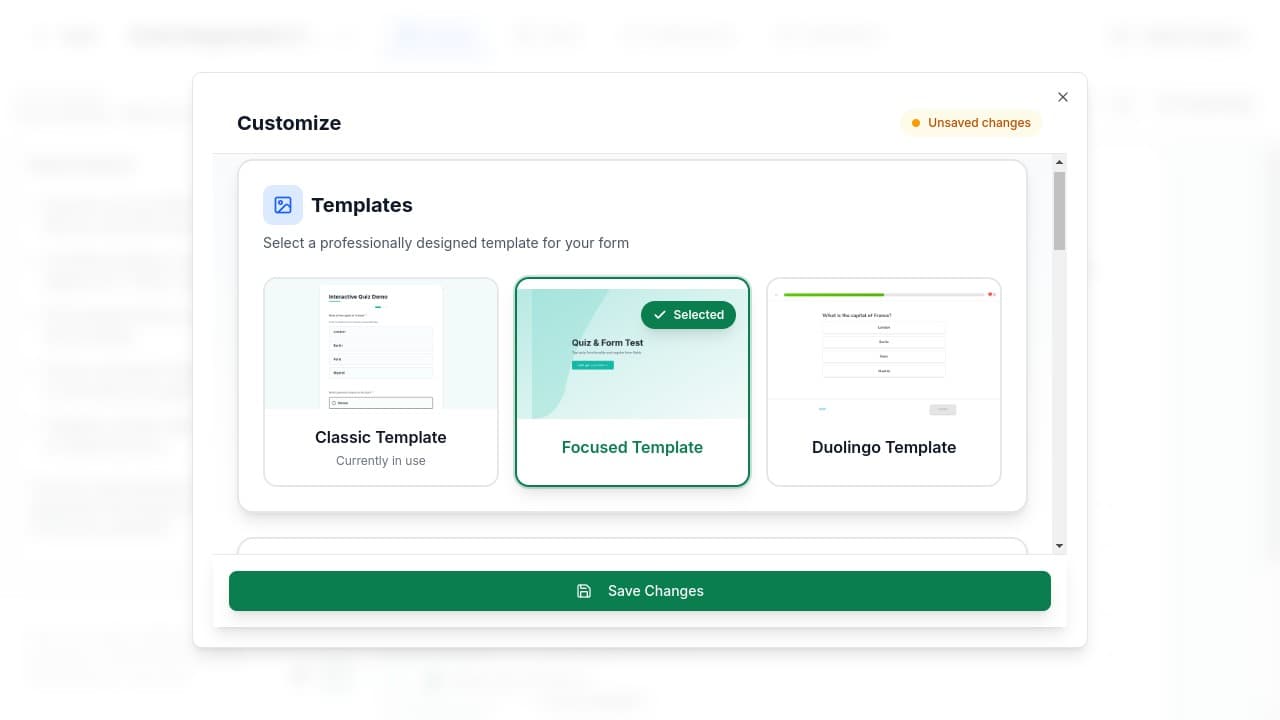
Save your changes
Click the Save Changes button at the bottom of the panel. Your form will immediately update to use the new template.
Preview your form
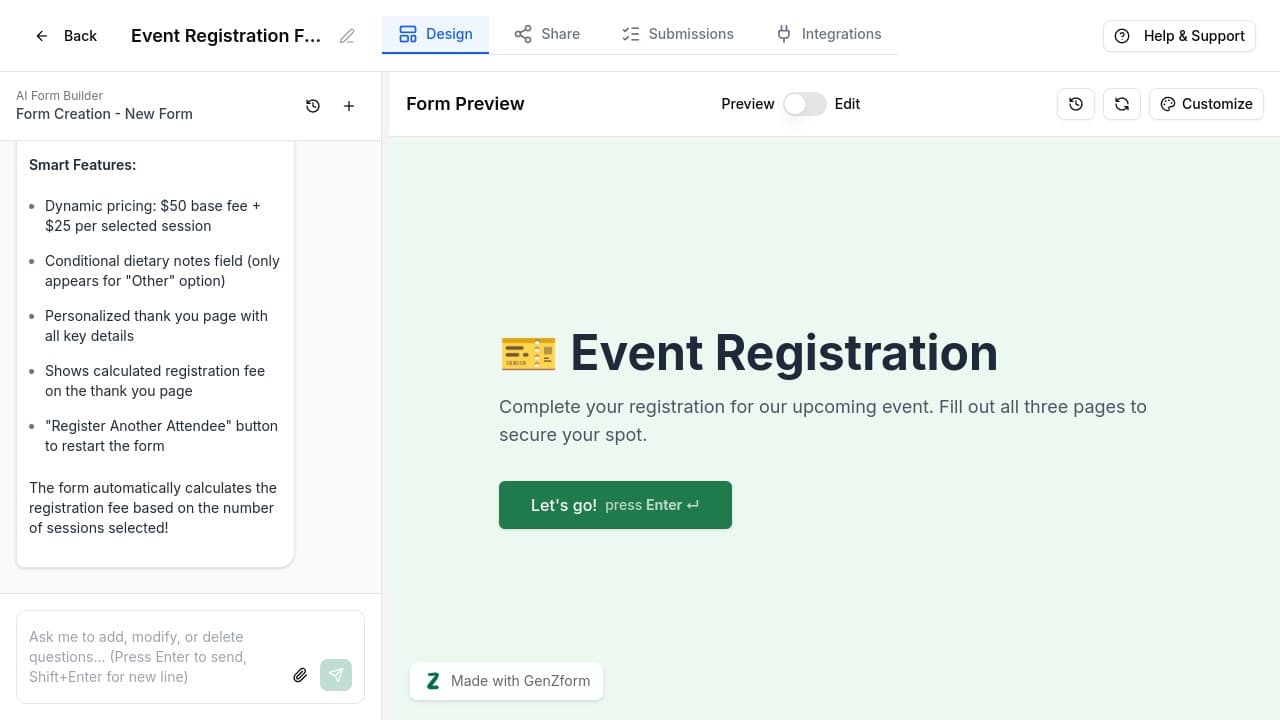
The form preview updates automatically to show your form with the new template applied.
Template Comparison
Classic Template
- Shows multiple questions on each page
- Traditional form layout familiar to users
- Works well for contact forms and short surveys
- Good for forms where users want to see all questions upfront
Focused Template
- Displays one question at a time
- Progress indicator shows completion status
- Higher completion rates for longer forms
- Creates a more engaging, conversational experience
Try the Focused Template if you're seeing low completion rates on longer forms. The one-question-at-a-time approach reduces overwhelm and improves engagement.
What Stays the Same
When you switch templates, these elements remain unchanged:
- All your questions and fields
- Field validation rules
- Conditional logic
- Thank you page content
- Color theme and branding
- Form settings (reCAPTCHA, etc.)
What Changes
Only the visual presentation changes:
- How questions are displayed (all at once vs. one at a time)
- Navigation between questions
- Progress indicators
- Button styles and animations
Template Switching FAQ
Will I lose my form content when switching templates?
No. Switching templates only changes how your form looks. All questions, fields, settings, and responses are preserved.
Can I switch back to my original template?
Yes! You can switch templates as many times as you want. Just follow the same steps and select your preferred template.
Do existing responses change when I switch templates?
No. Previous submissions are unaffected. Template changes only affect how new respondents see your form.
Which template has the best completion rates?
The Focused Template typically has higher completion rates for forms with 6+ questions, as it reduces visual overwhelm. For shorter forms, the Classic Template works equally well.
Need More Help?
If you need help choosing or switching templates, please contact our support team. We're here to help!