
Customize Your Form Appearance
Learn how to customize your form's look and feel with templates, color themes, branding, and background images.
Make your forms match your brand identity by customizing templates, colors, logos, and backgrounds. All customization options are available in the Customize panel.
AI-generated changes are saved automatically. When you manually edit your form, an Unsaved Changes banner will appear at the top — click Save Changes to apply or Discard to revert.
Opening the Customize Panel
Open your form in the editor
Go to your dashboard and click on the form you want to customize.
Click the Customize button
In the form editor, click the Customize button in the top right corner of the form preview panel.
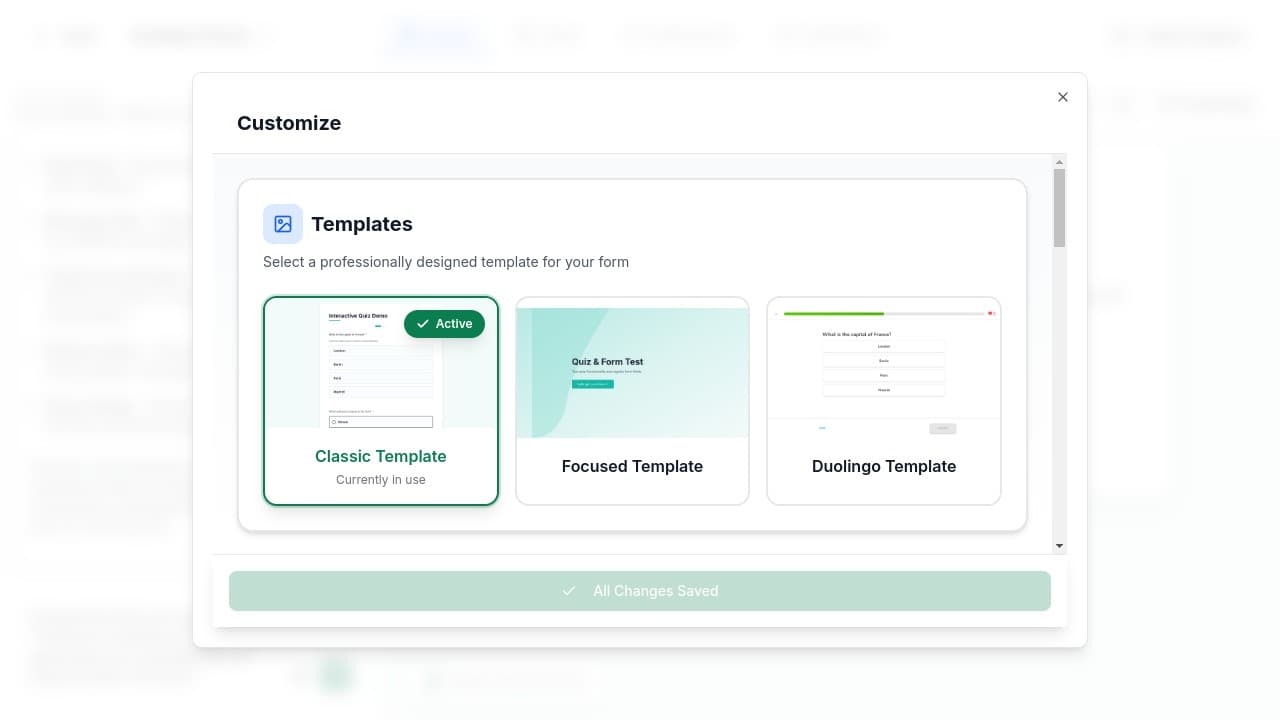
Customization Options
The Customize panel includes four sections:
1. Templates
Choose from professionally designed templates that change how your form is displayed. GenZform offers the Classic Template (all questions visible) and Focused Template (one question at a time).
To change templates, click on a template card and select Use Template.
For detailed information about each template and when to use them, see Switch Between Templates.
2. Theme Colors
Customize your form's color scheme with preset palettes or your own brand colors. Choose from five quick presets (Purple Haze, Royal Blue, Periwinkle, Sunset Orange, Forest Green) or set custom primary and background colors.
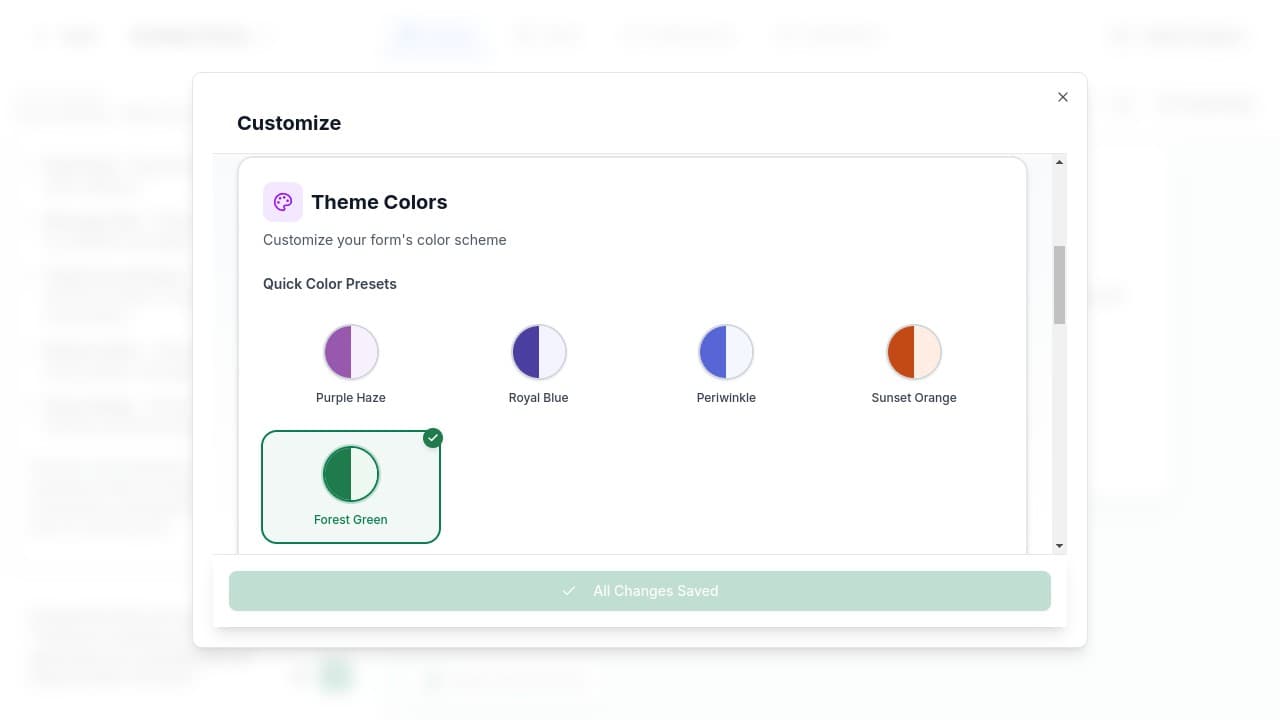
For detailed color customization options and best practices, see Customize Color Themes.
3. Branding
Add your logo and background to personalize your forms and strengthen brand recognition.
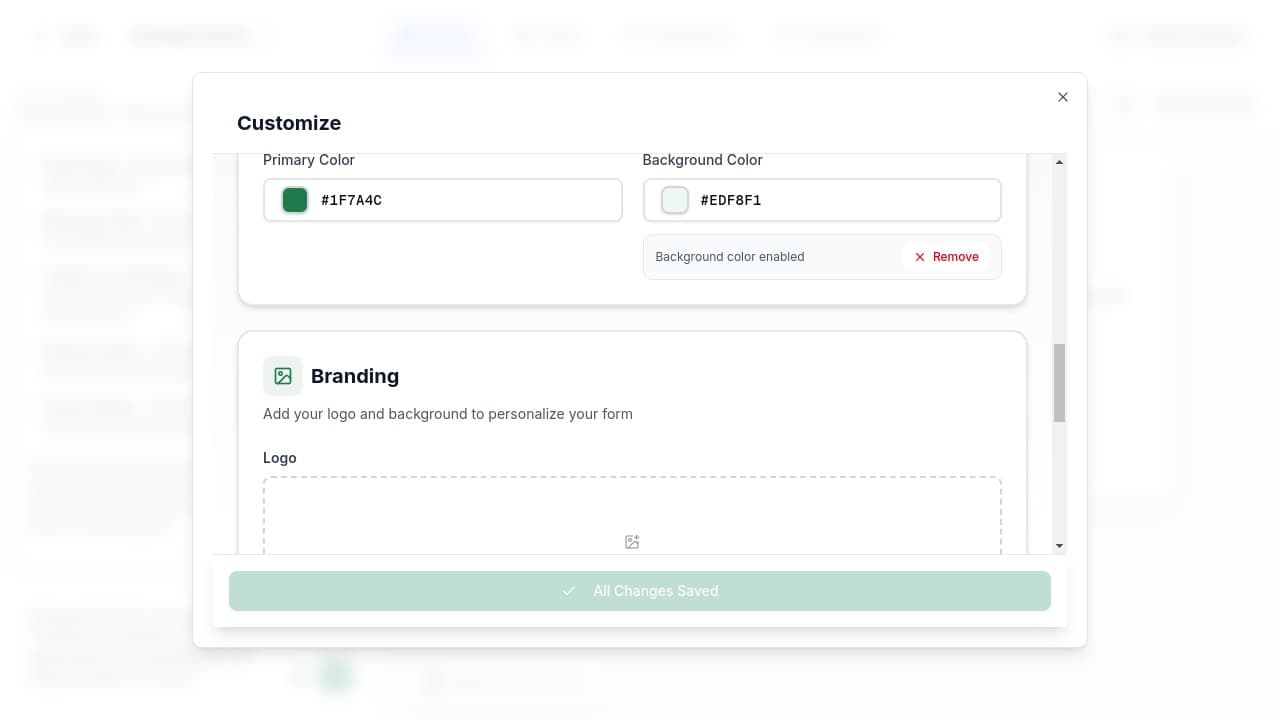
Logo: Upload your company logo (PNG, JPG, SVG) to display at the top of your form. → Learn more about adding logos
Background: Use your own image or choose from pre-made patterns. → Learn more about background images
4. Settings
Configure additional form settings:
reCAPTCHA: Toggle spam protection to prevent bot submissions. When enabled, respondents may need to complete a CAPTCHA challenge.
Tips for Great Form Design
- Color Consistency - Use your brand's primary color and keep backgrounds subtle
- Logo Placement - Use logos with transparent backgrounds, keep them reasonably sized
- Background Images - Choose images that don't distract from form content
- Template Selection - See Switch Between Templates for guidance
For detailed best practices, see the dedicated guides:
Customizing with AI
You can also customize your form's appearance using the AI chat. Try prompts like:
- "Change the button color to blue"
- "Add my company logo" (upload the image first)
- "Make the form background darker"
Customization FAQ
Can I use custom fonts?
Currently, GenZform uses system fonts optimized for readability. Custom font support is planned for a future update.
How do I remove the GenZform branding?
The "Made with GenZform" badge can be removed by upgrading to a
Pro plan
. Go to your account settings to upgrade.
Are my customization changes saved automatically?
Changes made by AI are saved automatically. When you make manual changes, you'll see an Unsaved Changes banner with Save Changes and Discard buttons. Click Save Changes to keep your edits or Discard to revert them.
Need More Help?
If you need help customizing your form, please contact our support team. We're here to help!
Understanding Form Types
Learn about the different types of interactive content you can create with GenZform - forms, quizzes, surveys, calculators, and polls.
Create Multi-Page Forms
Learn how to create multi-page forms to break long forms into manageable sections, improving completion rates and user experience.