
Customize Color Themes
Learn how to customize your form's color scheme using preset themes or custom brand colors.
Color themes help you match your forms to your brand identity. GenZform offers quick preset color palettes and custom color options to give your forms a professional, cohesive look.
Color changes apply to buttons, accents, highlights, and optionally the form background. AI-generated changes are saved automatically. Manual changes will show an Unsaved Changes banner — click Save Changes to apply or Discard to revert.
How to Change Your Color Theme
Open your form in the editor
Go to your dashboard and click on the form you want to customize.
Open the Customize panel
Click the Customize button in the top right corner of the form preview panel.
Find the Theme Colors section
In the Customize panel, locate the Theme Colors section with Quick Color Presets.
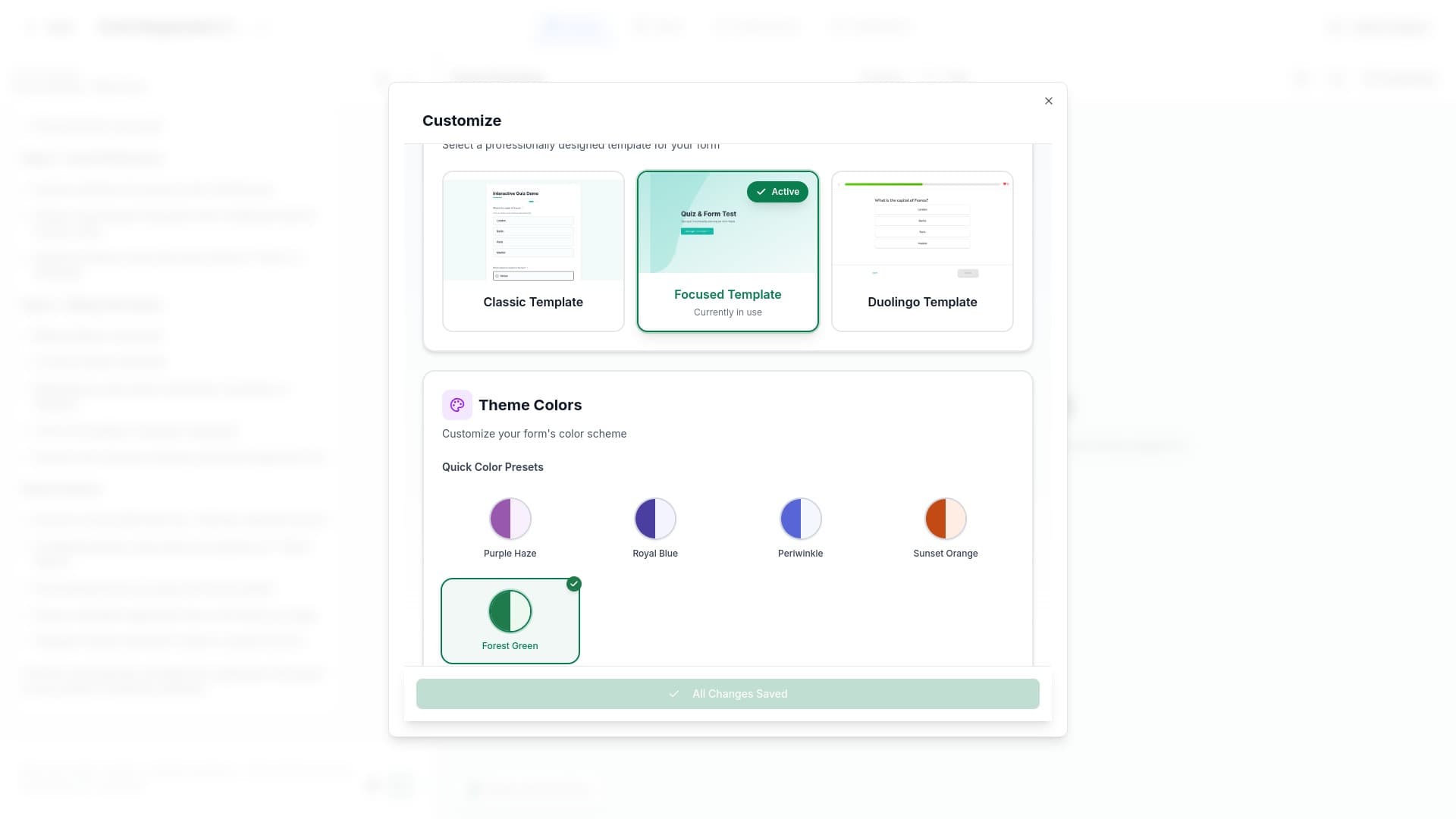
Choose a preset or customize
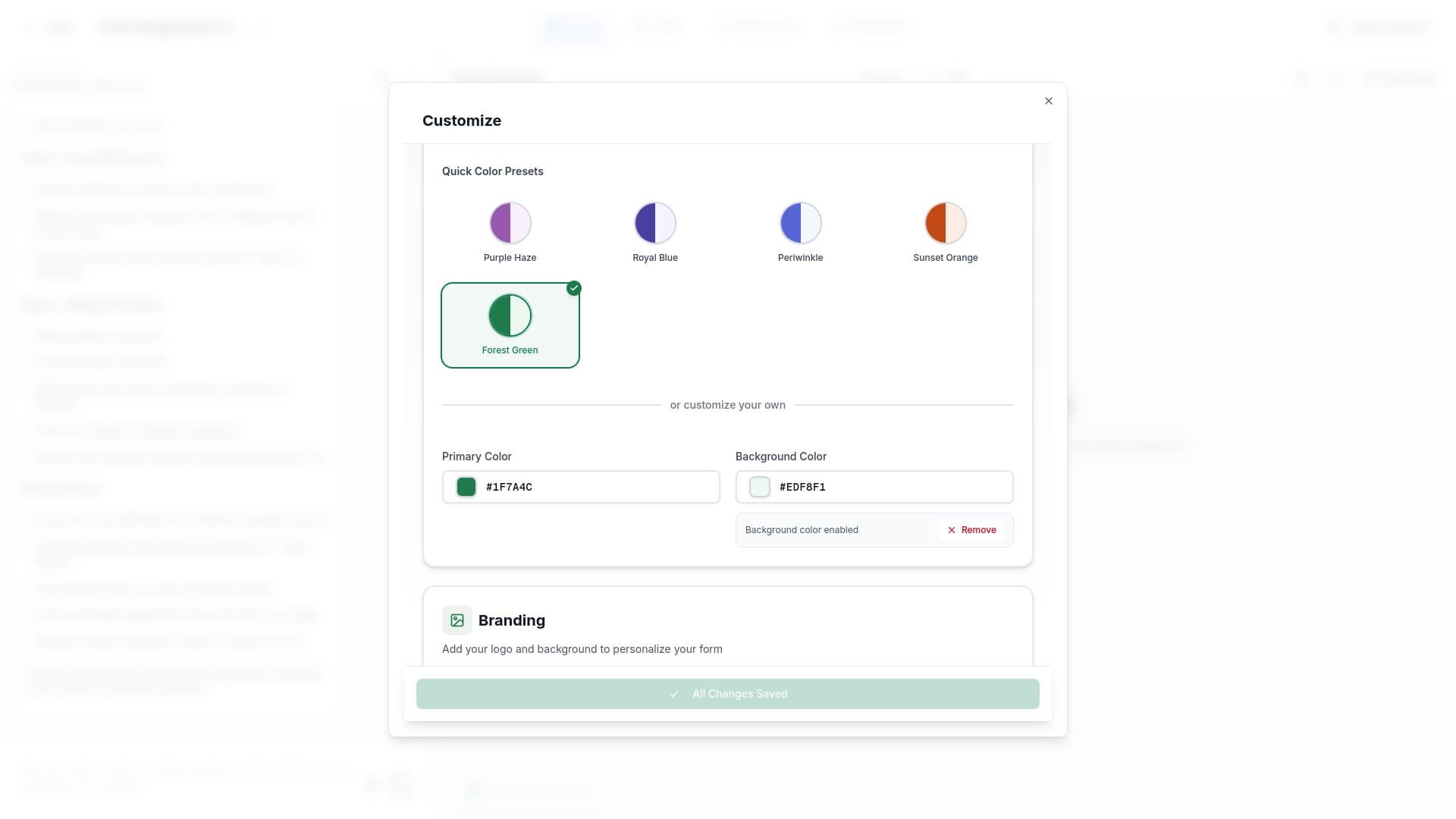
Select a preset color palette or scroll down to customize your own colors using hex codes.
Preview your changes
The form preview updates automatically. AI changes are saved instantly. For manual edits, click Save Changes in the banner that appears at the top.
Quick Color Presets
GenZform includes five professionally designed color presets:
| Preset | Description | Best For |
|---|---|---|
| Purple Haze | Soft purple tones | Creative, lifestyle brands |
| Royal Blue | Classic blue palette | Corporate, professional forms |
| Periwinkle | Light blue-violet | Calm, friendly surveys |
| Sunset Orange | Warm orange tones | Energetic, engaging forms |
| Forest Green | Natural green shades | Environmental, wellness brands |
Click on any preset to instantly apply it to your form.
Custom Color Options
For precise brand matching, customize your colors manually:
Primary Color
The primary color is used for:
- Buttons and call-to-action elements
- Active states and highlights
- Progress indicators
- Links and interactive elements
To set a custom primary color:
- Click the color swatch next to "Primary Color"
- Enter your brand's hex color code (e.g.,
#1F7A4C) - Or use the color picker to select your color
Background Color
The background color sets the overall form backdrop:
- Optional setting (can be removed for default background)
- Affects the entire form container
- Should provide good contrast with text
To set a custom background color:
- Click the color swatch next to "Background Color"
- Enter a hex color code or use the color picker
- Click Remove to return to the default background
Color Design Tips
Brand Consistency
- Use your official brand colors for the primary color
- Keep backgrounds subtle to maintain professionalism
- Test that your colors work across different devices
Accessibility
- Ensure sufficient contrast between text and background
- Avoid color combinations that are difficult for colorblind users
- Test your form with accessibility tools
Template Considerations
- Different templates may display colors slightly differently
- Preview your form after changing colors
- The Focused Template uses colors more prominently in transitions
Using AI to Change Colors
You can also customize colors using the AI chat. Try prompts like:
- "Change the button color to blue"
- "Make the primary color match our brand (#FF5733)"
- "Use a light gray background"
- "Apply a purple theme to the form"
Color Themes FAQ
Can I save custom color themes for reuse?
Currently, colors are set per form. To reuse colors, note your hex codes and apply them to other forms manually, or ask the AI to apply the same colors.
Do color changes affect all pages of my form?
Yes, color themes apply to the entire form including all pages and the thank you page.
Can I use gradient colors?
The primary and background color options support solid colors only. For gradient effects, consider using a background image instead.
How do I find my brand's hex color code?
Check your brand guidelines, or use a color picker tool on your website/logo. Most design software (Figma, Canva, Adobe) displays hex codes for colors.
Will my colors look the same on all devices?
Colors may appear slightly different across devices due to screen calibration. Test your form on multiple devices to ensure it looks good everywhere.
Need More Help?
If you need help with color customization, please contact our support team. We're here to help!