
Create Multi-Page Forms
Learn how to create multi-page forms to break long forms into manageable sections, improving completion rates and user experience.
Multi-page forms help you organize longer forms into logical sections, making them easier for respondents to complete. Instead of overwhelming users with a long list of questions, you can guide them through step-by-step.
Multi-page forms include a progress indicator showing respondents how far they've progressed and navigation buttons to move between pages.
When to Use Multi-Page Forms
Multi-page forms are ideal for:
- Registration forms - Collect personal info, preferences, and payment details in separate steps
- Surveys - Group related questions together by topic
- Applications - Break complex applications into logical sections
- Checkout flows - Guide users through shipping, billing, and confirmation steps
How to Create a Multi-Page Form
Open the form editor
Go to your dashboard and click Create Form or open an existing form to edit.
Describe your multi-page form to the AI
In the AI chat panel, describe your form and specify the pages you want. Be clear about what fields should appear on each page.
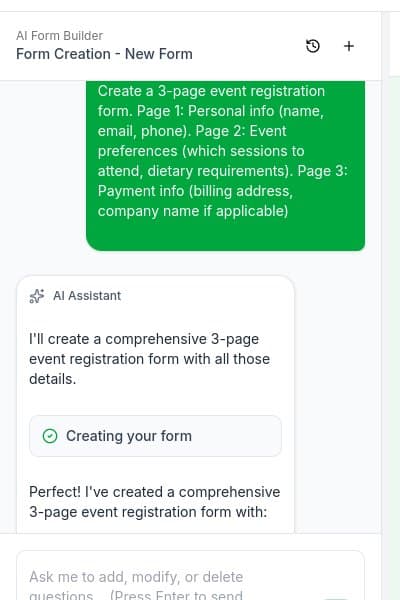
Example prompt:
Create a 3-page event registration form.
Page 1: Personal info (name, email, phone).
Page 2: Event preferences (which sessions to attend, dietary requirements).
Page 3: Payment info (billing address, company name if applicable)
Review the generated form
The AI will create your multi-page form with:
- Progress indicator - Dots showing which page you're on
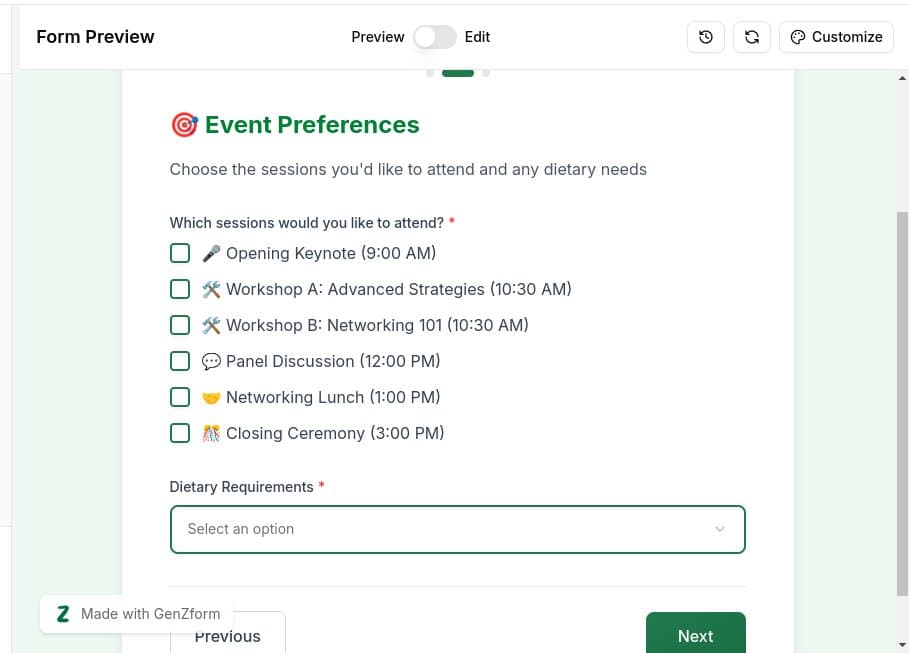
- Navigation buttons - Previous and Next buttons to move between pages
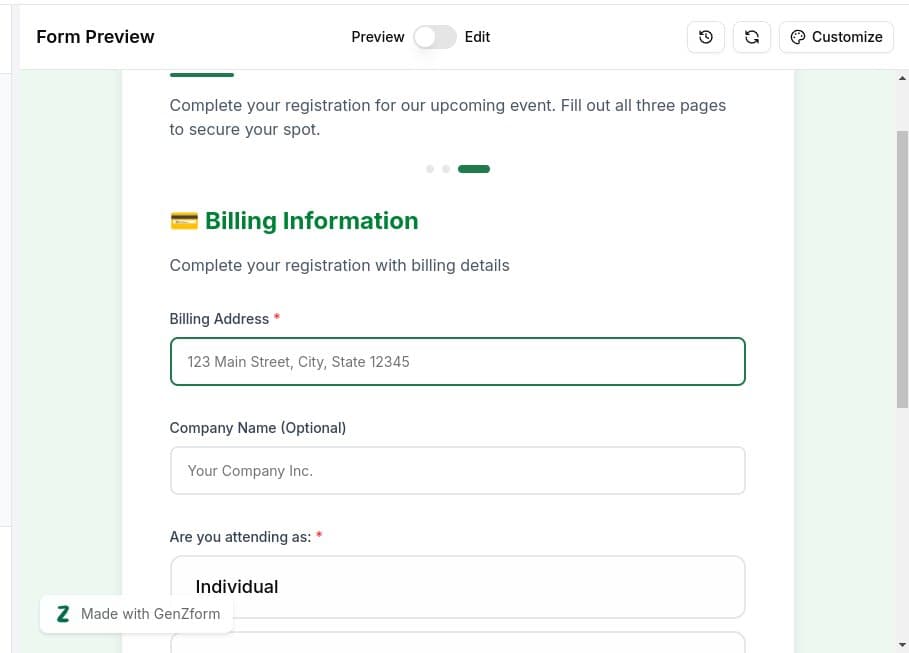
- Submit button - Appears only on the final page
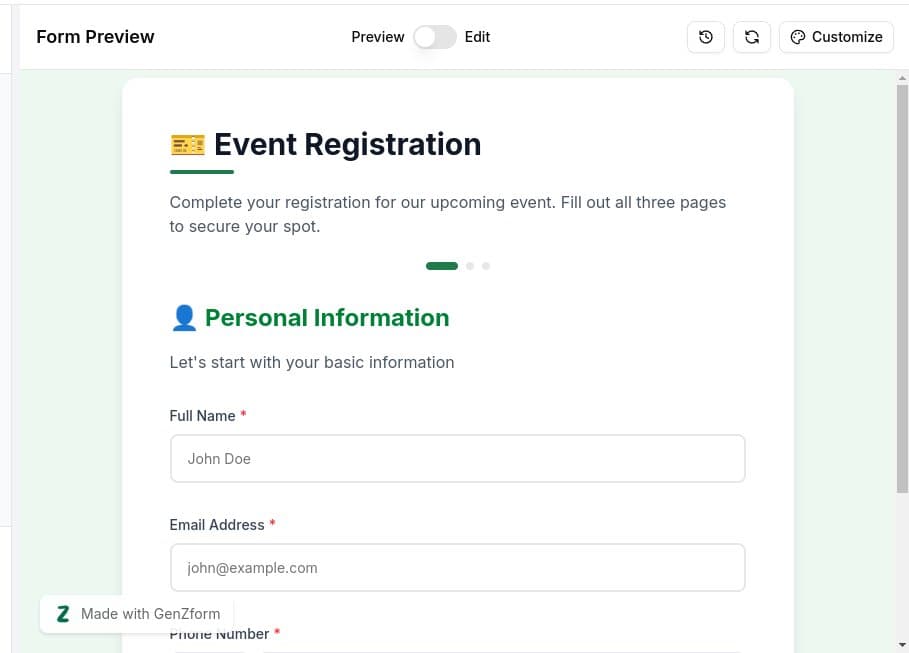
Test page navigation
Fill in the fields on each page and click Next to advance. Use Previous to go back and edit earlier responses.
Complete and submit
On the final page, respondents see a Submit button instead of Next to complete the form.
Multi-Page Form Features
Progress Indicator
The progress indicator appears at the top of the form showing:
- Which page the respondent is currently on (highlighted dot)
- Total number of pages
- Visual feedback on form completion progress
Navigation Buttons
| Button | Appears On | Action |
|---|---|---|
| Next | Pages 1 to n-1 | Advances to the next page after validation |
| Previous | Pages 2 to n | Returns to the previous page |
| Submit | Final page only | Submits the complete form |
Field Validation Per Page
Each page validates its required fields before allowing navigation to the next page. If a required field is empty, the respondent will see an error message and cannot proceed until it's filled.
Tips for Better Multi-Page Forms
Group Related Fields Together
Organize your pages by topic or category:
- Page 1: Contact information (name, email, phone)
- Page 2: Preferences and selections
- Page 3: Additional details and confirmation
Keep Pages Balanced
Aim for 3-5 fields per page. Too many pages with single fields can feel tedious, while too many fields per page defeats the purpose of multi-page forms.
Use Descriptive Page Titles
Each page should have a clear heading that tells respondents what information is being collected:
- "Personal Information"
- "Event Preferences"
- "Billing Details"
Consider Progress Psychology
Place easier questions on the first page to build momentum. Save more complex or sensitive questions for later pages when respondents are already invested.
Modifying Multi-Page Forms
You can easily modify your multi-page form using the AI chat:
- Add a page: "Add a new page for emergency contact information"
- Move fields: "Move the phone number field to page 2"
- Remove a page: "Combine pages 2 and 3 into a single page"
- Reorder pages: "Make the preferences page come before personal info"
Multi-Page Forms FAQ
Can respondents save and continue later?
Currently, forms don't save progress between sessions. If a respondent closes the browser, they'll need to start over. For very long forms, consider using fewer pages or required fields.
Can I show different pages based on responses?
Yes! You can use conditional logic to skip pages or show different pages based on earlier answers. Ask the AI: "Show page 3 only if they selected 'Corporate' on page 2."
How many pages can I have?
There's no hard limit on pages, but we recommend keeping forms to 3-5 pages for the best completion rates. Very long forms tend to have higher abandonment.
Can I customize the navigation button text?
No, the navigation button labels (Next, Previous, Submit) are fixed and cannot be customized.
Need More Help?
If you need help creating multi-page forms, please contact our support team. We're here to help!