
Add Background Images
Learn how to add custom background images or choose from pre-designed patterns to make your forms visually appealing.
Background images can transform a plain form into an engaging visual experience. GenZform offers two ways to add backgrounds: upload your own custom image or choose from pre-designed patterns.
Background images work best with the Classic and Focused templates. Choose images that complement your form content without distracting from it.
How to Add a Background Image
Open your form in the editor
Go to your dashboard and click on the form you want to customize.
Open the Customize panel
Click the Customize button in the top right corner of the form preview panel.
Find the Background options
Scroll down to the Branding section. Below the Logo upload area, you'll see the Background options with two buttons.
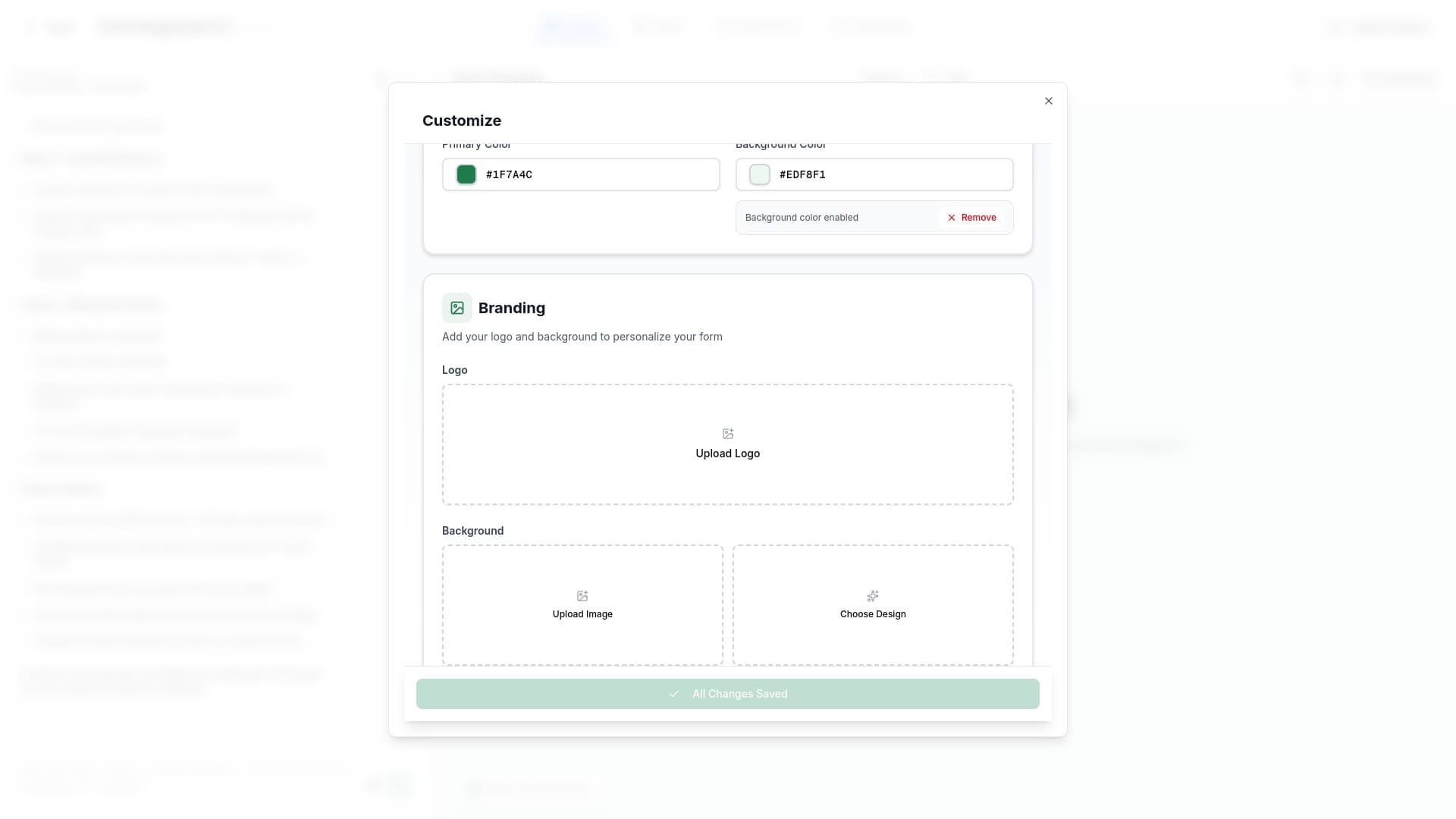
Choose your background method
Select one of the two options:
- Upload Image - Use your own custom background image
- Choose Design - Select from pre-made background patterns
Preview your form
The form preview updates automatically to show your new background. Make sure text and form fields remain readable.
Background Options
Upload Your Own Image
Click Upload Image to use your own background:
- Select an image file from your computer
- Supported formats: PNG, JPG
- Recommended resolution: 1920x1080 pixels or larger
- The image will be scaled to fit the form container
Choose from Pre-Made Designs
Click Choose Design to browse our collection of professionally designed backgrounds:
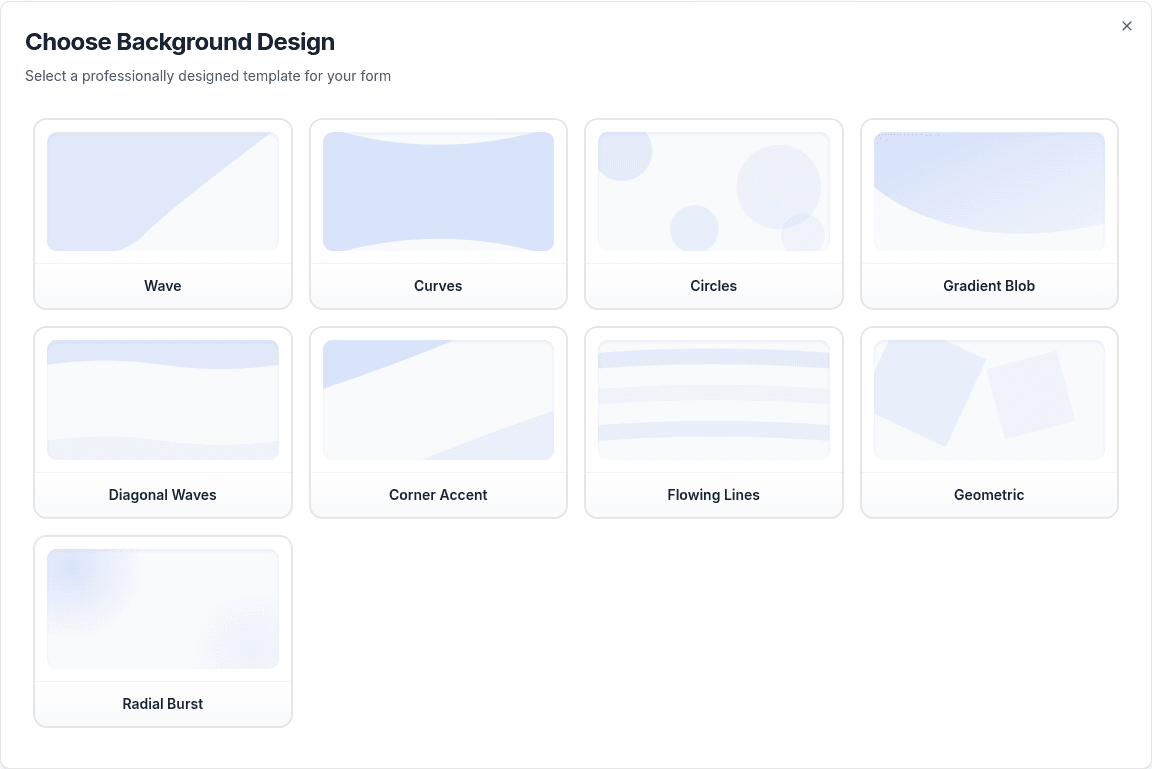
Choose from 9 unique designs including Wave, Curves, Circles, Gradient Blob, Diagonal Waves, Corner Accent, Flowing Lines, Geometric, and Radial Burst. These designs are optimized to ensure your form content remains readable and automatically adapt to your form's color theme.
Best Practices for Background Images
Contrast and Readability
- Ensure sufficient contrast between the background and form fields
- Light backgrounds work well with dark text
- Avoid busy patterns that compete with form content
- Test your form on different screen sizes
Image Quality
- Use high-resolution images (at least 1920x1080 pixels)
- Compress images to reduce file size without losing quality
- Consider how the image will appear on mobile devices
Design Considerations
- Choose images that align with your brand
- Subtle, muted backgrounds work best for professional forms
- Avoid images with faces or text that may distract respondents
- Consider seasonal or event-specific backgrounds for special occasions
Removing a Background
To remove your background image:
- Open the Customize panel
- Scroll to the Branding section
- Look for the background preview
- Click Remove to restore the default background
Background Images FAQ
What image formats are supported for backgrounds?
GenZform supports PNG and JPG formats for background images.
What's the recommended image size?
Use images at least 1920x1080 pixels for best results. Larger images will be automatically scaled to fit the form container.
Can I use different backgrounds for different form pages?
Currently, the background applies to the entire form across all pages. For different visual treatments per section, consider using content blocks with different styling.
Will the background affect form loading speed?
Large image files can slow down form loading. We recommend keeping background images under 1MB for optimal performance.
Can I use a video as a background?
Video backgrounds are not currently supported. You can use static images or choose from our pre-designed patterns.
Need More Help?
If you need help with background images, please contact our support team. We're here to help!