
Embed in Framer
Add GenZform forms to your Framer website using the Embed component or custom code for standard, popup, and full page layouts.
Framer's Embed component makes it easy to add GenZform forms to your site with live preview in the editor. This guide covers standard embeds, popup forms, and full page layouts.
Standard Embed (URL)
The quickest way to add a form is using the URL embed:
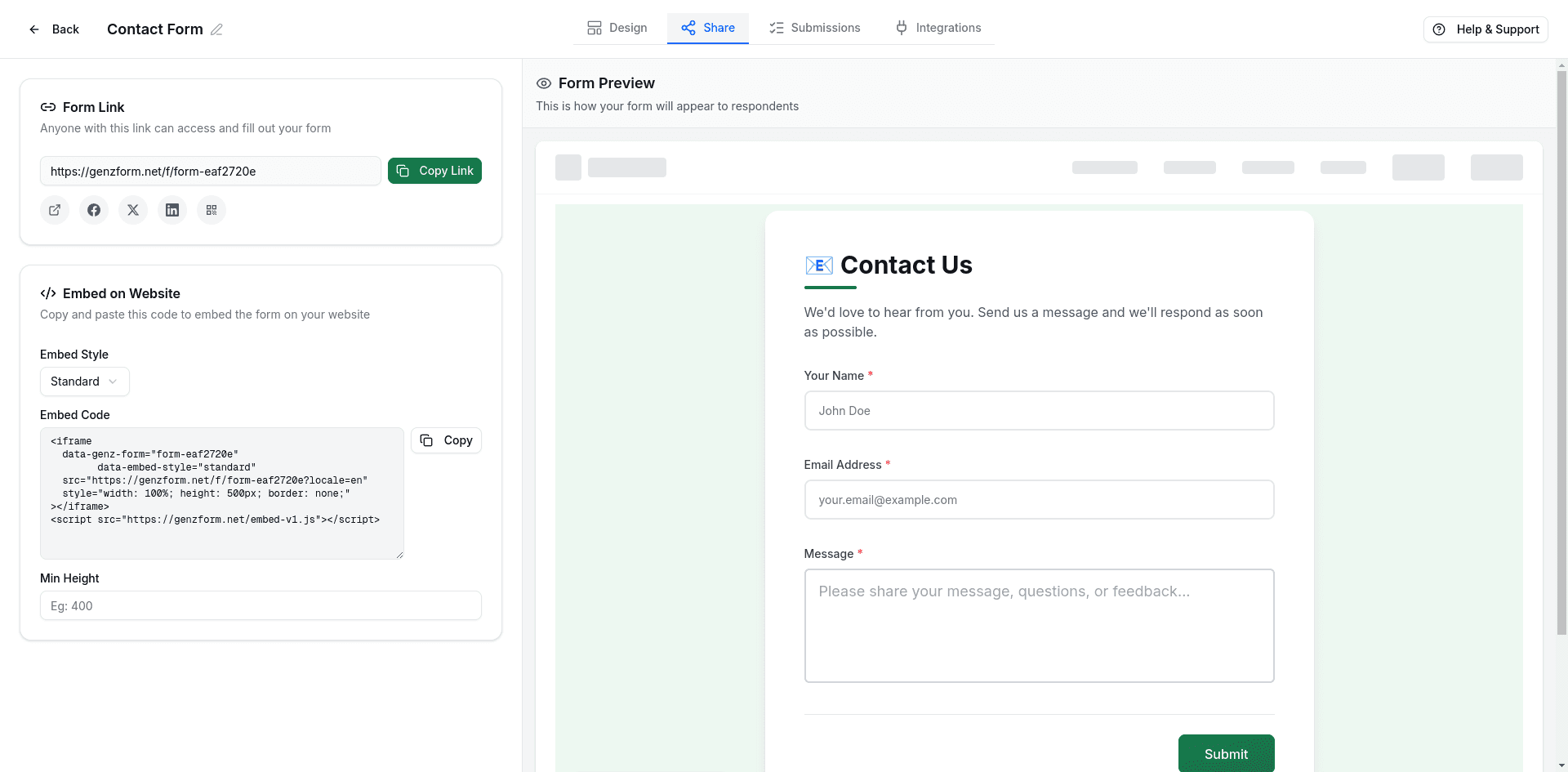
Copy your form URL
- Open your form in the GenZform dashboard
- Go to the Share tab
- Copy the form link:
https://genzform.com/f/YOUR_FORM_ID
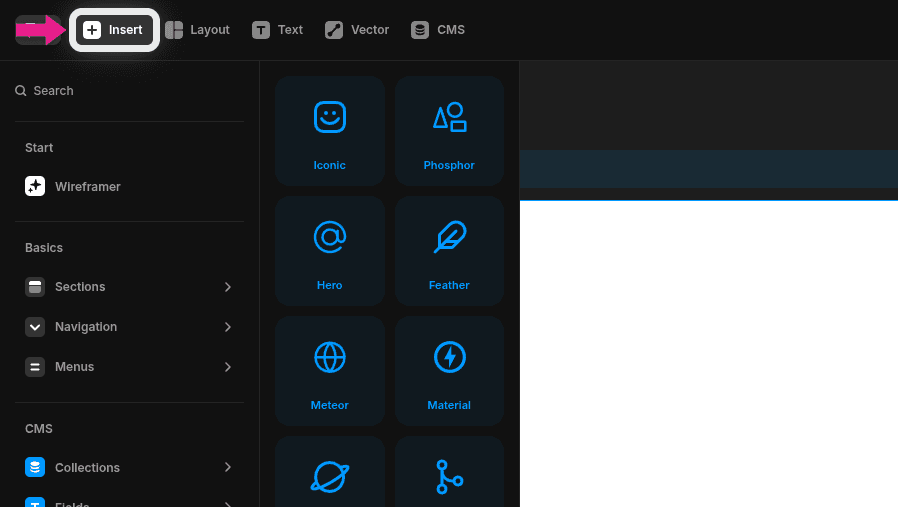
Open the Insert panel
In the Framer editor, click the Insert button in the top toolbar.
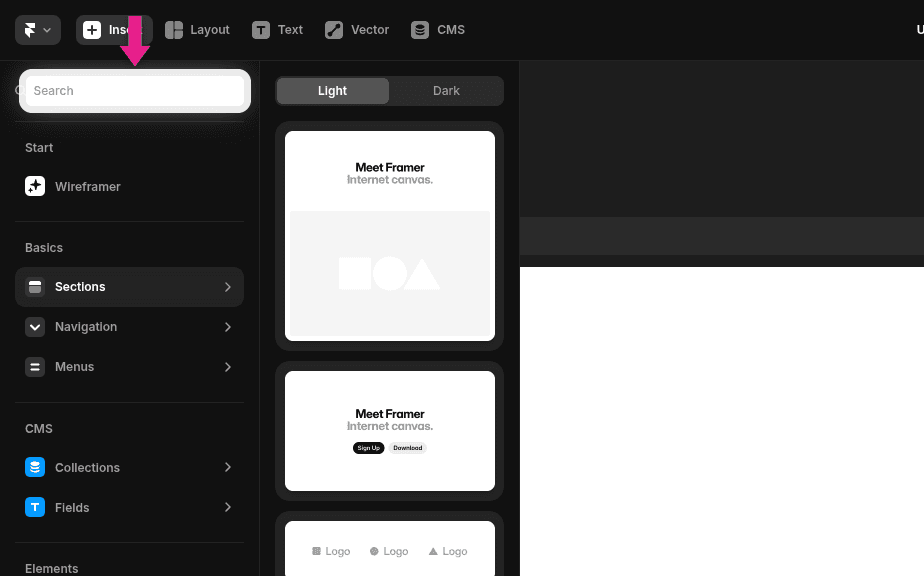
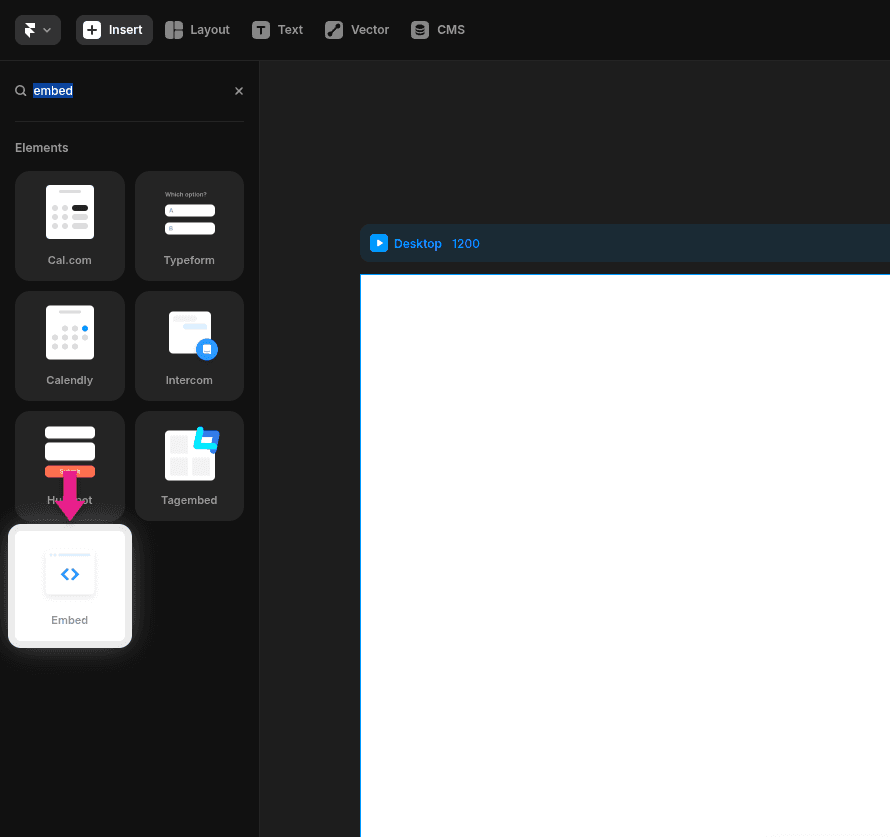
Search for Embed
In the search bar, type embed to find the Embed component. Click the Embed element to add it to your canvas.
Paste your embed code
In the Embed settings panel on the right, paste your GenZform embed code.
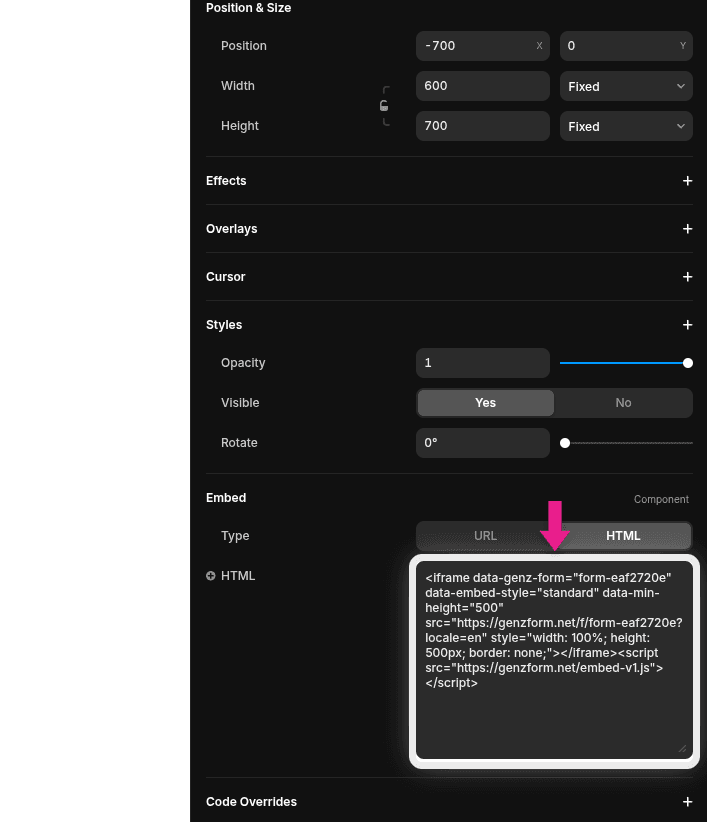
Resize and style
Drag the corners to resize the embed. Set width to 100% for responsive sizing and adjust the height (500-600px works well for most forms).
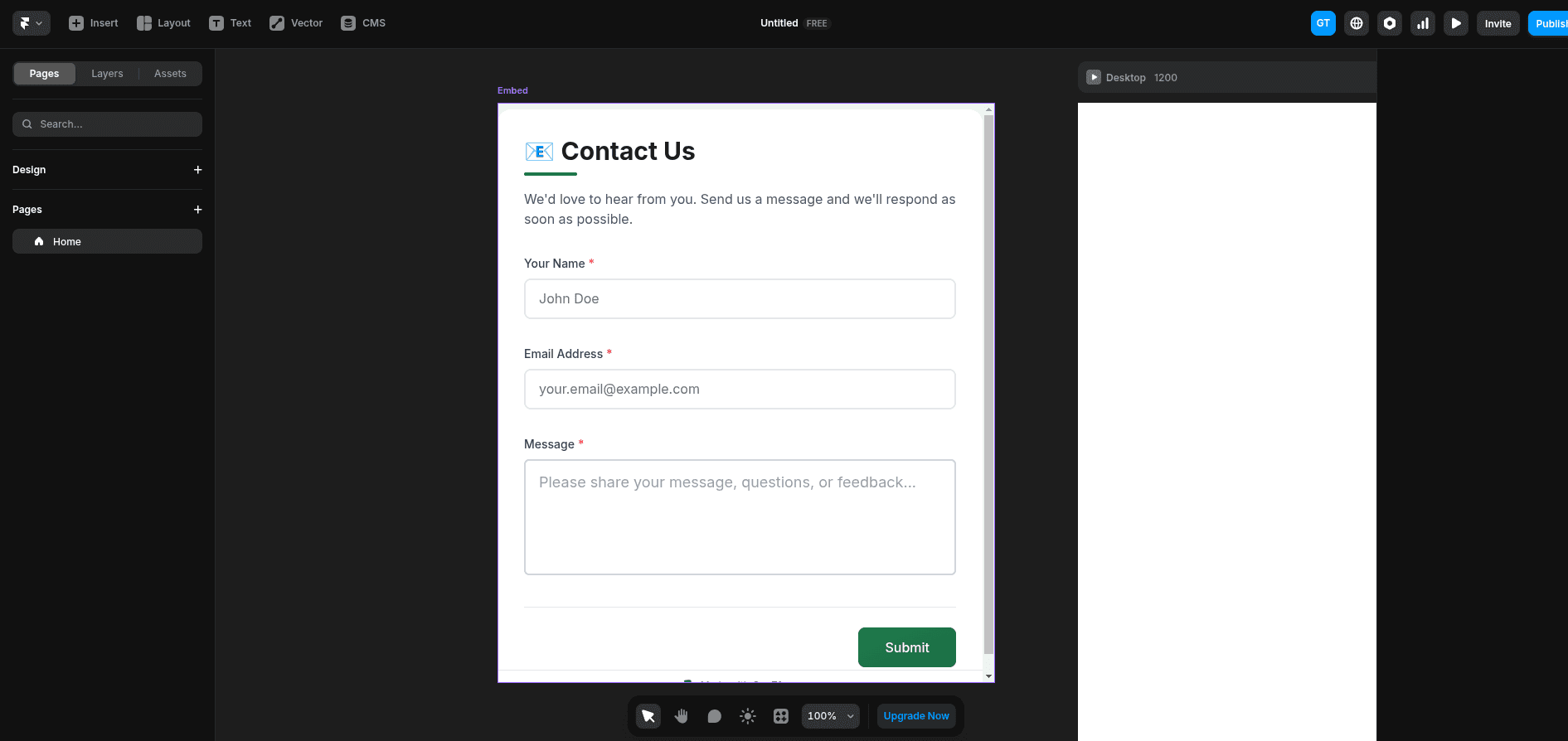
Framer shows a live preview of the form right in the editor.
Standard Embed (HTML)
For more control and auto-height adjustment, use an HTML embed:
- Press / and search for HTML or go to Insert → HTML
- Paste the full embed code:
<iframe
  data-genz-form="YOUR_FORM_ID"
  data-embed-style="standard"
  data-min-height="500"
  src="https://genzform.com/f/YOUR_FORM_ID"
  style="width: 100%; height: 500px; border: none;"
></iframe>
<script src="https://genzform.com/embed-v1.js"></script>- Resize the HTML container as needed
The data-min-height attribute ensures the form has a minimum height while the script handles auto-resizing.
Popup Embed
Add a button that opens your form in a modal overlay:
- Add an HTML component
- Paste the popup embed code:
<button
  data-genz-form="YOUR_FORM_ID"
  data-embed-style="popup"
  data-width="450"
  data-dark-overlay="true"
  style="background: #22c55e; color: white; padding: 14px 28px; border: none; border-radius: 8px; cursor: pointer; font-size: 16px; font-weight: 500;"
>Get Started</button>
<script src="https://genzform.com/embed-v1.js"></script>- Position the HTML component where you want the button
Using Framer's Button Component
To use Framer's styled button with the popup:
- Create a Framer button with your desired styling
- Add a Code Override to the button:
import type { ComponentType } from "react"

export function withPopup(Component): ComponentType {
    return (props) => {
        return (
            <Component
                {...props}
                data-genz-form="YOUR_FORM_ID"
                data-embed-style="popup"
                data-width="450"
                data-dark-overlay="true"
            />
        )
    }
}- Apply the override to your button
- Add the script in Site Settings → Custom Code → End of
<body>tag:
<script src="https://genzform.com/embed-v1.js"></script>Popup Options
| Option | Description |
|---|---|
data-width | Width of the popup in pixels (default: 450) |
data-dark-overlay | Show dark background behind popup (true or false) |
data-popup-open-on-load | Auto-open popup when page loads (true or false) |
data-popup-delay | Delay in milliseconds before auto-opening |
Full Page Form
For a dedicated form page that fills the viewport:
- Create a new page in Framer
- Remove any default frames/sections
- Add an HTML component and set it to fill the page
- Paste the full page embed:
<iframe
  data-genz-form="YOUR_FORM_ID"
  data-embed-style="full_page"
  src="https://genzform.com/f/YOUR_FORM_ID"
  style="width: 100vw; height: 100vh; border: none; position: fixed; top: 0; left: 0;"
></iframe>
<script src="https://genzform.com/embed-v1.js"></script>- In Page Settings, consider hiding the navigation for this page
Responsive Design
Framer's responsive features work with GenZform embeds:
- Breakpoints - Set different embed sizes for desktop, tablet, and mobile
- Width - Use 100% width and the form will adapt
- Height - Set appropriate heights per breakpoint (forms may need more height on mobile)
For the HTML embed with auto-height:
<iframe
  data-genz-form="YOUR_FORM_ID"
  data-embed-style="standard"
  data-min-height="400"
  src="https://genzform.com/f/YOUR_FORM_ID"
  style="width: 100%; height: 500px; border: none;"
></iframe>
<script src="https://genzform.com/embed-v1.js"></script>
The script will auto-adjust the height based on form content.
Site-Wide Custom Code
To add the GenZform script once for your entire site:
- Go to Site Settings (gear icon)
- Select Custom Code
- In End of
<body>tag, add:
<script src="https://genzform.com/embed-v1.js"></script>Now you can add embeds without including the script tag each time:
<iframe
  data-genz-form="YOUR_FORM_ID"
  data-embed-style="standard"
  src="https://genzform.com/f/YOUR_FORM_ID"
  style="width: 100%; height: 500px; border: none;"
></iframe>
Frequently Asked Questions
Can I see the form in the Framer editor?
Yes. Framer's URL embed shows a live preview of the form. HTML embeds show a placeholder in the editor but render fully on the published site.
How do I make the form responsive?
Set the embed width to 100% in Framer and adjust the height for each breakpoint. The GenZform script handles auto-height adjustment on the published site.
Can I use Framer interactions with the form?
The form content is in an iframe, so Framer interactions can control the iframe container (show/hide, animate in) but not the form content itself. Use popup embeds for reveal interactions.
How do I match the form to my Framer design?
Use the Customize tab in the GenZform editor to adjust colors, fonts, and styles to match your Framer site's design system.