
Embed in WordPress
Add GenZform forms to your WordPress website using HTML blocks, the Classic Editor, or popular page builders like Elementor and Divi.
GenZform integrates with WordPress through HTML embed codes. You can add forms to posts, pages, or widgets using the block editor, Classic Editor, or page builders.
Block Editor (Gutenberg)
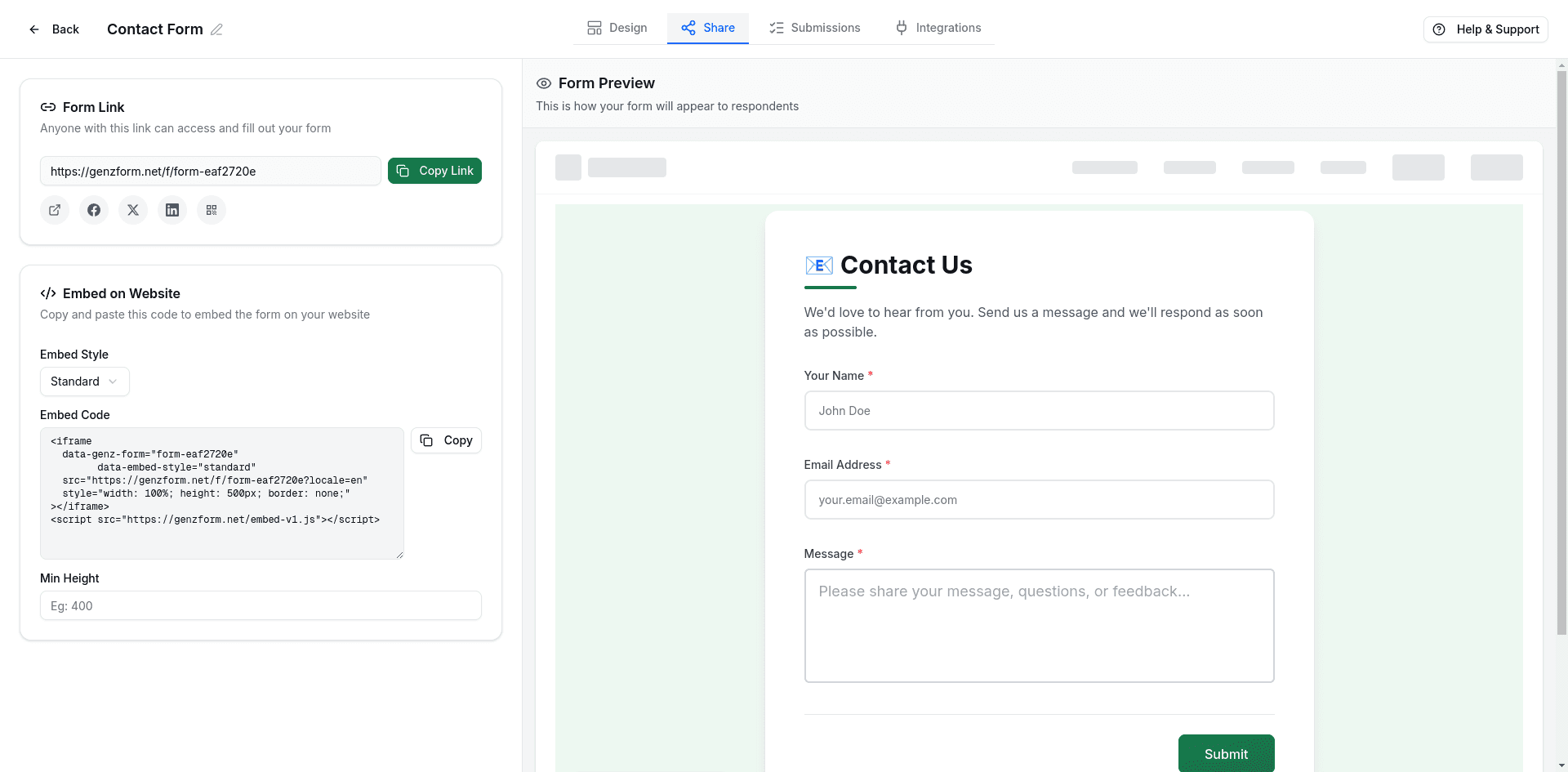
Get your embed code
- Open your form in the GenZform dashboard
- Go to the Share tab
- Select your embed style (Standard, Popup, or Full Page)
- Click Copy to copy the embed code
Add a Custom HTML block
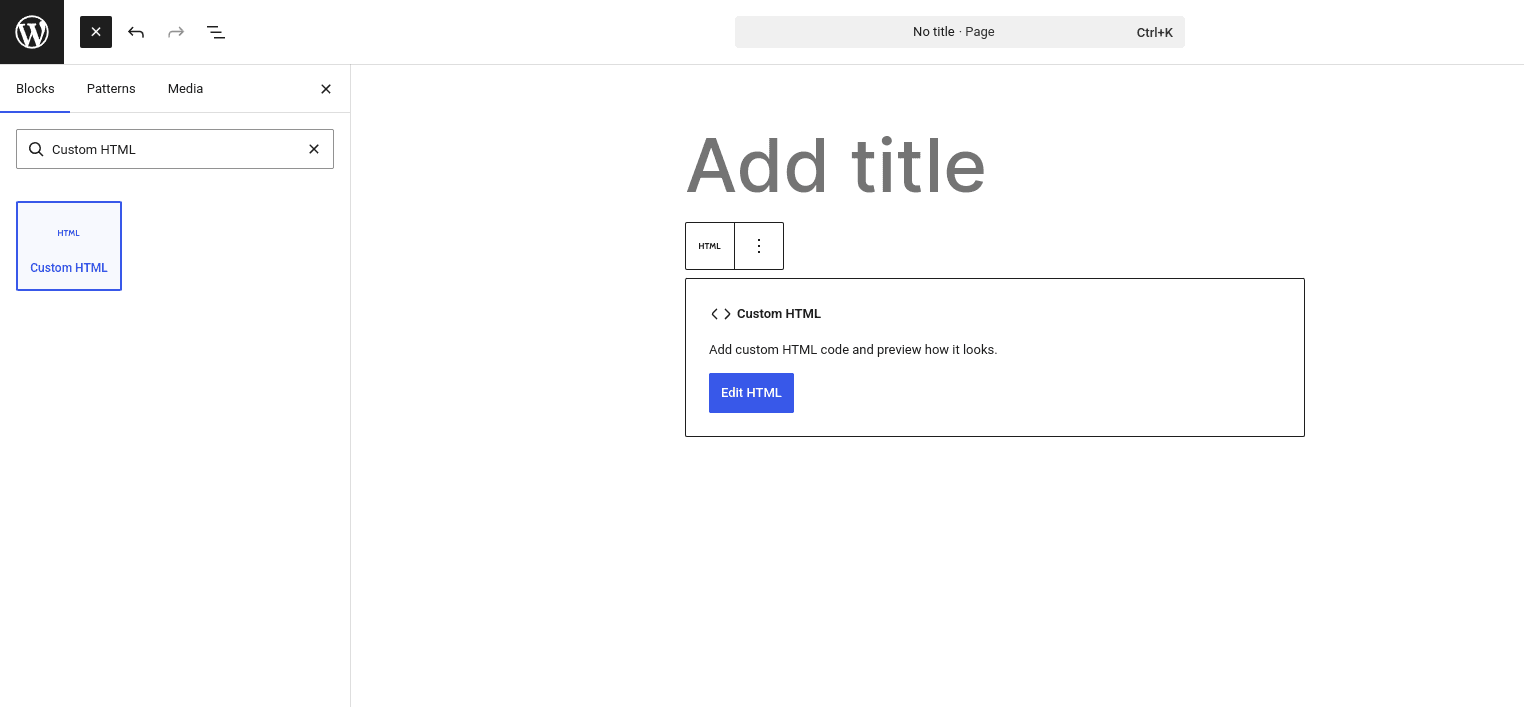
In the WordPress editor, click the + button to add a new block. Search for Custom HTML and select it.
Paste the embed code
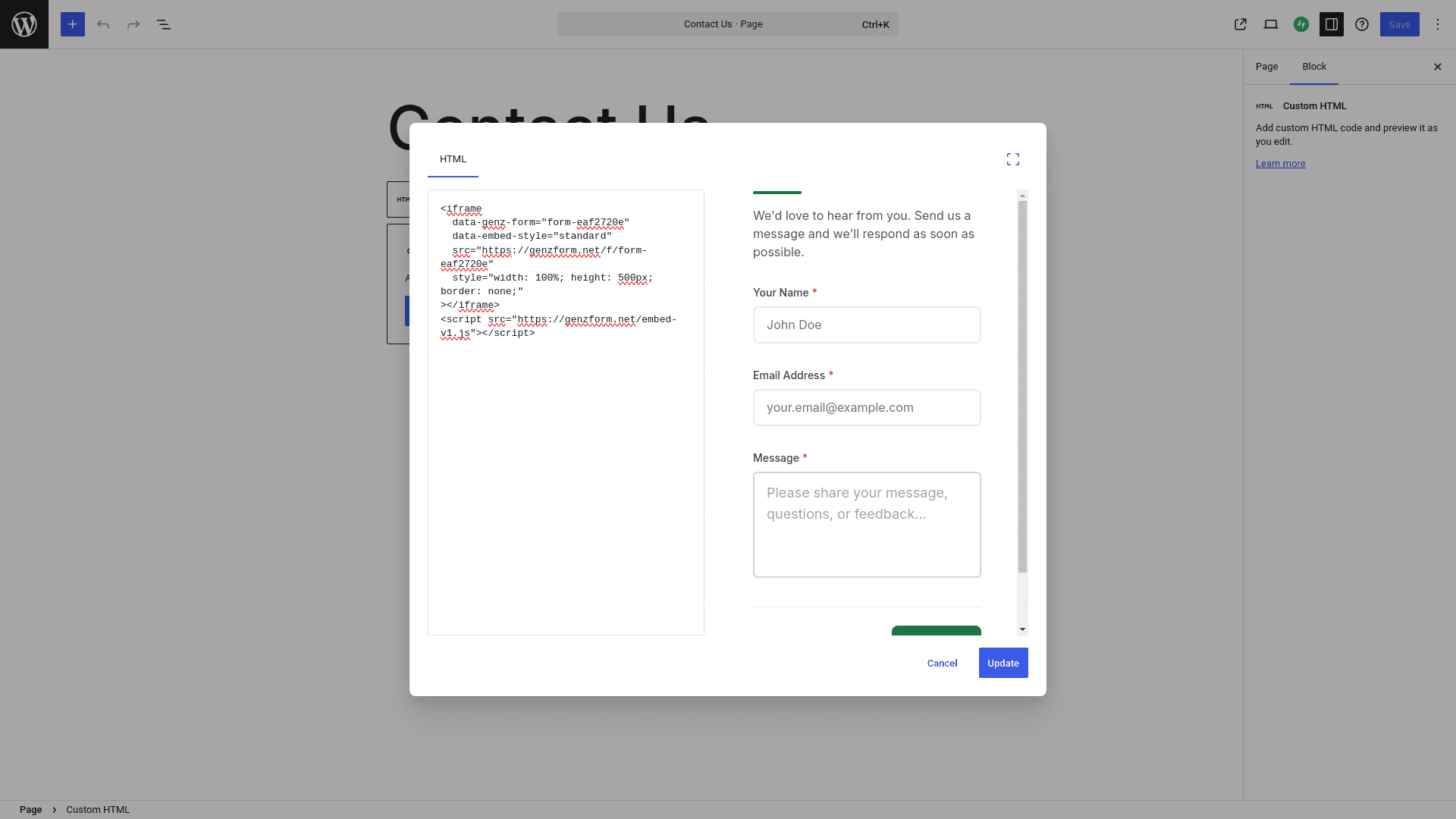
Paste your GenZform embed code into the Custom HTML block. The code includes both the iframe/button element and the required script tag.
Preview and publish
Click Preview to see your form in action, then Publish or Update your page.
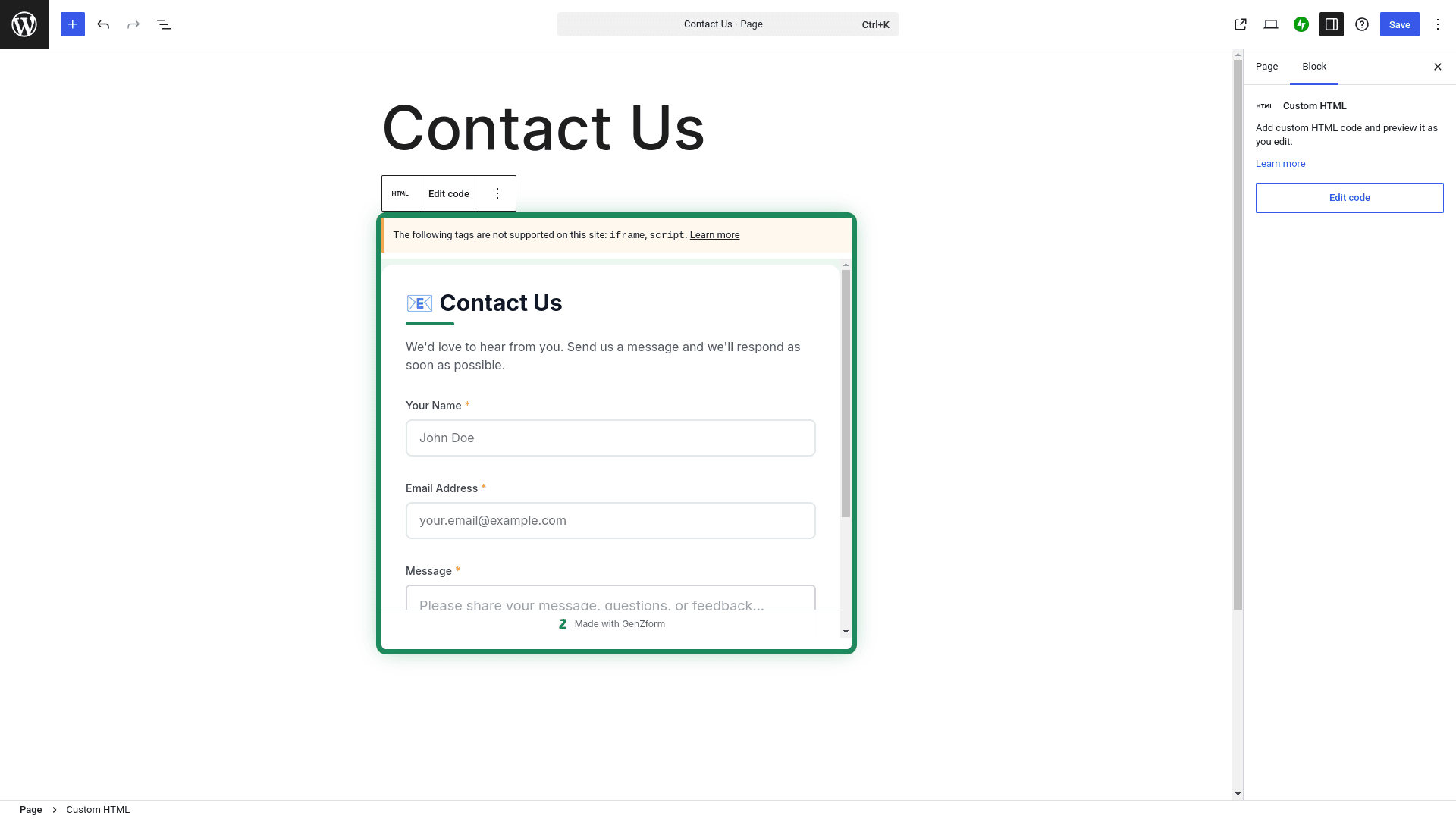
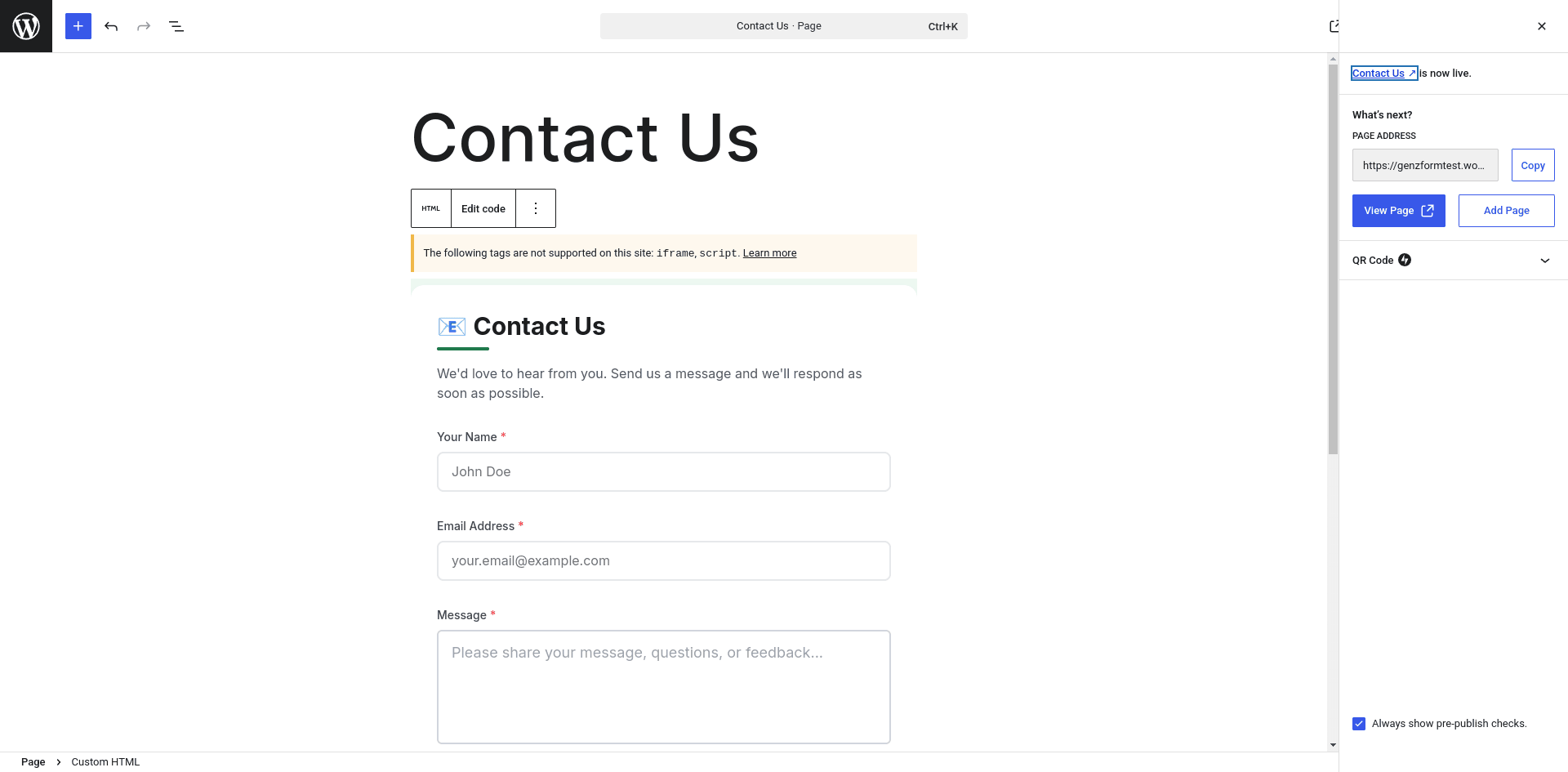
The form won't display in the editor preview—you'll see the raw HTML code. Use the page preview or view the published page to see the actual form.
Classic Editor
If you're using the Classic Editor:
- Switch to the Text tab (not Visual)
- Paste your GenZform embed code where you want the form to appear
- Switch back to Visual to continue editing (the form will appear as a placeholder)
- Click Update or Publish
Page Builders
Elementor
- Drag an HTML widget onto your page
- Paste the GenZform embed code into the HTML content area
- Save your changes
Divi
- Add a Code module to your page
- Paste the GenZform embed code in the content field
- Save and exit the builder
WPBakery (Visual Composer)
- Add a Raw HTML element to your page
- Paste the embed code into the element
- Save your changes
Beaver Builder
- Add an HTML module to your layout
- Paste the embed code into the HTML field
- Save and publish
Embed Code Examples
Standard Embed
<iframe
  data-genz-form="YOUR_FORM_ID"
  data-embed-style="standard"
  src="https://genzform.com/f/YOUR_FORM_ID"
  style="width: 100%; height: 500px; border: none;"
></iframe>
<script src="https://genzform.com/embed-v1.js"></script>
Popup Embed
<button
  data-genz-form="YOUR_FORM_ID"
  data-embed-style="popup"
  data-dark-overlay="true"
  class="wp-block-button__link"
>Open Form</button>
<script src="https://genzform.com/embed-v1.js"></script>
Add the wp-block-button__link class to your popup button to inherit your theme's button styles.
Adding Forms to Widget Areas
To add a form to a sidebar, footer, or other widget area:
- Go to Appearance > Widgets in your WordPress admin
- Add a Custom HTML widget to your desired area
- Paste your GenZform embed code
- Save the widget
Troubleshooting
Why doesn't my form appear in the editor preview?
WordPress block editor doesn't render iframes in edit mode. Use the page preview (Preview button) or view the published page to see your form.
The form looks cut off or too small
Adjust the height value in the iframe style, or set data-min-height to ensure a minimum height. Example: data-min-height="600"
Can I use popup forms with WordPress buttons?
Yes. Style the popup button using WordPress button classes or your own CSS. The data-genz-form and data-embed-style="popup" attributes work on any button element.
Does it work with caching plugins?
Yes. The embed uses client-side JavaScript, so it works with all WordPress caching plugins. If you experience issues, exclude the page from caching or clear your cache after adding the form.