
Column Layout
Learn how to use column layouts in GenZform to arrange form fields side by side.
Column layouts let you arrange multiple form fields side by side instead of stacking them vertically. This creates a more compact form and can group related fields visually.

When to Use Column Layouts
Column layouts work well for:
- First name / Last name side by side
- City / State / Zip code in a row
- Start date / End date together
- Related short fields
- Creating more compact forms
Column layouts automatically stack vertically on mobile devices to ensure a good experience on small screens.
How to Add Column Layouts
Ask the AI in the chat panel:
Example prompts:
- "Put first name and last name side by side"
- "Arrange city, state, and zip code in columns"
- "Put the start date and end date next to each other"
- "Create a 2-column layout for contact details"
Using the Manual Editor for Column Layouts
You can also create column layouts manually using drag and drop in the form editor's Edit mode.
Creating a Column
- Switch to Edit mode using the Preview/Edit toggle in the form preview panel
- Drag one field onto another field - this creates a column with both fields side by side
- The fields will automatically share the available width equally
Adding More Fields to a Column
To add a third field to an existing column:
- Drag another field into the column area
- The new field will be added to the column, and all fields will share the width equally
Reordering Fields Within a Column
To change the order of fields within a column:
- Drag a field within the column to a new position
- Drop it in the desired location
Removing a Field from a Column
When you click on a column, an opt-out button (a circular button with an icon) appears at the top of the column. Click this button to remove a field from the column and return it to a standard vertical layout.
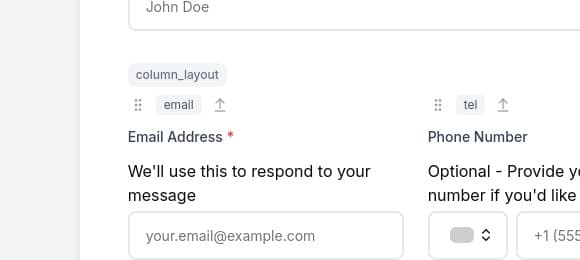
The manual editor gives you precise control over field arrangement. Use it when you want to fine-tune your column layouts beyond what AI prompts can achieve.
Layout Options
| Layout | Description | Best For |
|---|---|---|
| 2 columns | Two fields side by side | Name fields, dates |
| 3 columns | Three fields in a row | Address (city, state, zip) |
Customization Options
Two Columns (Equal)
"Put first name and last name in two equal columns"Three Columns
"Arrange city, state, and zip in three columns"Grouping Fields
"Group all address fields in a column layout"Common Use Cases
Name Fields
┌─────────────────┬─────────────────┐
│ First Name      │ Last Name       │
└─────────────────┴─────────────────┘
Address Section
┌───────────────┬─────────┬────────┐
│ City          │ State   │ ZIP    │
└───────────────┴─────────┴────────┘
Date Range
┌─────────────────┬─────────────────┐
│ Start Date      │ End Date        │
└─────────────────┴─────────────────┘
Frequently Asked Questions
What happens on mobile devices?
Column layouts automatically stack vertically on mobile screens to maintain usability.
Can I have different column widths?
Yes! Ask: "Make the first column wider" or specify ratios like "2:1 column ratio."
How many columns can I have?
We recommend 2-3 columns maximum. More columns become hard to use on smaller screens.