
Date Field
Learn how to use date picker fields in GenZform for collecting dates like birthdays, event dates, and deadlines.
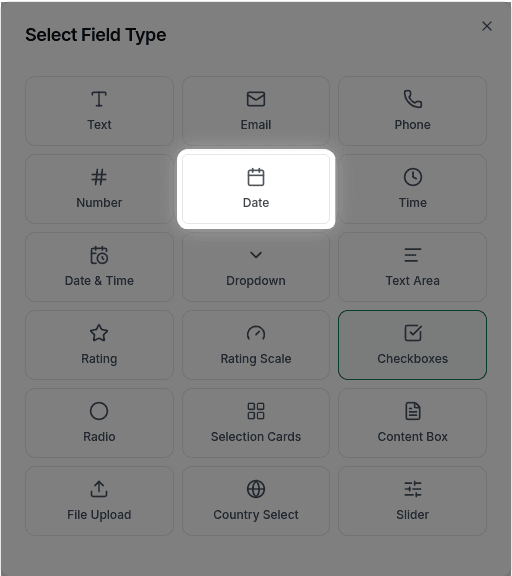
The date field provides a date picker interface for users to select dates easily. It's more user-friendly than typing dates manually and ensures consistent date formats.
When to Use Date Fields
Date fields are ideal for:
- Birth dates
- Event dates
- Appointment scheduling
- Deadlines and due dates
- Start and end dates
- Any date selection
Need both date and time? Use a Date & Time Field instead.
How to Add a Date Field
Ask the AI in the chat panel:
Example prompts:
- "Add a date picker for birth date"
- "Include an event date field"
- "Add a date field for the appointment"
- "Create start date and end date fields"
Date Field Properties
| Property | Description | Example |
|---|---|---|
| Label | The text shown above the field | "Event Date" |
| Placeholder | Hint text | "Select a date" |
| Required | Whether the field must be filled | Yes/No |
Customization Options
Making it Required
"Make the event date field required"Custom Placeholder
"Set the date placeholder to 'Pick a date'"Frequently Asked Questions
Can I restrict the date range (min/max)?
No, min/max date restrictions are not currently supported. The date picker allows users to select any date.
What format is the date saved in?
Dates are saved in a standard format (ISO 8601). Custom date display formats (like DD/MM/YYYY or MM-DD-YYYY) are not currently supported.
Can I customize the date format display?
Custom date or time format display is not currently available. The date picker uses the browser's default format.