
Date & Time Field
Learn how to use combined date and time picker fields in GenZform for scheduling appointments and events.
The date & time field combines both a date picker and time picker into a single field. It's perfect when you need users to select both a specific date and time.
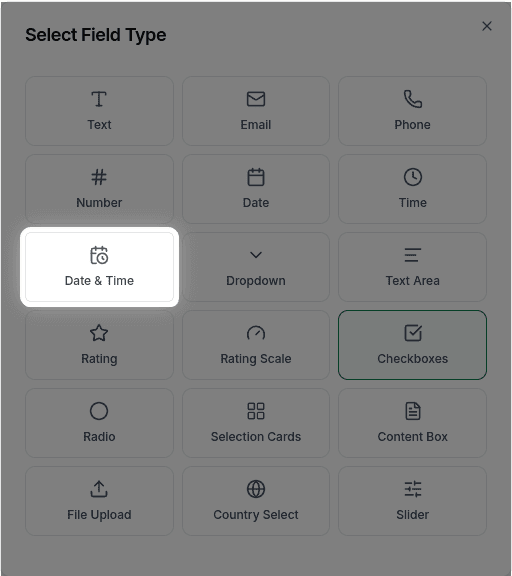
When to Use Date & Time Fields
Date & time fields are ideal for:
- Appointment scheduling
- Meeting bookings
- Event registration with specific times
- Deadlines with time
- Delivery scheduling
If you only need a date or only need a time, use the separate Date Field or Time Field instead.
How to Add a Date & Time Field
Ask the AI in the chat panel:
Example prompts:
- "Add a date and time picker for the appointment"
- "Include a meeting datetime field"
- "Add a field to select event date and time"
- "Create an appointment scheduler with date and time"
Date & Time Field Properties
| Property | Description | Example |
|---|---|---|
| Label | The text shown above the field | "Appointment" |
| Required | Whether the field must be filled | Yes/No |
Customization Options
Making it Required
"Make the appointment field required"Frequently Asked Questions
Can I restrict the date or time range (min/max)?
No, min/max date and time restrictions are not currently supported. Users can select any date and time.
Can I set time intervals or exclude weekends?
Time intervals and weekend exclusion are not currently supported. The field allows free selection of any date and time.
What timezone is used?
Times are captured in the user's local timezone. The submission shows the selected date and time.