
Text Area
Learn how to use multi-line text area fields in GenZform for collecting longer responses like comments and feedback.
The text area (also called textarea or multi-line text field) is designed for collecting longer text responses that span multiple lines.
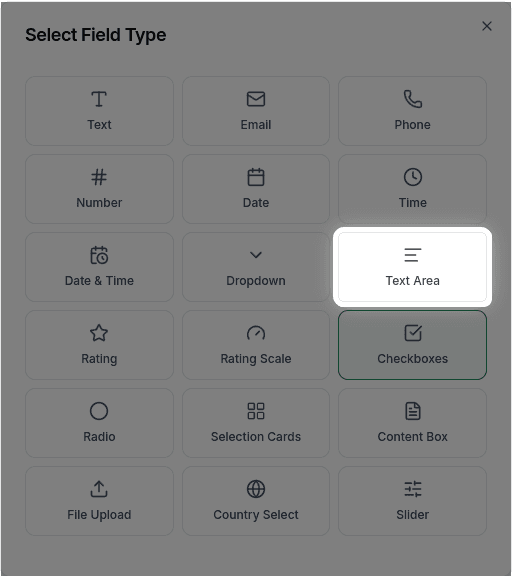
When to Use Text Areas
Text areas are perfect for:
- Comments and feedback
- Detailed descriptions
- Messages in contact forms
- Open-ended survey responses
- Notes and additional information
- Any response longer than a sentence
For short, single-line responses, use a Text Field instead.
How to Add a Text Area
Ask the AI in the chat panel:
Example prompts:
- "Add a message field for long text"
- "Include a comments section"
- "Add a textarea for feedback"
- "Create a multi-line description field"
Text Area Properties
| Property | Description | Example |
|---|---|---|
| Label | The text shown above the field | "Your Message" |
| Placeholder | Hint text inside the field | "Tell us more..." |
| Required | Whether the field must be filled | Yes/No |
| Rows | Initial visible height | 3, 5, 10 rows |
Customization Options
Setting Height
"Make the message field 5 rows tall"Character Limit
"Limit the feedback field to 500 characters"Show Character Count
"Show remaining characters for the message field"Placeholder Text
"Set the placeholder to 'Share your thoughts with us...'"Frequently Asked Questions
What's the difference between text field and text area?
A text field is single-line for short responses (names, titles). A text area is multi-line for longer responses (messages, descriptions).
Is there a character limit?
By default, there's no limit. You can add one: "Limit to 1000 characters" or "Show character count with 500 max."
Does the text area resize as users type?
Text areas have a fixed height and display a scrollbar when content exceeds the visible area. They do not auto-expand.