
Text Field
Learn how to use text input fields in GenZform for collecting short text responses like names and titles.
The text field is one of the most common form elements. It's perfect for collecting short, single-line text responses from your users.
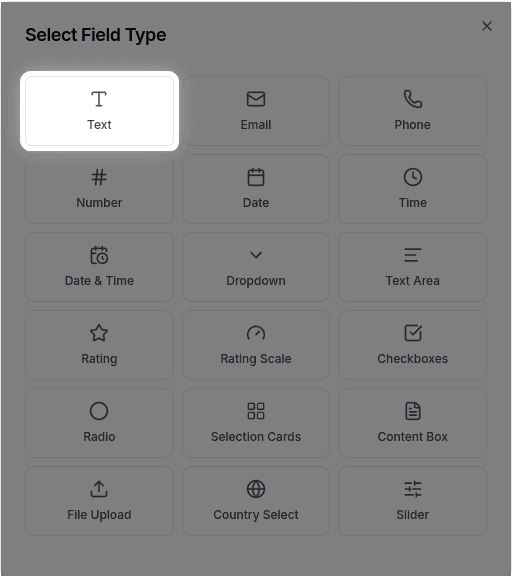
When to Use Text Fields
Text fields work best for:
- Names (first name, last name, full name)
- Titles and headings
- Short answers (under 100 characters)
- Single-line responses
For longer responses like comments or descriptions, use a Text Area instead.
How to Add a Text Field
Simply ask the AI in the chat panel:
Example prompts:
- "Add a text field for the user's name"
- "Include a first name and last name field"
- "Add a required text field for company name"
- "Create a text input for the job title"
Text Field Properties
| Property | Description | Example |
|---|---|---|
| Label | The text shown above the field | "Full Name" |
| Placeholder | Hint text inside the field | "Enter your name" |
| Required | Whether the field must be filled | Yes/No |
Customization Options
Making it Required
"Make the name field required"Adding Placeholder Text
"Add placeholder 'John Doe' to the name field"Setting Character Limits
"Limit the text field to 50 characters"Adding Help Text
"Add help text 'Enter your legal name as it appears on your ID' below the name field"Frequently Asked Questions
What's the difference between text field and text area?
A text field is for single-line, short responses (like names). A text area is for multi-line, longer responses (like comments or descriptions).
Can I validate the text entered?
Yes! Ask the AI to add validation: "Only allow letters in the name field" or "Require at least 2 characters."
How do I use the entered text in other places?
You can reference field values using variables. See Form Variables for details.